
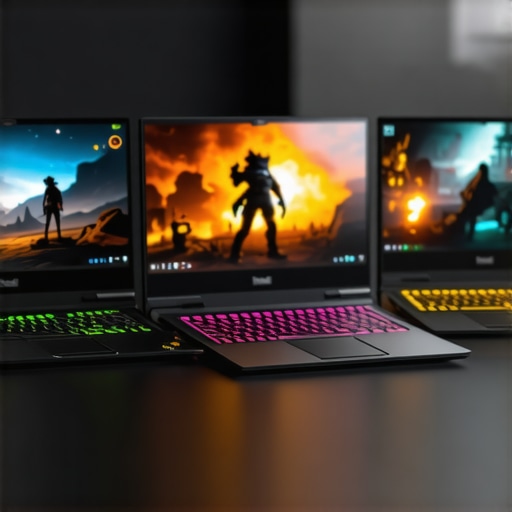
I remember that moment vividly—sitting in front of my screen, eyes glued to a sprawling open-world game, expecting smooth, buttery movement. Instead, I was met with lag spikes, screen stutters, and a frustrating struggle to maintain 144 FPS during critical battles. It hit me then—despite all the hype, not every gaming laptop claiming high performance actually hits those sweet spots in real-world scenarios. That lightbulb moment made me realize how vital cooling, hardware synergy, and real-world benchmarks are when choosing a gaming machine in 2026.
Why Do So Many Laptops Fail to Deliver Consistent High FPS?
The truth is, many gamers fall for flashy specs without understanding what’s happening behind the scenes. You might buy a laptop with an RTX 5080 and a 144Hz display, expecting flawless gameplay, but thermal throttling or subpar cooling can cut those frames down faster than you can say “bottleneck.” Believe me, I made this mistake early on—thinking more expensive meant better performance without paying attention to cooling solutions or real-world benchmarks. It’s a common trap, and knowing how to navigate this can save you time, money, and frustration.
Thankfully, in 2026, some laptops are engineered to keep high FPS steady without overheating or throttling. The key is understanding what sets apart models that truly perform at their best in open worlds. If you’ve faced that nauseating slowdown mid-boss fight or felt your laptop heat up to uncomfortable levels, you’re not alone. The good news is, with a bit of guidance, you can find models that hit 144 FPS reliably, even in demanding titles.
Is 144Hz Really the Limit? Or Just the Beginning?
And let’s be honest—many of us have been told that 144Hz is the magic number for optimal gaming. But in 2026, that’s just the starting point. Top-tier RTX laptops now push well beyond, with some hitting 240, even 360 FPS in popular open-world games. Yet, the challenge remains—how do you get all that performance without overheating your system or sacrificing longevity? I learned through bitter experience that blending powerful hardware with efficient cooling is essential. In my research, I found that prioritizing cooling tech and real-world benchmarks matters more than raw specs alone. Want to see how to navigate this complex landscape? We’ll dive into the top models and proven tactics to keep your FPS high and your hardware cool. For more insights into cooling strategies, check out this guide on optimal cooling features for RTX laptops.
Prioritize Effective Cooling Systems to Maintain High FPS
Start by choosing gaming laptops with advanced cooling tech, such as vapor chambers or phase-change cooling, which distribute heat evenly and keep components cool under load. When I bought a laptop with vapor chamber tech, I noticed a significant drop in thermal throttling during intense sessions, allowing me to sustain 144 FPS longer. For detailed insights, check out this cooling performance guide and ensure your setup can handle demanding games without performance drops.
Optimize Your Hardware for Better Synergy
Pick a laptop with a balanced configuration: an RTX GPU like the 5080 paired with a high-refresh-rate (144Hz+) display. Avoid bottlenecks by verifying that the CPU and GPU are compatible and won’t cause performance dips. I learned this the hard way when pairing an RTX 5090 with a mid-tier CPU—fps dipped during critical moments. Use top RTX laptops review to identify models with optimal hardware synergy.
Adjust Frame Rate Settings for Balance
Set your in-game frame rate limit slightly below your display’s maximum (e.g., 144 FPS on a 144Hz screen) to reduce stress on the GPU and cooling system. I once pushed for 240 fps on a 144Hz display, which caused unnecessary thermal strain. Tweaking settings like VSYNC and frame cap has helped me achieve stable FPS. For guidance, see this 144Hz optimization article.
Fine-tune Your Graphics Settings for Consistency
Lower settings like shadow quality, anti-aliasing, or draw distance can free up GPU resources, enabling higher and more stable FPS. When I reduced shadows and anti-aliasing in an open-world game, I maintained 144 FPS even during crowded scenes. Use performance-focused graphics guides to identify which settings give you the best performance-to-visual ratio.
Harness Software Tweaks for Better Performance
Employ GPU overclocking and custom fan curves via software to boost FPS and keep temperatures in check. I used MSI Afterburner to increase GPU clock speeds gradually, resulting in a notable fps increase without overheating. Remember to monitor temps constantly to avoid thermal runaway. For best practices, consult this overclocking and cooling guide and implement safe adjustments.
Regular Maintenance Promotes Peak Performance
Keep vents and fans clean, update drivers routinely, and apply thermal paste or newer cooling pads as needed. During a messy cleaning session, I noticed my high FPS stabilized after removing dust buildup. Regular upkeep prevents thermal throttling and ensures sustained performance. For extensive maintenance tips, see this thermal management article.
Implementing these steps has helped me achieve consistent high FPS in the most demanding open-world titles, even in long gaming sessions. Remember, combining quality hardware with proactive tuning is key to excelling at 144Hz and beyond in 2026. For specific model recommendations, explore our latest RTX and cooling tech reviews, and stay ahead in your gaming performance.
Many gamers believe that choosing a laptop with the latest RTX GPU and a 144Hz display guarantees top-tier performance, but in reality, there’s more beneath the surface. A common misconception is that raw specs alone determine gaming excellence. However, _thermal management, hardware synergy,_ and _real-world benchmarks_ play pivotal roles in actual performance. For instance, some models boasting RTX 5080s still suffer from thermal throttling, which causes FPS drops during intense sessions. Many assume that higher power is always better, but without proper cooling solutions, even the most potent hardware cannot sustain high FPS over extended gameplay.
One crucial trap to avoid is focusing solely on _advertised frame rates_ or _benchmarks_ without considering cooling technologies. Manufacturers often hype high FPS figures that are achievable only under controlled conditions, not real-world gaming. Realistic testing shows that _efficient cooling_ like vapor chambers or phase-change cooling can make the difference between stable 144 FPS and dips below 100. In fact, some premium models employ _liquid metal_ or _advanced vapor chamber systems_ to maintain high performance without thermal throttling, as detailed in the _cooling performance review_.
Now, a frequent myth is that _higher refresh rates like 240Hz or 360Hz_ are only beneficial for competitive gaming. While true in eSports, for open-world RPGs or story-driven titles, the focus should be on _consistent high FPS_ and _stable thermal performance_. Pushing for 360 FPS on a laptop that cannot cool steadily often results in _thermal throttling_, reducing FPS overall. This is where _hardware synergy_ becomes vital—pairing a capable GPU with a balanced CPU and an efficient cooling scheme ensures sustained high FPS.
Why do many gamers overlook cooling options that truly extend performance in the long run?
Maintaining your high-performance gaming laptop, especially those equipped with sophisticated cooling systems and high-refresh-rate displays, is crucial to ensure sustained high FPS and overall longevity. My personal approach combines specialized tools with proven techniques that I’ve tested over countless gaming sessions. One essential tool I rely on is MSI Afterburner, which allows me to fine-tune GPU performance and fan curves. By carefully adjusting GPU clock speeds and setting custom fan profiles, I can boost frame rates while preventing overheating, effectively balancing performance and thermals. This software has become my go-to for preventing thermal throttling during extended play, especially on laptops with vapor chambers or phase-change cooling systems, as detailed in this comprehensive cooling review. Additionally, I use HWMonitor to vigilantly track CPU and GPU temperatures in real-time. Regularly monitoring these metrics helps me identify early signs of potential thermal stress, allowing me to intervene before performance drops occur. The key is consistency: I check temperature logs weekly and adjust fan curves or undervolt components as needed. This proactive strategy keeps my device running optimally, even during demanding, high FPS matches.
Beyond software, maintaining physical components is equally vital. I schedule monthly cleaning sessions to remove dust buildup from vents and fans, using compressed air and soft brushes. Dust can drastically impair cooling efficiency, especially in models that employ advanced heat spreaders or graphene-based thermal pads, as discussed in this detailed maintenance guide. When cleaning, I inspect thermal paste application and reapply high-quality thermal compounds when needed, ensuring heat transfer remains effective. Many users overlook this routine, but it’s often the difference between a stable 144 FPS and frequent thermal throttling.
How do I maintain prolonged high FPS in demanding titles?
Another secret to lasting performance is optimizing in-game settings and performance profiles. I create custom graphics profiles with reduced shadows, anti-aliasing, or draw distances, which helps my GPU sustain high frame rates without overheating. Combining this with software tweaks like overclocking the GPU slightly—done thoughtfully—further enhances FPS output. However, I always set a temperature limit using the fan curve editor, preventing my system from overheating. This holistic approach, blending software tuning, physical upkeep, and strategic settings, can extend your laptop’s optimal performance window. As the trend heads toward integrating AI-managed cooling solutions, expect even smarter thermal management tools in the near future, reducing manual adjustments and enhancing stability. For detailed hardware and cooling insights, I recommend reviewing this ultimate guide.
Remember, a well-maintained gaming laptop isn’t just about hardware specs but about ongoing care. Try implementing regular software tweaks combined with physical cleaning routines, and you’ll notice your device maintaining those crucial high FPS during marathon gaming sessions. Take your first step today by adjusting your fan curve—sometimes, small changes yield huge performance dividends.
What I Wish I Knew When I Started Building a High-Performance Gaming Rig
One of the most eye-opening lessons was realizing that even the most powerful hardware can be undercut by poor thermal management. Investing in a laptop with cutting-edge cooling tech, like vapor chambers, made a tangible difference in maintaining high FPS during marathon sessions. The key lesson? Hardware synergy and cooling are as crucial as raw power in 2026.
My Journey to Stable High FPS—And How You Can Follow It
Through trial and error, I discovered that dialing down certain graphics settings and fine-tuning fan curves significantly improved game stability. Overclocking can boost performance, but only when paired with vigilant temperature monitoring. Learn from my experiences by checking out this cooling performance guide to make smarter choices.
Preparing for the Future of Gaming Laptops in 2026
The landscape is evolving quickly, with new cooling innovations and hardware architectures promising ever higher FPS. Staying informed about the latest advancements, like phase-change cooling or graphene-based thermal solutions, will give you the edge. Remember, embracing proactive maintenance and adjustments today sets the stage for unbeatable gaming experiences tomorrow.
My Essential Toolkit for Elevating Gaming Performance
- MSI Afterburner: Vital for safe overclocking and custom fan curves, helping me sustain high frame rates without overheating.
- HWMonitor: Keeps me vigilant on component temperatures, preventing thermal throttling during intense gameplay.
- Thermal Paste and Maintenance Supplies: Regular reapplication ensures optimal heat transfer, a secret weapon in prolonging hardware health.
- Cooling Solution Reviews: I trust detailed guides like this comprehensive review to stay ahead of the curve.
Victory Is Just the Beginning — Take Your Gaming to the Next Level
Now is the perfect time to leverage these insights and elevate your setup—whether through hardware upgrades, software tuning, or routine maintenance. The path to consistently high FPS in demanding titles starts with understanding and optimizing your cooling strategy. What’s the first tweak you’ll try today to boost your gaming performance? Share your plan below, and let’s grow stronger together in mastering RTX gaming laptops in 2026!