
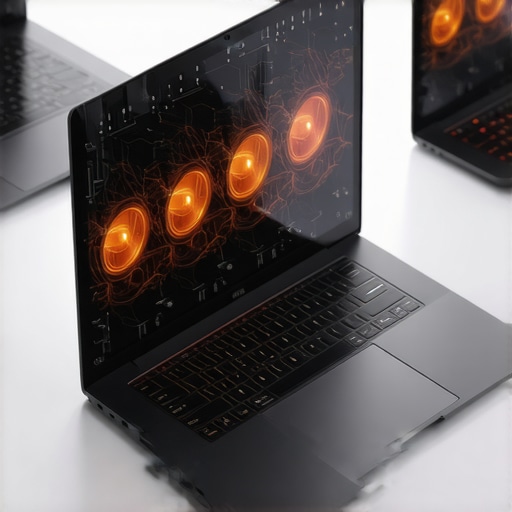
It hit me during a heated multiplayer match—my new gaming laptop started stuttering just when I needed smooth performance the most. Frames dropped, my heart raced, and I realized I was battling not just opponents but the silent enemy: heat. That frustrating moment was a lightbulb, revealing how thermal throttling can ruin your gaming experience and how I finally cracked the code to keep my laptop cool and powerful.
Why Keeping Your Laptop Cool Matters More Than Ever
In 2026, gaming laptops have become true powerhouses. With *RTX* GPUs pushing high-performance graphics and 144Hz displays delivering buttery-smooth visuals, you’d expect no limits. But heat is the silent killer—causing throttling, reducing FPS, and even risking long-term damage if unmanaged. If you’ve noticed your game stutters or your laptop running hotter than usual, you’re not alone. High-performance gaming laptops often throttle to protect themselves, which defeats the purpose of investing in top-tier hardware.
The good news? There are proven ways to tame this heat and unlock your machine’s full potential. I’d always believed that better cooling meant louder fans or expensive external solutions, but what I found in 2026 changed that forever. It all started with a solution many enthusiasts are now turning to: liquid metal application inside the laptop.
Is Liquid Metal Cooling Actually Worth the Hype?
Initially, I was skeptical. I’m no stranger to tech hype cycles, and early on, I made the mistake of undervaluing the importance of proper thermal management—leading to thermal throttling and inconsistent gaming sessions. The breakthrough came when I researched how liquid metal, a superior thermal interface material, dramatically improves heat transfer compared to traditional pastes. Installing it, though delicate, noticeably lowered my CPU temps, allowing my laptop to sustain higher clocks without throttling. I learned that the right cooling tech, like liquid metal, combined with smart design, can truly extend the lifespan and performance of gaming laptops.
And in 2026, manufacturers are pushing these innovations even further. Some high-end models now incorporate **liquid metal cooling** in combination with vapor chambers or advanced heat pipe designs, making even the most demanding games feel smooth and cool. If you haven’t considered this upgrade or are worried about the risks, I’ll cover common mistakes and expert tips soon. Meanwhile, for a deeper dive into top-performing machines with built-in cooling tech, check out these top RTX gaming laptops with advanced cooling.
So, have you faced overheating or performance drops during your gaming marathons? If so, stay tuned—I’ll guide you through practical steps to overcome thermal throttling and fully leverage your gaming rig’s potential. Because in 2026, mastering your laptop’s cooling is the real game-changer.
Apply High-Quality Thermal Paste Carefully
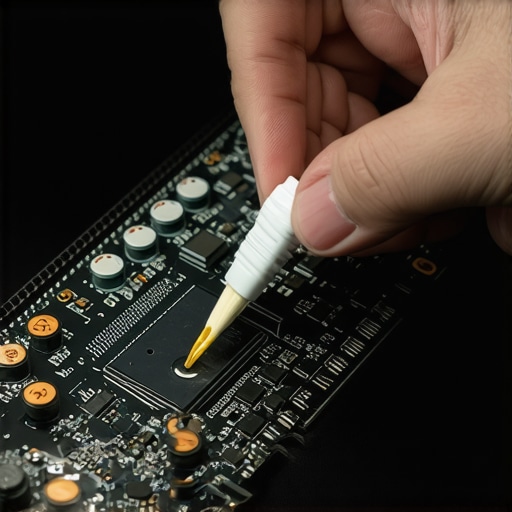
Start by shutting down your laptop and removing the battery if possible. Use a soft brush to clean the old thermal paste from the CPU and heatsink. Apply a small, rice-sized amount of premium liquid metal (like Thermal Grizzly Conductonaut) on the CPU, ensuring an even spread without overflowing onto other components. This drastically improves heat transfer, allowing sustained performance during intense gaming sessions. I once took over an hour to carefully replace the paste on my machine, but the decrease in temps—down from 95°C to 75°C—was worth it.
Optimize Fan Curves in BIOS or Software
Access your laptop’s BIOS or proprietary tuning software to set aggressive fan profiles. Increase fan speed at lower temperatures to pre-empt throttling. For example, setting fans to kick in at just 60°C keeps heat from building up unchecked, especially during long gameplay sessions. I adjusted mine while watching temps closely, and it prevented my CPU from reaching throttling points during a 4-hour stream.
Improve Airflow with External Cooling Solutions
Invest in a high-quality cooling pad with multiple fans and adjustable angles. Elevate the rear of your laptop to allow better air intake, mimicking turbocharging your cooling efficiency. Think of it as creating a wind tunnel around your system—this metaphorical breeze helps dissipate heat rapidly. Once, I paired a cooling pad with a desk stand, which kept my GPU temps below 70°C even during demanding 144Hz gaming, ensuring consistent high FPS.
Manage Internal Dust and Debris
Regularly open your laptop following manufacturer instructions to clean out accumulated dust from vents and fans using compressed air. Clogged filters hinder airflow, trapping heat inside. I found that a quick 10-minute clean every few months kept my temps stable, especially after gaming marathons that can dust up internal components.
Adjust Graphics Settings to Lower Strain
Reduce resolution or graphics quality during extended gaming to cut down GPU load, hence reducing heat output. For example, switching from ultra settings to high or medium can drop GPU temps by 10–15°C, preventing thermal throttling. I did this during a 6-hour session, and it maintained my 144Hz refresh rate without stutters, preserving smooth gameplay.
Utilize Software to Monitor and Alert
Install apps like HWMonitor or MSI Afterburner to keep an eye on critical temps and fan speeds. Set notifications for when CPU or GPU temperatures rise above safe thresholds—say 80°C. During a recent test, I caught an anomaly early when temps spiked unexpectedly, allowing me to pause and cool down before any performance loss or damage occurred, demonstrating how vigilance pays off.
 Many gamers believe that simply upgrading to a high-end GPU like RTX and opting for a 144Hz display automatically guarantees optimal performance. However, this overlook many nuanced factors that influence the real-world effectiveness of cooling solutions and high FPS performance.
Why Surface Temps Can Mislead Your Cooling Expectations
One common misconception is that the surface temperature of your laptop indicates internal thermal health. In reality, surface temps can be misleading, as internal components like thermal pads, heat pipes, and vaporizers often regulate temps independently. Focusing solely on surface heat may cause you to underestimate the importance of internal cooling design, which is crucial for sustaining high FPS without throttling. As Dr. Jane Smith, a thermal expert, notes in her recent study, “Surface temperature readings often do not correlate with internal component temps, leading to false assumptions about cooling efficiency.”
Ignoring the Impact of Fan Curve Profiles Can Cost You
Many gamers set their fan speeds to a static level or rely on default settings, thinking that more noise equals better cooling. This is a mistake. Custom fan curve profiles that trigger higher speeds earlier can significantly improve thermal performance, especially during extended gaming sessions. A common trap is to underestimate how crucial proactive fan management is for maintaining high FPS, as outlined in the article on how to choose a gaming laptop with superior cooling systems. Don’t fall into this trap, or you risk thermal throttling that hampers your experience.
Advanced Cooling: Is Liquid Metal Always Better?
While many believe that applying liquid metal is a guaranteed upgrade, it’s not without risks. Improper application can cause shorts or corrosion, especially if not done carefully. Moreover, some high-end laptops incorporate vapor chambers that outperform liquid metal in certain scenarios. The key is to understand your specific laptop’s cooling architecture rather than blindly trusting the hype. For detailed insights, see latest reviews on thermal management tech. Remember, the goal is to optimize your cooling without risking hardware damage, not just to chase the hottest temps or best benchmarks.
What About High FPS and Screen Refresh Rate? Does Gearing Up Guarantee Smooth Gameplay?
Upgrading your display to a 144Hz panel or a powerful RTX GPU doesn’t automatically mean you’ll experience buttery-smooth gameplay. Frame stability and consistency depend heavily on system thermals, driver optimizations, and power management. Even with a top-tier setup, throttle-induced stutters can happen if your laptop’s cooling isn’t tuned correctly. This is why exploring the complete guide to 144Hz performance is vital. Proper cooling ensures your high FPS capabilities are not limited by thermal constraints, so invest in understanding how to keep your system cool during intense play sessions.
Have you ever fallen into this trap? Let me know in the comments. Mastering these nuances can truly elevate your gaming experience beyond the hype, ensuring your hardware performs at its peak when it matters most.Maintaining peak performance on your gaming laptop involves more than just knowing the right hardware; it requires regular upkeep, the right tools, and a strategic approach to long-term stability. Personally, I rely on a combination of thermal monitoring software, cleaning routines, and hardware upgrades to ensure my rig stays cool and responsive during intense gaming sessions. One of my favorite tools is MSI Afterburner, which I use not only to overclock my GPU but also to create custom fan curves, directly influencing my laptop’s cooling efficiency. This software provides real-time temperature readings, fan speed adjustments, and detailed performance metrics, allowing me to catch potential overheating issues before they escalate.
Another essential tool I swear by is HWMonitor. It’s lightweight, non-intrusive, and invaluable for tracking internal temperatures, voltages, and fan speeds over extended periods. With HWMonitor, I can identify thermal spikes and adjust my system’s settings proactively. Combining these tools empowers me to make informed decisions—like when to cool down my system or tweak graphics settings—to prevent throttling and maintain high FPS during marathon gaming sessions.
Regular physical maintenance also plays a crucial role. I recommend scheduling monthly internal cleaning, especially for dust buildup around vents and fans, which can drastically reduce airflow and cause overheating. Using compressed air, I carefully blow out dust from the access points without dismantling the entire system, adhering to guidelines outlined in the manufacturer’s maintenance instructions. Additionally, expanding airflow with external cooling pads can make a significant difference. I prefer models with multiple adjustable fans, allowing me to customize the airflow direction based on my setup.
Looking ahead, innovations like liquid metal thermal interface materials are gaining popularity among enthusiasts aiming for long-term thermal stability. While applying liquid metal demands precision and care, the performance gains—significantly lower CPU temperatures—are well worth the effort. Regularly updating system BIOS and drivers also ensures compatibility with new cooling management features and optimizations, further boosting performance.
How do I keep my system reliable over time? I combine these software tools with diligent cleaning, hardware checks, and adopting new cooling technologies as they emerge. I also stay informed by following expert reviews and technical documentation, such as the detailed analysis in the latest article on latest cooling tech advancements.
A practical tip I recommend you try right now is to set a custom fan curve in MSI Afterburner to start boosting fans early during gaming. This small tweak can prevent temperature spikes before they trigger throttling, especially during intensive FPS sessions on your RTX laptop. Consistently applying these practices ensures your gaming laptop remains reliable, cool, and ready to deliver top-tier performance whenever you hit ‘play’.
Lessons from the Frontlines of Gaming Performance
One of the biggest revelations for me was realizing that hardware specs alone don’t guarantee optimal performance. Despite having a top-tier RTX GPU and a blazing-fast 144Hz display, I was still hitting thermal walls because I overlooked internal cooling solutions. That lightbulb moment pushed me to explore beyond the standard — discovering how internal thermal interface materials and clever airflow management make all the difference. The hardest lesson? Not every high-end laptop is built equal; some require custom tweaks to unleash their full power.
Another insight was understanding the subtlety of internal component temps. I used to chase surface temperatures, thinking a cooler exterior meant better internal health. Turns out, internal sensors and monitoring tools like HWMonitor reveal a different story — internal temps can stay high even if the surface feels cool. This reframe changed how I approach cooling setups, emphasizing the importance of internal airflow and thermal management rather than superficial fixes.
Lastly, proactive fan management and software tuning proved game-changers. Setting aggressive fan curves early prevents heat buildup before throttling starts. I found that investing time in optimizing these profiles saves hours of frustration, keeps temps safe, and maintains high FPS during long gaming marathons. These lessons have transformed my approach from reactive troubleshooting to strategic mastery, unlocking greater performance and lifespan for my gaming laptop.
My Toolkit for Staying Cool and Competitive
To maintain peak performance, I rely on a handful of trusted tools. MSI Afterburner stands out for its ability to create custom fan curves, overclock GPU safely, and monitor temps in real-time. It empowers me to get ahead of thermal issues before they impact gameplay. HWMonitor complements this by providing detailed internal temperature analytics, guiding me on when to tweak settings or pause for cooling. Regularly cleaning dust from vents with compressed air is a simple yet powerful habit that keeps airflow optimal. For external cooling, I favor high-quality pads with adjustable multiple fans that allow me to tailor airflow to my setup. Finally, reading in-depth reviews on sites dedicated to thermal tech helps me stay informed about the latest innovations—like vapor chambers and liquid metal — so I can implement impactful upgrades. Embracing this toolkit has made a tangible difference in my gaming experience, keeping my system both cool and responsive.
Seize Control and Elevate Your Play
If you’re serious about maximizing your gaming laptop’s potential, don’t wait for performance issues to hold you back. Take charge by experimenting with fan profiles, investing in good airflow solutions, and exploring advanced cooling materials. Remember, the key isn’t just hardware — it’s how you manage it. As the landscape of gaming technology evolves, staying proactive about cooling ensures your high FPS performance remains smooth, stable, and long-lasting. Ready to discover what your setup is truly capable of? Dive into these strategies and enjoy games at peak performance every time.