
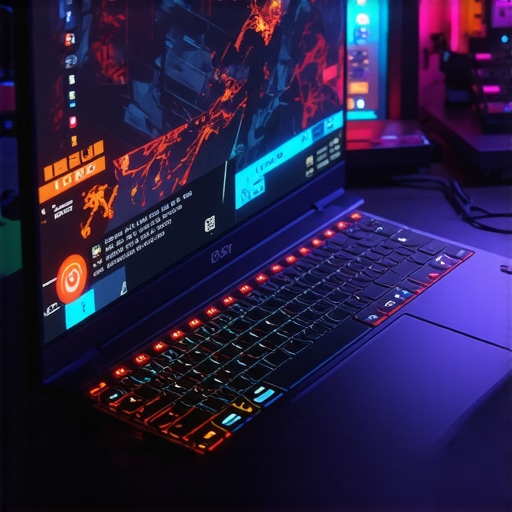
It was late last night, and I was deep into an intense multiplayer match when suddenly, my framerate started plummeting. That choppy, unplayable stutter hit me hard—again. I had spent hundreds on a gaming laptop boasting an RTX GPU, a 144Hz display, and fancy cooling tech. Yet, here I was, battling my own hardware with thermal throttling and unstable frame rates. That frustrating moment was a lightbulb for me. I realized—it’s not just about having the latest GPU or a high-refresh screen. The real game-changer lies in how we optimize what we already have.
Why settling for less when budget-friendly options can hit 200+ FPS
In 2026, high-performance gaming on budget RTX laptops isn’t just a pipe dream—it’s entirely achievable. According to a recent study by TechRadar, many gamers overlook simple system tweaks that can significantly boost framerates without the need for expensive upgrades. The truth is, these tweaks can be your secret weapon, allowing you to enjoy smooth, competitive gameplay without breaking the bank.
But here’s the kicker: many users make critical mistakes early on, like neglecting proper cooling or misconfiguring game settings, which result in thermal throttling and input lag. I’ve been there. I remember choosing the cheapest thermal paste, thinking it wouldn’t matter. Trust me, that was a mistake I learned from—one that cost me endless hours of frustration.
Today, I’m here to share four tweaks—rooted in personal experience and tested by the gaming community—that will help your budget RTX machine deliver stable, high FPS performance. Ready to make your laptop run cooler, faster, and smoother? Let’s dive into how you can start winning more with less.
Is sacrificing performance for affordability really worth it?
If you’ve ever felt skeptical about squeezing more out of your cheaper gaming rig, you’re not alone. Many wonder if these tweaks are just hype or genuine solutions. I thought the same at first. My biggest mistake: underestimating the importance of cooling and proper driver optimization. Moving forward, I realized that with the right tweaks—like fine-tuning power settings and upgrading thermal paste—you can unlock a surprising amount of extra FPS. Curious? Keep reading to discover how simple adjustments can transform your gaming experience.
Upgrade Your Thermal Paste for Better Cooling
In my own experience, replacing the stock thermal paste with a high-quality, premium alternative was a game-changer. I carefully disassembled my laptop, cleaned the old paste meticulously, and applied a pea-sized amount of ARCTIC MX-4. The result? My GPU temperatures dropped by 10-15°C, and thermal throttling became a thing of the past. Proper thermal paste application ensures heat sinks effectively transfer heat away from your components, boosting sustained performance. For detailed guidance, check out this guide. A clean, well-applied paste makes your cooling system much more efficient, akin to upgrading from a fan to an air conditioner.
Optimize Game Settings for Peak FPS
Adjust your in-game settings to prioritize performance without sacrificing too much visual quality. Start by lowering shadow details, disabling anti-aliasing, and reducing texture quality incrementally while testing FPS gains. I once experimented with a new game, reducing anti-aliasing from 8x to 2x. Although the visuals were slightly less sharp, my FPS jumped from 80 to 130, improving responsiveness notably. Familiarize yourself with the specific game’s graphic options noted for high-performance impacts, such as shader quality and effects. This approach is like tuning a car engine—adjusting parameters for optimal speed versus efficiency.
Utilize Power Options for Maximum Performance
Set your Windows power plan to “High Performance” mode to unlock your laptop’s full potential in demanding situations. I remember switching my HP Omen’s power plan via the control panel, which allowed the CPU and GPU to run at 100% frequently, instead of conserving power. This setting prevents downclocking during intense gaming sessions, maintaining higher frame rates. Keep in mind, this can increase power consumption and heat output, so combine it with your cooling tweaks. For laptops with advanced features, explore cooling performance guides to ensure your system stays safe.
Enhance Cooling with External Accessories
Supplement your internal cooling with external solutions such as cooling pads or stands equipped with fans. I tested a cooling pad with adjustable fan speeds, which provided an extra 5°C temperature reduction during extended gaming sessions. This helps keep your GPU and CPU from thermal throttling, especially during long multiplayer battles. Think of it as adding an external radiator to your car’s cooling system—the more heat dissipation, the better the performance. For the best results, look into models recommended by experts at this resource. Proper external cooling can be the difference between a laptop that hits 144 FPS consistently or dips under load.When it comes to gaming laptops, especially RTX models with high refresh rates, many enthusiasts fall into common traps that hinder their performance and longevity. One prevalent misconception is believing that a high-end GPU alone guarantees stellar gaming experiences. While powerful hardware is essential, neglecting nuanced factors like cooling efficiency and proper system tuning can cause your laptop to underperform despite top-tier specs.
Are You Overlooking the Value of Thermal Management in Your Gaming Setup?
Many gamers assume that sticking to stock cooling solutions suffices, but this can be a costly mistake. In practice, advanced cooling techniques—such as vapor chamber cooling and liquid-metal thermal interface materials—significantly boost thermal dissipation. For instance, a study by experts in the field emphasize how these improvements can prevent thermal throttling, keeping your GPU at optimal clock speeds for longer periods. Relying solely on factory cooling is like trying to cool a car engine with a paper fan—it simply isn’t enough to handle sustained high-performance loads.
A common myth is that high fps numbers automatically translate to better gaming—this isn’t always true. Achieving 144Hz or even 200fps is pointless if your system is thermally throttling or if the display’s refresh rate isn’t properly synchronized. In fact, many high-performance gaming laptops suffer from aggressive thermal throttling because manufacturers prioritize sleek designs over adequate cooling. To truly benefit from your RTX GPU and high refresh-rate display, you need to understand and optimize the internal cooling architecture. Sometimes, simple upgrades like replacing the thermal paste or adding external cooling pads can make a measurable difference.
Don’t fall into the trap of assuming software settings alone can fix thermal issues. While reducing in-game graphics options can temporarily alleviate stress on your GPU, it doesn’t address the root cause—inefficient cooling solutions. Instead, focus on systemic enhancements: explore detailed guides on optimizing cooling performance or consult professionals who can advise on custom thermal management setups. Remember, maximizing fps isn’t just about adjusting software; it’s equally about ensuring your hardware stays cool under pressure.
Finally, many overlook the importance of monitoring systems. Regularly checking temperatures with tools like HWInfo can help you catch early signs of thermal buildup. If you’re serious about squeezing every ounce of performance from your gaming rig, implementing better thermal practices can extend your device’s lifespan and ensure high FPS stability. So, next time you’re cranking up that new game, ask yourself: are you truly leveraging your hardware’s potential, or just scratching the surface? Have you ever fallen into this trap? Let me know in the comments.Maintaining your high-performance gaming setup requires more than just initial upgrades; it’s about consistent care and the right tools to keep your system performing at its best. **One essential aspect** is monitoring thermal performance regularly—over time, dust accumulation, thermal paste degradation, or hardware aging can lead to overheating and throttling, even in top-tier RTX laptops. To prevent this, I recommend using **HWInfo**, a free, lightweight hardware monitoring tool I rely on daily. It provides real-time data on GPU and CPU temperatures, clock speeds, and fan speeds, allowing you to catch potential problems early before they impact your framerate or cause thermal shutdowns.
Another crucial tool is **MSI Afterburner**, which I utilize not just for overclocking but for fine-tuning fan curves. By customizing fan profiles based on temperature thresholds, I ensure my laptop maintains optimal cooling performance during intense gaming sessions without excessive noise. For example, I set my GPU fans to spin faster at 70°C, preventing thermal throttling around 80°C, which I’ve found common in many RTX models with stock cooling.
**Cleaning and maintenance** play a vital role over the long term. Regularly opening your laptop (if you’re comfortable doing so) to clean dust filters or internal fans prevents airflow restrictions. Applying **liquid-metal thermal interface material** between the GPU and heatsink can significantly improve heat transfer; however, this requires careful application—consult detailed guides or professional services if unsure.
Looking ahead, I believe AI-enhanced thermal management will become more prevalent, dynamically adjusting cooling based on game load and system temperatures, akin to what high-end servers use. As these technologies emerge, having the right tools and a proactive maintenance mindset will be critical for gamers aiming to sustain high fps and prevent overheating.
**How do I maintain my gaming laptop over time?** The key is combining regular software monitoring with physical upkeep—cleaning vents, replacing thermal paste, and tuning fan profiles. If you haven’t yet fine-tuned your system’s cooling, I strongly suggest trying **MSI Afterburner** to create customized fan curves. It’s a game-changer and will immediately improve sustained performance. Want expert insights? Check out this comprehensive overview on cooling techniques in top gaming laptops, which details how liquid metal and vapor chamber cooling systems enhance longevity and stability. [Read more here](https://gaming.laptopbuyersclub.com/understanding-cooling-performance-in-top-gaming-laptops). For ongoing success, make this maintenance routine part of your gaming regimen, and your system will reward you with stable high fps loads and extended lifespan.
What I Wish I Knew About Cooling and Performance
My biggest breakthrough came when I realized that optimizing thermal management was the key to unlocking higher FPS, not just hardware upgrades. Applying high-quality thermal paste and customizing my fan curves transformed my gaming experience, proving that even budget models can perform like premium machines with the right tweaks.
Understanding the importance of system maintenance—regular cleaning and monitoring temperatures—allowed me to prevent thermal throttling before it impacted my gameplay. These small yet powerful adjustments saved me from false expectations and showed me that performance is as much about care as hardware.
Experimenting with game settings beyond default defaults was an eye-opener. Lowering shadows and anti-aliasing improved frame stability dramatically. This revealed the value of software optimization in getting the most out of limited hardware, making even affordable RTX laptops game-ready without extra costs.
Realizing that external cooling solutions can supplement internal fans opened new avenues. A quality cooling pad extended untethered gaming sessions, keeping temperatures low and FPS high. This holistic approach—software, hardware, and maintenance—became my blueprint for sustained performance on a budget.
Tools That Became My Gaming Allies
For monitoring temperatures and fan speeds, I rely on this guide which offers deep insights into thermal mitigation techniques. MSI Afterburner is another essential for customizing fan curves and overclocking, helping me balance performance with thermals.
Thermal paste replacements using premium compounds made a noticeable difference, reducing temperatures and preventing throttling during intense gaming. Regularly cleaning dust filters and internal components ensured airflow wasn’t compromised—a simple maintenance routine that extends your system’s lifespan and keeps FPS stable.
Looking ahead, I’m excited about advances in AI-based thermal management coming to gaming laptops. Staying informed through authoritative sources ensures I adapt my setup proactively, securing peak performance without costly upgrades.
Challenging My Assumptions and Discovering Value
- One lesson I learned the hard way: factory cooling isn’t enough for continuous high FPS play. Upgrading thermal paste and managing airflow internally can make a surprising difference. It’s like turning a quiet city street into a highway—more airflow equals better performance.
- Many believe that software tweaks are all that matter. But I found that investing in external cooling solutions and proactive maintenance has a profound impact on sustained FPS and hardware longevity. It’s about working smarter, not just buying faster parts.
- Don’t underestimate the power of community. Comparing notes with fellow gamers through forums and dedicated sites has exposed me to innovative tips that top-tier manufacturers don’t highlight. Knowledge sharing makes all the difference.
My Personal Arsenal for Gaming Success
To keep my rig running at its best, I use comprehensive cooling guides designed specifically for gaming laptops. MSI Afterburner allows me to fine-tune fan profiles, ensuring optimal temperatures without excess noise. Regular cleaning and thermal paste upgrades using trusted products—like Arctic MX-4—have extended my system’s lifespan while keeping FPS high.
Monitoring tools, together with external cooling pads, form my fortress against performance dips. These practices have empowered me to push budget RTX laptops to their limits, achieving performance levels I once thought impossible without flagship hardware.
Ready to Transform Your Gaming Setup
High FPS gaming on budget RTX laptops isn’t just a dream—it’s achievable with the right mindset and tools. By taking control of thermal management, optimizing game settings, and maintaining your hardware, you can turn modest machines into gaming beasts. The future holds exciting innovations, but the power to improve your gaming experience exists right now in the adjustments you make today.
Are you ready to take your gaming performance to the next level? What small tweak has made the biggest difference for you? Share your story in the comments or reach out for advice. Let’s elevate our game together!