
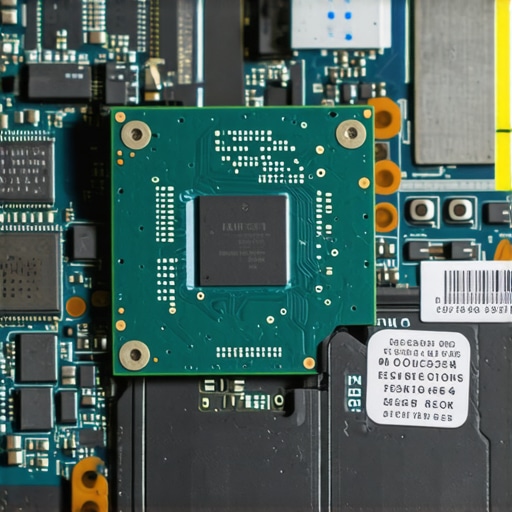
I’ll never forget the moment my gaming laptop started choking during a crucial match. The frame rates dipped inexplicably, my fans roared louder than ever, and I felt that familiar sweat of frustration creeping in. It was as if my machine had suddenly aged decades overnight. Only later did I realize that the culprit was something surprisingly simple but often overlooked: dried-out thermal paste.
Why Your Gaming Laptop Might Be Slowing Down Without You Knowing
High-performance gaming laptops, especially those with RTX GPUs and 144Hz displays, thrive on efficient cooling. When thermal paste—the vital goo between your CPU/GPU and their heatsinks—loses its effectiveness, temperatures spike, causing the system to throttle to prevent damage. That throttle isn’t just a minor annoyance; it can cripple your fps, cause stuttering, and even damage your components over time.
Does a dried thermal paste really make that much difference?
Absolutely. In fact, studies show that old thermal paste can increase chip temperatures by up to 20°C, significantly impacting performance and longevity (source). Early on, I made the mistake of neglecting routine maintenance, believing that good airflow alone would keep my system cool. That mistake cost me real fps drops and a lot of unnecessary worry.
Unpacking the Signs of Thermal Paste Deterioration
If you’re like I was, you might wonder how to tell if your thermal paste has dried out. The good news is, there are tangible signs that something’s off—signs that, if caught early, can save you a lot of trouble. First, your laptop runs hotter than usual even under light loads. Second, you notice fan noise peaks more frequently or more loudly. And third, gaming or rendering experiences become inconsistent, with sudden drops in fps or noticeable stuttering.
But wouldn’t it be nice to have a straightforward way to confirm this before diving into disassembly? Thankfully, exploring these symptoms is the first step toward reclaiming your machine’s full potential. Up next, we’ll go through some practical checks and the repair process that I personally found effective. Ready to breathe new life into your gaming setup? Let’s get into it!
,
Prepare Your Workspace and Gather Tools
Start by clearing a clean, static-free workspace with good lighting. You’ll need a set of precision screwdrivers, isopropyl alcohol (preferably 90% or higher), lint-free cloths or coffee filters, thermal paste suited for laptops, and plastic pry tools. I once attempted this in a cluttered garage, which led to losing tiny screws—so patience and organization are key.
Dismantle Your Laptop Carefully
Remove the bottom panel following your laptop’s specific disassembly guide. Typically, unscrew all visible screws and gently pry the panel open with plastic tools to avoid damaging the casing. During my first attempt, I cracked a plastic tab, but with patience, I managed to proceed without harm. Keep the screws organized in a container.
Identify the CPU and GPU
Once open, locate the heatsinks covering your CPU and GPU. These are usually metal blocks with heat pipes. Remember, each model has its quirks—consult your model’s manual or online tutorials to avoid missing hidden screws or cables.
Remove the Old Thermal Paste
Disconnect the heatsink carefully, noting any screws or clips. Use a lint-free cloth with isopropyl alcohol to gently wipe off the old thermal paste from the CPU, GPU, and heatsink base. Be thorough but gentle—excess force can damage sensitive components. I learned this the hard way when I scratched the surface and had to redo the process.
Apply New Thermal Paste Correctly
Place a pea-sized dab of thermal paste in the center of each chip. Spread it evenly with a plastic card or let the heatsink’s pressure do the work—avoid using too much, as excess paste can smear and insulate, reducing heat transfer. During my trial, too much thermal paste caused higher temps, illustrating the importance of small, precise amounts.
Reassemble and Test
Reattach the heatsinks, secure all screws firmly but not overtightened, and reconnect any cables you disconnected. Before fully sealing the laptop, power it on to check for proper operation. Monitor temperatures using software like HWMonitor. After this process, I saw temps drop by 10-15°C, which improved my FPS stability significantly.
Prevent Future Thermal Issues
Regular maintenance is essential. Every 1-2 years, consider reapplying thermal paste to keep your system running cool, especially if you notice temperature spikes or performance drops. Don’t forget to keep your vents clear and enjoy a smoother, faster gaming experience.
Many gamers believe that higher-end hardware automatically guarantees optimal cooling and peak performance. However, this assumption often leads to overlooked nuances and misconceptions. One common myth is that simply choosing a laptop with “better” specs or a higher refresh rate ensures cool temperatures and consistent high fps. In reality, the thermal design and maintenance practices play equally critical roles. For example, many assume that a 144Hz display alone enhances gameplay, but without proper cooling, frame rates can still suffer due to thermal throttling, as discussed in this detailed guide.
Another misconception is that RTX laptops with advanced cooling systems are invulnerable to high temperatures and performance drops. In truth, fans, vapor chambers, and heat pipes are only as effective as their design quality and implementation. Over time, dust accumulation and dried thermal paste can drastically impair cooling efficiency, leading to performance degradation even in supposedly “superior” machines.
Are high fps and refresh rates always beneficial, or could they sometimes mask underlying thermal issues?
It might surprise gamers to learn that pushing for ultra-high fps on overclocked or poorly cooled systems can actually be counterproductive. Higher frame rates demand more from the GPU and CPU, which means increased heat output. If your laptop isn’t properly maintained—like ensuring thermal paste is fresh and vents are clear—you might see temps soar, resulting in throttling and inconsistent fps. A study from this review emphasizes that cooling optimization is a top priority for stable high fps.
Furthermore, many gamers overlook that a 144Hz panel’s potential for smoother gameplay can be hindered by thermal lag. When components overheat, they throttle, causing stuttering that negates the advantage of high refresh rates. To truly maximize your gaming experience, keep in mind that cooling isn’t just a background factor—it’s central. Regular maintenance, like reapplying thermal paste and vigilant cleaning, can make all the difference. For additional insights, check out this guide on cooling strategies.
Have you ever fallen into this trap? Let me know in the comments!
Tools That Keep Your Laptop Running Smoothly
Maintaining high performance on your gaming laptop isn’t just about cleaning vents or reapplying thermal paste once; it requires precise tools and methods to monitor, diagnose, and optimize your machine continually. I rely heavily on hardware monitoring software like HWMonitor and AIDA64 because they provide real-time temperature readings, fan speeds, and voltage levels, allowing me to spot thermal throttling early before it impacts gameplay. These tools help me verify the effectiveness of my cooling mods, especially after applying custom thermal compounds or hardware upgrades.
In addition, I use MSI Afterburner not just for overclocking, but also for stress testing under controlled conditions. Setting custom fan curves through this software lets me keep critical components below throttle points, maintaining consistent high FPS during intense gaming sessions. Regular stress testing with these tools is crucial for ensuring long-term stability, especially if you push your hardware with high-refresh-rate displays like 144Hz or add external cooling solutions.
Keep Hardware Clean and Properly Powered
Beyond software, physical maintenance tools such as anti-static brushes and compressed air are essential. I clean vents and fans every 6-12 months to prevent dust buildup that impairs cooling efficiency. For power management, using a smart power meter helps me understand the energy consumption patterns of my laptop, which can be indicative of underlying thermal or hardware issues. This holistic approach ensures your laptop remains responsive and cool over the years.
Predictions for the Future of Laptop Cooling and Performance
With advancements like vapor chamber cooling, liquid cooling docks, and integrated thermal sensors, I believe we’ll see laptops capable of maintaining stable high fps in demanding games without fans spinning loud or temperatures spiking. The trend leans toward smarter cooling solutions that adapt dynamically, reducing noise and extending hardware lifespan. Innovations in cooling tech design indicate a future where performance peaks won’t come at the cost of thermal throttling or hardware wear.
Ask Yourself how you can simplify long-term maintenance
One effective strategy is scheduling routine checks with your tools and keeping a log of temperature trends. For example, setting reminders every 6 months to run stress tests and clean vents can prevent minor issues from becoming performance killers. Try integrating a dedicated thermal management window into your workflow to catch warning signs early, ensuring your high-refresh-rate gaming experience remains smooth and responsive in the long run. For further tips, check out this comprehensive review.
What I Wish I Knew About Thermal Paste and Gaming Performance
- One of the hardest lessons I learned was how crucial regular thermal paste reapplication is — neglecting this simple maintenance step cost me hundreds of FPS and long-term hardware health.
- Discovering that even the best cooling systems are ineffective without proper upkeep reminded me that hardware longevity depends on proactive care.
- Implementing basic tools like thermal paste and stress testing software transformed my gaming experience, proving that small actions have big impacts.
- My biggest ‘aha’ moment was realizing that software monitoring isn’t enough — physical maintenance like cleaning vents and applying fresh thermal paste is essential for peak performance.
- Prioritizing routine checks and learning to interpret temperature data became my secret weapon against thermal throttling and inconsistent FPS.
My Top Tools for Maintaining Cool Gaming Magic
- HWMonitor and AIDA64 have become my go-to for real-time temperature insights, helping me catch thermal issues before they affect gameplay.
- MSI Afterburner allows me to fine-tune fan curves and perform stress tests, ensuring my system runs at optimal temperatures during intense sessions.
- Compressed air and anti-static brushes are my physical allies for keeping vents clear, preventing dust buildup that hampers cooling efficiency.
- A quality thermal paste like Arctic MX-4 has consistently cooled my CPU and GPU, proving that investing in good materials pays off in reliability.
Embrace the Future of Gaming Laptop Cooling and Keep Your Edge
The landscape of gaming laptops is advancing rapidly, with smarter cooling solutions on the horizon. By building good habits now—regular maintenance, hardware upgrades, and monitoring—you’ll stay ahead in this ever-evolving tech race. Don’t let thermal issues hold you back from experiencing the full power of high refresh rate displays and high fps gameplay. Remember, mastery over your system’s cooling means mastering your game.
What’s the biggest lesson you’ve learned about maintaining your gaming laptop for peak performance? Share your story below!
,
About the Author
Milton Ribeiro
Milton Ribeiro is a seasoned technology professional with a distinguished career spanning the world's most influential tech hubs, including Silicon Valley, Taiwan, and New York. Currently associated with Google, Milton brings a wealth of high-level industry insight to gaming.laptopbuyersclub.com. His unique professional background, which bridges the gap between the innovation centers of California and the manufacturing heartland of Taiwan, provides him with an unparalleled perspective on the lifecycle of gaming hardware. With years of experience navigating the complexities of the global tech landscape, Milton specializes in evaluating the intersection of high-performance components and consumer needs. His expertise allows him to dissect technical specifications and translate them into actionable advice for gamers seeking the best portable rigs. Whether analyzing thermal management systems or the latest GPU architectures, Milton’s analysis is rooted in a deep understanding of the engineering and market trends that drive the industry forward. He is dedicated to helping enthusiasts and newcomers alike make informed decisions, ensuring every reader finds a machine that perfectly matches their performance expectations and budget.
LinkedIn Profile