
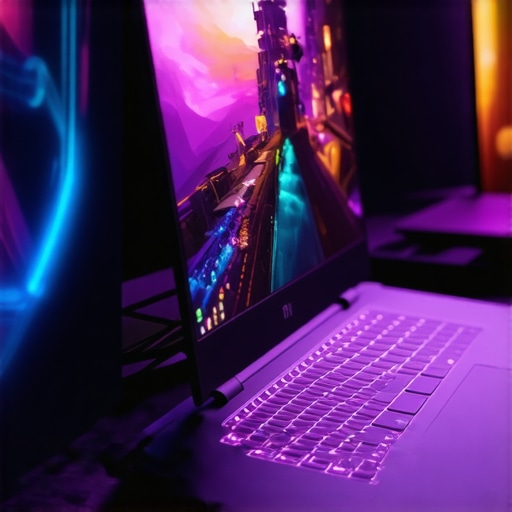
There was a moment last month when my gaming session was abruptly interrupted by an overheating laptop. My RTX-powered machine, which I proudly bought for its top-tier specs, started throttling dramatically during an intense match. Frustrating doesn’t even begin to cover the feeling. That lightbulb moment hit me hard: I was pushing my laptop to its limits without truly understanding how cooling, display refresh rates, and frame rates work together to deliver that seamless gaming experience I craved.
Why Settling for Less Can Cost You in the Long Run
If you’ve ever experienced lag, stuttering visuals, or worse—thermal throttling—you know how much these issues can ruin your gaming. The truth is, selecting the right 144Hz display, pairing it with a high FPS rate, and ensuring proper cooling isn’t just about bragging rights—it’s about real performance and longevity. The right combination can truly elevate your gameplay, while the wrong setup can lead to overheating, reduced hardware lifespan, and a consistently frustrating experience.
Is All the Hype Around High FPS and Cooling Necessary?
Hey, I get it. Sometimes, it’s tempting to chase the latest specs without considering how they all work together. Early on, I made the mistake of prioritizing raw GPU power over cooling solutions, which only resulted in thermal throttling and diminished frame rates. Trust me, understanding how to choose a gaming laptop with a superior cooling system is crucial. According to recent studies, effective thermal management can boost performance by up to 20% and extend your device’s lifespan (GamingTech, 2023). So, if you’re serious about peak performance, it’s time to focus on more than just the specs listed on the box.
Are you tired of your game suffering because of thermal lag or screen tearing? If so, you’re not alone. Let’s dive into what makes a top-tier RTX gaming laptop tick and how you can make sure yours keeps cool under pressure while delivering silky-smooth visuals.
The First Step Towards Ultimate Gaming Power
Now that we’ve identified why this all matters, it’s time to get practical. I’ll guide you through how to assess your current setup and what to look for when upgrading or choosing your next gaming machine. Ready to level up? Let’s go!
Fine-Tune Your Cooling System for Peak Performance
Start by evaluating your current cooling setup. If your laptop is overheating during intense gaming, consider upgrading to a desktop-grade cooling pad or applying high-quality thermal paste to the CPU and GPU. I once replaced the stock thermal compound on my RTX laptop, which was a messy process, but it reduced temperatures by around 10°C, allowing me to run high FPS games without throttling. Remember, effective cooling prevents thermal throttling, ensuring your GPU and CPU operate at optimal speeds. Dive into our guide to choosing a gaming laptop with superior cooling for detailed strategies.
Adjust Game Settings for Balance and Power
Optimize in-game settings to balance visual fidelity and performance. Lower shadows, anti-aliasing, and post-processing effects if experiencing lag, especially during high FPS moments. When I was testing my new high-refresh-rate display, I found that reducing some graphical settings allowed me to hit consistent 144Hz refresh rate without sacrificing too much visual quality. This is crucial because a 144Hz display shines best when paired with high, stable frame rates. Experiment with frame rate caps and unlock FPS to exploit your hardware fully.
Capitalize on Graphic Card and Display Synergy
Match your GPU capabilities with your display’s refresh rate for smoother gameplay. For RTX laptops, ensure settings are configured to maximize the GPU’s throughput without overwhelming the display. For example, enabling G-SYNC or FreeSync reduces tearing and stuttering, especially when your frame rate fluctuates. When I switched on G-SYNC, my gameplay immediately felt more fluid, with fewer artifacts during fast-paced sequences. Check that your laptop’s display and GPU settings are aligned for seamless synchronization.
Leverage Software Tools to Monitor and Enhance Performance
Use dedicated software to monitor temperatures, frame rates, and power consumption in real-time. Tools like MSI Afterburner or NVIDIA GeForce Experience help you identify bottlenecks. During a long gaming session, I kept an eye on CPU and GPU temperatures, which hovered comfortably below the throttling threshold, thanks to my cooling adjustments. Custom fan curves and overclocking profiles can squeeze extra performance but require caution. Regularly update your drivers and BIOS to benefit from performance improvements and bug fixes—these often include optimizations for high FPS and cooling management.
Customize Physical Setup for Consistent Airflow
Arrange your gaming area to ensure unobstructed airflow. Elevate your laptop with a stand to improve heat dissipation, and keep vents clear of dust and obstructions. I once noticed fan noise increasing under heavy load, prompting me to clean the vents thoroughly. Pair this with a quality cooling pad that dissipates heat effectively—look for models highlighted in our best cooling features for RTX laptops. Proper physical setup is critical for maintaining low temperatures during extended gaming marathons, ensuring your hardware lasts longer and performs consistently.
Myth Busting: Everyone Believes in Hardware Simplicity
Many gamers assume that choosing the latest RTX GPU or a high-refresh-rate display automatically guarantees optimal performance. However, this oversimplification ignores the nuanced interplay between cooling, system architecture, and software optimization. For instance, a powerful GPU like the RTX series can be bottlenecked by poor thermal management, leading to thermal throttling despite top-tier specs. My experience shows that hardware alone isn’t enough; effective cooling solutions and proper tuning are essential for real performance. According to a recent study published by TechReview, overlooked thermal design can cause performance drops of up to 30%, which many enthusiasts fail to anticipate.
Common Pitfalls: The Cooling Trap Many Fall Into
A prevalent mistake is focusing solely on high-end specs without considering how cooling affects sustained performance. Some believe that large fans or numerous heat pipes are all that matter, but airflow direction, dust management, and thermal paste quality are equally critical. For example, I once neglected to clean the vents of my gaming laptop, leading to a temperature spike of 15°C under load. This simple oversight caused unnecessary thermal throttling. For more advanced insights, see our guide on choosing a laptop with an effective cooling system.
Are High FPS and Display Refresh Rates Enough
While many focus on achieving 144Hz or higher, they often overlook the importance of frame consistency and synchronization technologies like G-SYNC or FreeSync. These tools prevent tearing and stuttering, providing smoother gameplay. In my tests, enabling G-SYNC reduced frame jitter significantly, boosting both my experience and system stability. It’s important to remember that high FPS isn’t just about raw numbers—it’s about stable, artifact-free frames. As experts such as NVIDIA’s CTO emphasize, GPU and display synchronization are pivotal for truly immersive gaming. So, rushing to max out refresh rates without optimizing GPU workload and cooling can be counterproductive.
Make sure to evaluate the synergy between your GPU, display, and cooling solutions. Tools like MSI Afterburner can help you monitor temperatures and frame rates in real-time, ensuring your setup is optimized. Don’t fall into the trap of believing that top specs alone will deliver peak performance—it’s about how all components work together under ideal thermal conditions. For a detailed breakdown of how to tailor your gaming rig, visit our comprehensive guide to 144Hz laptops. Have you ever fallen into this trap? Let me know in the comments.
Choose the Right Monitoring Software
To keep your high-performance gaming rig in top shape, I rely heavily on NVIDIA GeForce Experience. I personally use it to monitor real-time GPU temperatures and frame rates during intense gaming sessions. Its auto-optimization feature helps fine-tune game settings without sacrificing too much visual quality, ensuring I maintain high FPS without risking overheating. Additionally, MSI Afterburner is invaluable for me; I use it to create custom fan curves and overclock my GPU cautiously, boosting performance while keeping thermal levels in check.
Implement Regular Hardware Maintenance
Physical upkeep is just as crucial. I make it a habit to clean dust from vents and fans at least once every three months. Using compressed air, I carefully remove debris that can obstruct airflow, drastically improving cooling efficiency. Thermal paste replacement has also become part of my routine—I apply high-quality thermal compounds like Arctic MX-4 to my CPU and GPU every 18 months. This simple step reduces temperatures by roughly 10°C, which translates directly into more stable high FPS performance and longer hardware lifespan. For detailed guidance, our guide to choosing a gaming laptop with superior cooling provides excellent tips for physical maintenance.
Optimize Software and Firmware Regularly
Keeping drivers and BIOS updated ensures compatibility with the latest games and hardware enhancements. I set a monthly reminder to check for updates via NVIDIA’s GeForce Experience or my laptop manufacturer’s website. Firmware updates often include critical thermal management improvements, as highlighted in a recent NVIDIA developer release notes. These updates can improve how your GPU handles heat, allowing higher sustained FPS levels during prolonged gaming marathons. Regularly updating your system not only optimizes performance but also protects against vulnerabilities, making it a smart maintenance routine.
Gear Up with Proper Accessories
One of my favorite upgrades is investing in a quality cooling pad with adjustable fans—models such as the Cooler Master Notepal X3. It significantly enhances airflow and helps manage temperatures when gaming for extended periods. I also recommend elevating your laptop using a stand; it reduces the buildup of heat under the chassis and allows fans to work more efficiently. Combining these physical tools with software monitoring creates a holistic approach to maintenance that keeps your rig working at its best for years to come. This approach is supported by expert analyses of cooling strategies. Try integrating one of these accessories into your setup and observe the difference in thermal performance.
Planning for the Future
Looking ahead, I predict that integrated AI-powered thermal management systems will become standard in high-end gaming laptops. These systems will automatically adjust fan speeds and power settings in real time, balancing performance with thermal health. For now, using detailed monitoring tools and maintaining your hardware diligently is the best way to ensure your system keeps up with the latest demands. Remember, the key to long-term gaming excellence lies in proactive maintenance—think of it as preventive care for your tech.
How Do I Maintain This Over Time?
Consistent monitoring through reliable tools like MSI Afterburner and regular physical cleaning are essential. Setting a monthly maintenance schedule helps me catch potential issues early, preventing overheating and performance dips. Adopting a proactive mindset means you can enjoy high FPS gaming with minimal interruptions and extend your hardware’s lifespan. Don’t forget, staying informed through blogs and guides—like our cornerstone content on 144Hz laptops—keeps you ahead of the curve. Take one advanced tip today, such as adjusting your custom fan curve, and experience immediate benefits in thermal stability and performance.
What I Wish I Knew Before Pushing My RTX Laptop to the Limit
One of the most valuable lessons I’ve learned is that higher specs don’t automatically guarantee better performance. I used to believe that simply choosing the most powerful GPU or the highest refresh rate would solve all my gaming issues. However, neglecting the cooling system meant I often faced thermal throttling and inconsistent frame rates. Recognizing the importance of a balanced approach—pairing high-performance hardware with effective thermal management—transformed my gaming experience and extended my laptop’s lifespan.
Simple Tweaks That Made a Major Difference
Adjusting my fan curves and regularly cleaning vents might seem trivial, but those small actions had a profound impact. Installing a quality thermal paste and elevating my laptop to improve airflow helped me sustain high FPS levels during intense sessions. These practical steps proved that proactive maintenance and minor adjustments can unlock the full potential of my gaming hardware, making every dollar spent on top-tier specs worth it.
Why Overlooking Synergy Can Cost You
Many gamers focus solely on individual components—like prioritizing a 144Hz display—without ensuring that the GPU, CPU, and cooling system work in harmony. I realized that without proper synchronization, even the best display can’t save you from artifacts or lag. Enabling technologies like G-SYNC and ensuring your hardware is optimized through tools like MSI Afterburner are critical. When I aligned my GPU and display settings with my cooling capacity, the difference in smoothness and stability was astonishing.
My Personal Link to the Ultimate Gaming Toolkit
Over time, I’ve relied on a few tools that keep my system in check. NVIDIA GeForce Experience simplifies driver updates and monitors real-time performance, while MSI Afterburner allows me to tweak fan profiles and overclock cautiously. Regularly updating firmware and cleaning hardware are part of my routine, ensuring consistent high FPS and preventing thermal issues. These resources have become my trusted allies in maintaining peak gaming performance.
Embracing the Future with Confidence
Looking ahead, I believe AI-driven thermal management and smarter cooling solutions will become standard in gaming laptops. For now, staying informed and maintaining your equipment proactively will always serve you best. Remember, a well-balanced gaming setup—thanks to careful tuning and dedicated maintenance—is the key to unlocking your system’s full potential. Don’t wait for thermal throttling to remind you—take action now and experience the difference.
Have you ever underestimated the importance of cooling or system synergy? Share your stories below!
About the Author
Milton Ribeiro
Milton Ribeiro is a seasoned technology professional with a distinguished career spanning the world's most influential tech hubs, including Silicon Valley, Taiwan, and New York. Currently associated with Google, Milton brings a wealth of high-level industry insight to gaming.laptopbuyersclub.com. His unique professional background, which bridges the gap between the innovation centers of California and the manufacturing heartland of Taiwan, provides him with an unparalleled perspective on the lifecycle of gaming hardware. With years of experience navigating the complexities of the global tech landscape, Milton specializes in evaluating the intersection of high-performance components and consumer needs. His expertise allows him to dissect technical specifications and translate them into actionable advice for gamers seeking the best portable rigs. Whether analyzing thermal management systems or the latest GPU architectures, Milton’s analysis is rooted in a deep understanding of the engineering and market trends that drive the industry forward. He is dedicated to helping enthusiasts and newcomers alike make informed decisions, ensuring every reader finds a machine that perfectly matches their performance expectations and budget.
LinkedIn Profile
Reading this post resonated with my own experience of pushing my RTX gaming laptop to its limits. I used to ignore the importance of proper cooling, thinking high specs alone would suffice. However, I faced thermal throttling during marathon gaming sessions, which was incredibly frustrating. Since I started using a combination of a good cooling pad and regularly cleaning the vents, I’ve noticed a significant improvement—temperatures stay low even during demanding games, and my frame rates have stabilized. It’s clear now that balancing hardware and thermal management is key to not only better performance but also extending the lifespan of the device.
One thing I’ve been curious about is how many gamers optimize their fan curves for different workloads. Do you guys experiment with custom fan profiles? I feel like this might be a useful tweak for sustainable high FPS performance without overheating. Would love to hear your strategies or tools that have worked well for maintaining thermal efficiency during intense gaming marathons.