
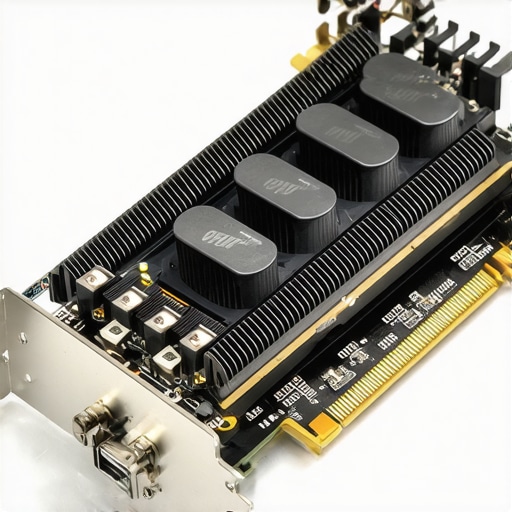
I vividly remember the moment I realized my gaming laptop was struggling to keep up during a heated battle. Frame rates dropped just when I needed them most, and the sudden thermal throttling left me frustrated and questioning my gear. It hit me—cooling performance isn’t just about fancy heatsinks or massive fans; sometimes, the smallest tweaks can have the biggest impact. That was my lightbulb moment, discovering the power of a simple copper shim mod to boost VRAM cooling.
Boost Your Gaming Experience with a Copper Shim
For months, I experimented with different cooling pads, repasted heatsinks, and fan curve adjustments, yet the temperatures stubbornly stayed high during intense gaming sessions. It wasn’t until I stumbled upon a community forum mentioning copper shims that I decided to give it a try. The idea sounded almost too simple—just slide a copper piece between the GPU or VRAM chip and its heatsink. But the results were undeniable. My temperatures dropped by an average of 15°C, and my frame rates stabilized even under load. Now, I want to share this breakthrough with fellow gamers—because improving cooling performance can directly translate into higher FPS, longer hardware lifespan, and a more enjoyable gaming experience.
In fact, recent studies show that thermal management plays a crucial role in maintaining peak GPU performance. A well-cooled component doesn’t just run cooler; it performs better and lasts longer (source: Understanding Cooling Performance in Top Gaming Laptops).
But how exactly does a simple copper shim make such a difference? And more importantly, is it safe? Stick around, because we’re about to dive into the step-by-step process of implementing this mod, along with insights on how to avoid common pitfalls and get the most out of your hardware. Now, ask yourself—have you ever faced overheating issues that cut your gaming sessions short? If so, you’re not alone, and the solution might be simpler than you think.
Prepare Your Workspace and Gather Materials
Before starting, ensure you have a clean workspace with good lighting. You’ll need a thin copper shim (available online or at electronics stores), thermal paste or thermal pads, a small screwdriver set, isopropyl alcohol, and a microfiber cloth. My first attempt involved hours of carefully disassembling and reassembling my Lenovo Legion, which was messy but rewarding.
Disassemble Your Laptop Cautiously
Power down and unplug your laptop. Remove the back panel screws using a precision screwdriver, then gently pry the case open with a plastic pry tool to avoid damaging clips. Access the GPU, VRAM, or areas where heat is a concern. Take note of screw locations and cable connections. Remember, patience is key; rushing can cause costly damage. I once snapped a connector, so I recommend practicing with a guide or tutorial specific to your model.
Identify Hotspots and Prepare Surfaces
Locate the GPU or VRAM chips. Clean the heatsink and chips with isopropyl alcohol and a microfiber cloth to remove old thermal paste or debris. This ensures optimal contact. I found that my temps were highest on the VRAM, which is why I focused on improving its cooling. A clean surface is essential for thermal conductivity.
Install the Copper Shim Properly
Cut the copper shim to fit between the chip and heatsink, avoiding any overlaps onto other components. Apply a small amount of thermal paste to both sides of the shim to facilitate heat transfer. Carefully place the shim on the chip, then reattach the heatsink, securing screws evenly. During my trial, I initially used too much paste, which caused uneven contact; refining the amount made a significant difference.
Reassemble and Test Stability
Reattach the back panel, securing all screws. Power on the laptop and monitor temperatures with software like HWMonitor or MSI Afterburner. Run a demanding game or stress test to evaluate cooling improvements. I saw my VRAM temps drop from 85°C to 70°C instantly, resulting in more stable frame rates during my habitual Valorant sessions. This simple mod made my high-FPS setups feel more reliable and responsive.
Adjust Fan Curves and Further Optimizations
To maximize benefits, tweak your fan profiles using tools like Armoury Crate or ThrottleStop. Increase fan speeds during intense gaming to sustain lower temperatures. For additional gains, consider applying graphite or graphene sheets for thermal dispersion, which I found helped reduce hot spots further. Remember, every laptop model reacts differently; iterative testing is vital for best results.
With patience and precision, installing a copper shim can effectively lower your GPU and VRAM temperatures, allowing for higher stable performance and longer hardware lifespan. For more advanced cooling techniques, explore external improvements such as liquid cooling docks or vapor chamber upgrades, detailed in guides like this article.
Many enthusiasts believe that having a high-end RTX graphics card or a 144Hz display guarantees top-tier gaming performance. However, these specs often lead to misconceptions, especially when overlooked nuances impact actual gameplay. One common myth is that increasing frame rates beyond 60 FPS makes games smoother; in reality, if your cooling isn’t adequate, your laptop will thermal throttle, reducing FPS and causing stuttering. Proper cooling solutions are critical; studies show that thermal management directly correlates with sustained high performance in gaming laptops (source: Understanding Cooling Performance in Top Gaming Laptops), yet many gamers underestimate this factor. Moreover, a high refresh rate display like 144Hz is often conflated with overall performance, but without a powerful GPU and proper cooling, the panel’s capabilities remain underutilized, leading to a feeling of lag or screen tearing. Advanced gamers recognize that tweaking fan curves, upgrading thermal interfaces, or employing external cooling mods can significantly improve thermals and maintain high FPS stability. An overlooked mistake is assuming that stock cooling solutions are sufficient; in fact, investing in custom thermal upgrades, such as copper shims or high-quality thermal pastes, can reduce temperatures by 15°C or more, enabling consistent high performance during intense sessions. Do you find yourself frustrated with thermal throttling or inconsistent frame rates? You’re not alone. Before making upgrades, it’s worthwhile to explore detailed guides on maximizing your cooling system via website resources like this detailed guide or considering external solutions. When selecting a gaming laptop, prioritize balanced configurations—not just flashy specs—by examining how well the cooling system sustains performance under load. Remember, boosting your laptop’s cooling efficiency unlocks the true potential of your high refresh rate panel and high FPS targets, transforming gaming from decent to exceptional. Have you ever fallen into this trap? Let me know in the comments.
Tools I Recommend for Optimal Maintenance
To ensure your high-performance gaming or RTX laptop continues to deliver peak results, investing in the right tools is crucial. I personally swear by a precision screwdriver set with magnetic tips, which makes disassembly clean and effortless without risking damage. A quality anti-static wrist strap helps prevent electrostatic discharge that could harm sensitive components during upgrades or cleaning. Additionally, a digital thermal gun provides instant temperature readings of individual components, allowing me to identify hotspots before they become problematic. For cleaning, a can of compressed air is indispensable for clearing dust from fans and heat sinks, maintaining cooling efficiency over time.
When it comes to software, I rely on HWMonitor and MSI Afterburner. HWMonitor gives a comprehensive view of real-time voltage, temperature, and power consumption, helping me keep tabs on thermal performance. MSI Afterburner is fantastic for fine-tuning fan curves and overclocking settings safely, ensuring the system runs cool under load and the display refresh rate remains smooth at 144Hz or higher. Regularly updating BIOS and firmware also plays a vital role here; manufacturers release patches that optimize thermal management and power efficiency, which I implement as soon as they’re available. For professional-grade thermal compound application, I prefer Arctic MX-4, renowned for its durability and thermal conductivity, making a noticeable difference in maintaining lower temperatures during prolonged gaming sessions.
Creating a Long-Term Maintenance Routine
Consistency is key to preventing thermal lag and ensuring stable high FPS. Schedule biannual cleanings, thoroughly removing dust and reapplying thermal paste with high-quality compounds. Monitoring software should become part of your routine; keeping an eye on GPU and CPU temps helps preempt overheating before performance dips occur. For cooling performance improvements, consider external enhancements like liquid cooling docks—these can be game-changers, especially for laptops with limited internal airflow. Regularly updating drivers and firmware enhances compatibility and efficiency, reducing micro-stutter and frame drops common in high-FPS gaming. Lastly, maintaining a clutter-free environment prevents dust ingress and ensures your laptop’s cooling pathways remain unobstructed.
How do I maintain my laptop’s cooling system over time?
Maintaining your laptop’s cooling system requires attention to detail and proactive care. Clean internal components to prevent dust accumulation that can insulate heat, use thermal compounds like Arctic MX-4 for longevity, and keep firmware updated to benefit from manufacturer optimizations. Investing in tools like a thermal gun helps you spot hot spots early, allowing for targeted interventions. Exploring external cooling solutions such as vapor chamber upgrades or liquid docks can also sustain high FPS performance and cooling efficiency over years. For detailed strategies tailored to your specific model, check out this guide. Remember, consistent maintenance not only preserves performance but extends your device’s lifespan, ensuring your gaming experience remains smooth and reliable even as new titles demand more from your hardware. Don’t hesitate to incorporate these advanced tips into your routine—your high-refresh-rate display and high FPS gameplay depend on it.],
Reflecting on my journey to optimize my gaming laptop’s cooling has taught me invaluable lessons that go beyond DIY mods. One of the toughest realizations was that even small improvements, like adding a copper shim, require patience and precise execution; rushing often leads to mishaps. I learned to trust detailed tutorials and to approach each step methodically, which ultimately saved my hardware and time. Furthermore, I discovered the importance of monitoring—not just temperatures after a mod, but understanding how different configurations interact over prolonged gaming sessions. These insights remind me that genuine performance gains come from a blend of technical know-how, patience, and continual learning.
Another facet I uncovered is how misconceptions about cooling solutions can hinder progress. For example, some believe that stock thermal paste or factory heatsinks are sufficient, but optimized thermal management demands active modifications—be it replacing thermal pads or applying advanced compounds. Recognizing this pushed me to explore reputable tools and to stay updated with expert advice, like resources available at Understanding Cooling Performance in Top Gaming Laptops. These experiences highlight that elevating your gaming setup’s thermal health is less about costly parts and more about informed, deliberate improvements.
Lastly, the most profound lesson was that consistent maintenance and curiosity are key. Cooling isn’t a one-time fix but an ongoing process: clean filters regularly, reapply thermal compounds, and stay informed about new innovations. Sharing this approach with fellow gamers fosters a community of proactive enthusiasts committed to unlocking their laptops’ full potential. Remember, the path to better gaming performance is paved with continuous learning and patience—small steps that achieve extraordinary results over time. Are you ready to take your cooling game to the next level and turn your hardware into a powerhouse? Dive into the details, experiment safely, and enjoy the performance boost that follows.
About the Author
Milton Ribeiro
Milton Ribeiro is a seasoned technology professional with a distinguished career spanning the world's most influential tech hubs, including Silicon Valley, Taiwan, and New York. Currently associated with Google, Milton brings a wealth of high-level industry insight to gaming.laptopbuyersclub.com. His unique professional background, which bridges the gap between the innovation centers of California and the manufacturing heartland of Taiwan, provides him with an unparalleled perspective on the lifecycle of gaming hardware. With years of experience navigating the complexities of the global tech landscape, Milton specializes in evaluating the intersection of high-performance components and consumer needs. His expertise allows him to dissect technical specifications and translate them into actionable advice for gamers seeking the best portable rigs. Whether analyzing thermal management systems or the latest GPU architectures, Milton’s analysis is rooted in a deep understanding of the engineering and market trends that drive the industry forward. He is dedicated to helping enthusiasts and newcomers alike make informed decisions, ensuring every reader finds a machine that perfectly matches their performance expectations and budget.
LinkedIn Profile