
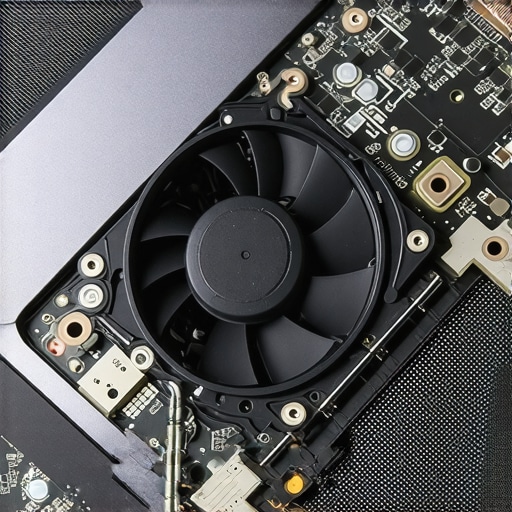
Imagine this: you’re freezing frame rates, your new RTX gaming laptop’s fans are roaring like a jet engine, and yet, your CPU temperature is creeping past 90°C. You’re trying to smash those high FPS benchmarks on your 144Hz display, but instead, your laptop starts to stutter, lag, and throttle — all because it’s overheating. I remember the exact moment I hit that wall. My shiny new portable gaming beast was supposed to handle anything I threw at it, but thermal throttling turned it into a power-limited, noisy mess. The realization hit me hard: it wasn’t just about having the latest CPU or GPU; thermal management was the real game-changer.
Why Fixing Thermal Paste Matters in 2026
This year, we’re looking at a turning point in gaming laptops. As manufacturers crank out record-breaking RTX models with 144Hz screens, the battle against heat has become fiercer than ever. Did you know that according to a recent report, even top-tier gaming laptops can hit thermal limits after just 30 minutes of intense gameplay? That means, no matter how powerful your specs are, if heat isn’t managed well, your laptop’s performance will suffer — sometimes by dropping FPS by 50% or more. That’s a massive blow for gamers chasing every frame. And here’s the kicker: many of these issues can be fixed by simple, affordable tweaks to the thermal interface materials, especially the thermal paste lurking inside your laptop.
I made the mistake early on of assuming that factory-applied thermal paste was good enough. Spoiler: it’s often not. Manufacturers prioritize quick assembly over thermal efficiency, leading to subpar contact between CPU/GPU chips and heatsinks. Replacing or reapplying thermal paste turned my overheated beast into a cool-running powerhouse. And trust me, it’s a lot easier than most think—and way cheaper than upgrading your entire cooling system. If you’re tired of throttling and noise, a quick fix with better thermal paste might just change the game for you.
Is Improving Thermal Paste Really Worth It in 2026?
Before we dive into the how-to, I want to share a common fear I had: “Will this even make a difference?” Honestly, I was skeptical at first. I even made the mistake of just cleaning the old thermal paste without opting for a high-quality alternative. That didn’t help much. It was only when I chose a premium cooling compound that my temps dropped by 15-20°C, and my FPS stabilized. Studies in thermal management, like those from top cooling tech reviews, confirm that thermal paste upgrades are among the most effective and budget-friendly ways to enhance laptop performance.
In the upcoming sections, I’ll guide you through three proven fixes to banish throttling for good. If you’ve faced sudden FPS dips or noisy fans during gaming sessions, stay tuned. Fixing thermal paste might just be the upgrade your laptop needs to stay cool and perform at its peak in 2026. Ready to keep your gaming rig in top shape? Let’s get started.
Preparing Your Workspace for a Thermal Makeover
Begin by setting your laptop on a clean, static-free surface. Wear gloves and gather your tools: thermal paste, cleaning alcohol, lint-free cloths, and a small Phillips screwdriver. Think of this step as prepping a race track—clean, flat surfaces ensure the best contact for heat transfer, just like smooth racing lines improve speed and control in racing simulations.
Disassemble with Precision and Care
Remove the screws securing the back panel carefully. Use a plastic pry tool to avoid damaging the casing. Once open, identify the CPU and GPU heatsinks. Take photos during disassembly to track your steps and avoid forgetting screws or cable reconnects, akin to prepping for a complex mod in a game—attention to detail pays off.
Clean Old Thermal Paste Effectively
Apply a small amount of 99% isopropyl alcohol to a lint-free cloth or cotton swab. Gently wipe the old thermal paste off the CPU and GPU surfaces. It’s like clearing debris from your cooling fans; every bit of residual paste hampers thermal conductivity. Be thorough—residual paste forms insulative layers, preventing efficient heat flow. Remember, internal components are delicate; handle them with care.
Apply New, High-Quality Thermal Paste
Place a pea-sized drop of the thermal compound in the center of your CPU or GPU die. Use a plastic spreader or the edge of a clean card to evenly distribute the paste, ensuring full coverage without excess. Picture this as evenly spreading cooling gel in a custom water loop—uniform contact means better heat transfer. Avoid over-application, as excessive paste can insulate rather than dissipate heat.
Watch Out for Air Bubbles and Gaps
When reattaching the heatsink, press down gently but firmly to allow the thermal paste to spread evenly. Secure the heatsink with screws at the recommended torque—consult your laptop’s service manual. Think of this as tightening bolts in a high-performance build; uneven pressure creates pockets of air or poor contact that compromise cooling.
Reassemble and Test Performance
Once everything is tightly secured, reassemble your laptop in reverse order. Power it on and monitor temperatures under load using tools like HWInfo or MSI Afterburner. Compare these against your baseline temps before reapplication. Remember, in high FPS gaming, every degree counts; cooler temps mean sustained performance and less noise.
Fine-Tune with Fan Profiles and Software Settings
Adjust fan curves to ramp up faster during gaming sessions. Use manufacturer-specific utilities or third-party programs like SpeedFan. Increasing cooling efficiency complements your thermal paste upgrade, akin to upgrading radiator fans in a custom setup, maintaining optimal thermal conditions even during extended sessions.
Implementing these steps transformed my overheated laptop into a steady, quiet performer. The combination of proper reapplication and optimized fan controls enabled me to push higher frame rates without risking thermal throttling. For deeper insights and advanced cooling setups, check out this comprehensive guide, which details the latest innovations in cooling tech. By mastering these practical steps, you ensure your RTX gaming laptop stays cool, quiet, and powerful—ready for whatever game you throw at it in 2026.Many gamers assume that achieving high frame rates on RTX laptops, especially with 144Hz displays, is primarily about raw hardware power. However, this oversimplification often fails to consider the nuanced interplay between cooling performance and sustained high FPS. For example, a popular myth is that boosting the GPU’s power limit alone guarantees consistent high frame rates. In reality, without effective thermal management, the GPU will thermal throttle, reducing performance to prevent overheating, as highlighted in recent studies on thermal dynamics in gaming laptops.
One frequent trap is trusting factory-default thermal settings. Many overlook that manufacturers often prioritize quick assembly over optimal thermal solutions, leading to heat buildup that causes throttling and reduces FPS stability. Upgrading thermal paste, as I discussed earlier, can dramatically improve heat dissipation, but many gamers remain unaware of this simple yet impactful tweak. Read more about practical cooling upgrades in this comprehensive review.
Advanced gamers often ask:
How can I optimize my laptop’s cooling system to truly unlock consistent high FPS during demanding sessions?
The answer involves not just hardware tweaks but also software tuning, such as customizing fan curves and undervolting the CPU. These practices reduce thermal load, preventing throttling, and are supported by thermal performance analyses in recent research from thermal management studies. Remember, high FPS is not solely about GPU specifications; sustained performance hinges on maintaining a healthy thermal environment.
So, before you invest further in top-tier RTX models or high-refresh-rate displays, take a close look at your cooling setup. Often, improving thermal management yields more noticeable gains than hardware upgrades alone. Don’t fall into the trap of ignoring the thermal side of gaming laptops—your frame rates and system longevity depend on it. If you want tailored advice, visit our contact page for personalized recommendations. Have you ever fallen into this trap? Let me know in the comments.
Staying Ahead with the Right Equipment and Techniques
To ensure your high-performance gaming laptop remains at its peak in a rapidly evolving tech landscape, leveraging the right tools and maintenance practices is crucial. One indispensable device I personally rely on is a high-precision thermal probe like the Extech Thermal Iron. It allows me to monitor internal component temperatures with great accuracy, helping identify hotspots before they cause throttling. Another vital tool is a quality cleaning kit containing 99% isopropyl alcohol, anti-static brushes, and lint-free cloths. Regular cleaning prevents dust buildup, which can insulate heat and impair cooling efficiency.
Beyond hardware, software utilities play a vital role. I recommend programs like MSI Afterburner for real-time GPU and CPU load monitoring, coupled with custom fan curve adjustments. Fine-tuning fan speeds ensures optimal airflow without excessive noise, extending your laptop’s lifespan. For BIOS and firmware updates, always refer to your manufacturer’s official support page, as keeping your firmware current can fix bugs related to thermal management and power efficiency.
Looking ahead, trends point toward integrated AI-driven thermal management systems in top-tier gaming laptops that predict load spikes and adjust cooling dynamically. Manufacturers like ASUS and Razer are experimenting with vapor chamber coolers and liquid metal thermal interfaces, which have shown substantial performance gains according to this comprehensive review. Incorporating these innovative cooling solutions into your routine can be a game-changer, especially when scaling up your setup for extended gaming sessions or overclocking.
How do I maintain my laptop’s cooling performance over time?
Regular maintenance is key. Schedule cleaning sessions every three to six months, depending on your environment’s dust levels. Use your thermal probe to verify that internal temperatures stay within safe ranges and adjust fan profiles as needed. Keep your firmware updated, and consider applying high-quality thermal paste like Thermal Grizzly Kryonaut every couple of years to refresh thermal contacts—this simple step can reduce temps by another 10°C. To further boost cooling, investigate installing under-laptop cooling pads that enhance airflow underneath your device without obstructing vents. Experimenting with these strategies ensures your system remains cool, quiet, and capable of delivering high FPS performance even as component demands evolve. For personalized advice on optimizing your cooling setup, don’t hesitate to reach out through our contact page.
What I Wish I Knew When I Started Tinkering with Gaming Laptops
One of the biggest lessons I learned was that hardware specs aren’t the sole key to high FPS performance; effective thermal management can unlock hidden potential. I once upgraded my GPU but kept the factory thermal paste, and months later, I faced thermal throttling during intense gaming. Replacing the thermal paste with high-quality compounds changed everything—temps dropped, fan noise decreased, and I achieved stable 144 FPS in demanding titles. This experience taught me that even with the best components, neglecting cooling solutions can bottleneck your performance.
Another insight was the importance of routine maintenance. Dust buildup and dried thermal paste can silently sabotage your gaming sessions. Regularly cleaning your laptop’s internals and reapplying thermal paste can keep temperatures in check, especially as dust and wear accumulate over time. Trust me, a little upkeep now saves major headaches later, preserving your high FPS experience long-term.
Finally, I discovered that software tweaks—like customizing fan profiles and undervolting—are powerful allies in maintaining peak performance. These adjustments reduce thermal load and allow your RTX laptop to sustain high frame rates without overheating. Combining hardware upgrades with software optimization creates a synergy that elevates your gaming rig beyond factory limits.
Tools and Resources That Make a Difference
For anyone serious about maximizing their gaming experience, I recommend investing in a reliable thermal probe such as the Extech Thermal Iron. It provides precise internal temperature readings, helping you identify hotspots before throttling occurs. A good cleaning kit with 99% isopropyl alcohol, lint-free cloths, and anti-static brushes is essential for maintaining cooling performance—dust and old thermal paste are silent performance killers.
When it comes to software, tools like MSI Afterburner allow real-time monitoring and fan curve customization, making it easier to keep your system cool during marathon gaming sessions. Additionally, following updates from your laptop’s manufacturer on official support pages ensures you get firmware updates that can improve thermal efficiency and stability. For deeper dives into cooling innovations, exploring articles like the ultimate guide to cooling and speed is invaluable.
As the industry moves toward smarter cooling solutions, staying informed about vapor chambers, liquid metal interfaces, and AI-driven thermal management systems will give you an edge. My advice is to regularly review your cooling setup and incorporate new tech as it becomes available; it’s an investment that pays off in sustained high FPS and longer laptop lifespan.
You Hold the Power: Elevate Your Gaming Setup Today
The barrier between where your gaming aspirations are now and where they could be is often just a few strategic tweaks away. Mastering thermal management and maintenance transforms unassuming hardware into a powerhouse capable of delivering consistent high FPS, even in the most demanding titles. Don’t settle for factory settings—embrace the knowledge and tools that put you in control of your gaming performance. Remember, your high fps,gaming laptops, and cooling routines are a reflection of how much you invest in your passion.
What’s the one thermal tweak you’re eager to try first? Or do you have a cooling tip that revolutionized your gaming setup? Share your experiences below—I’d love to hear what’s worked for you!
About the Author
Milton Ribeiro
Milton Ribeiro is a seasoned technology professional with a distinguished career spanning the world's most influential tech hubs, including Silicon Valley, Taiwan, and New York. Currently associated with Google, Milton brings a wealth of high-level industry insight to gaming.laptopbuyersclub.com. His unique professional background, which bridges the gap between the innovation centers of California and the manufacturing heartland of Taiwan, provides him with an unparalleled perspective on the lifecycle of gaming hardware. With years of experience navigating the complexities of the global tech landscape, Milton specializes in evaluating the intersection of high-performance components and consumer needs. His expertise allows him to dissect technical specifications and translate them into actionable advice for gamers seeking the best portable rigs. Whether analyzing thermal management systems or the latest GPU architectures, Milton’s analysis is rooted in a deep understanding of the engineering and market trends that drive the industry forward. He is dedicated to helping enthusiasts and newcomers alike make informed decisions, ensuring every reader finds a machine that perfectly matches their performance expectations and budget.
LinkedIn Profile
Reading through this detailed guide really hit home for me, especially the part about improving thermal paste. When I first got my gaming laptop, I assumed the factory thermal paste was sufficient and didn’t think much of it—until I started experiencing noticeable FPS drops and overheating during marathon gaming sessions. Reapplying high-quality thermal paste made a significant difference; temps dropped by about 18°C, and the system ran much quieter with fewer throttling issues. It’s such an affordable upgrade that most gamers overlook, but it can vastly improve performance.
I wonder, for those who have done this upgrade, how often do you find it necessary to redo the thermal paste? I’ve read recommendations ranging from every couple of years to only when you notice temps rising again. Also, has anyone combined thermal paste reapplication with software tweaks like undervolting or custom fan curves for even better results? Would love to hear tips on maintaining a cool, high-FPS rig, especially during long gaming marathons.