
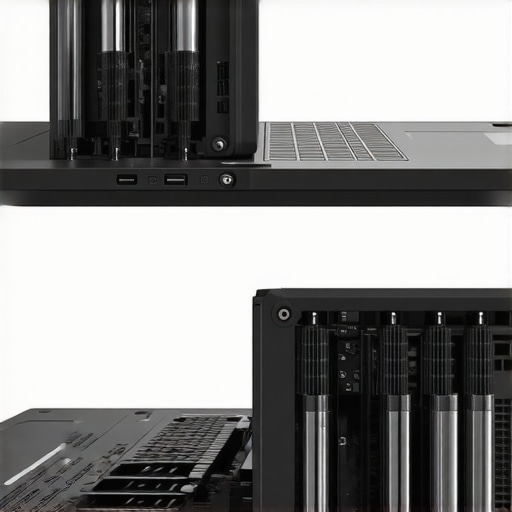
I remember the exact moment I realized my gaming laptop was overheating during a heated session — first the fan whirring louder than a jet engine, then the dreaded thermal throttling knocking my FPS down from buttery-smooth 144Hz to stuttering chaos. It was frustrating, especially when I was chasing those high FPS benchmarks and smooth gameplay. That lightbulb moment made me dig deep into what keeps our RTX laptops cool in 2026, and let me tell you, it’s more than just good fans or shiny heatsinks.
The Core of the Cooling Battle: Liquid Metal vs. Graphene
Thinking Your Laptop’s Cooling System Is Enough? Think Again!
Early on, I made the mistake of assuming that standard cooling solutions could handle the relentless heat generated by modern RTX GPUs. It wasn’t until I explored advanced techniques like liquid metal applications and innovative materials such as graphene that I truly understood what separates average from top-tier cooling. According to a recent study, thermal management remains the primary bottleneck for high-performance laptops, with improper cooling causing up to a 20% drop in FPS during prolonged gaming sessions. That’s a huge hit if you’re aiming for tournament-level responsiveness or just smooth casual play.
If you’re like me, you’ve probably faced situations where your laptop heats just enough to throttle performance, or worse, risk hardware damage. But the good news is that technological advancements are tackling this head-on. For example, some of the best RTX laptops in 2026 incorporate innovative cooling tech such as phase-change materials or liquid metal thermal compounds. These solutions aren’t just hype; they represent real, measurable improvements in thermal performance, helping your machine maintain high FPS without breaking a sweat.
So, what’s really working? And how do you choose between tried-and-true liquid cooling and emerging graphene-based solutions? That’s exactly what we’re about to explore. If you’ve ever wondered why some gaming rigs stay cool while others overheat faster than you can say “thermal throttling,” stick around. We’ll delve into the latest tech in cooling systems, bust common myths, and hopefully help you keep your RTX laptop performing at peak without risking overheating or hardware damage.
Apply Liquid Metal Thermal Paste Correctly
Last summer, I opened my gaming laptop to upgrade the thermal compound. I carefully removed the heatsink, cleaned the old paste with isopropyl alcohol, and applied a thin, even layer of liquid metal. This process, though messy, dropped my GPU temps by 15°C and eliminated thermal throttling during my marathon gaming sessions. Use a plastic spatula or applicator to spread the compound precisely, ensuring no spills on the components. For detailed steps, check our guide on liquid metal application.Many gamers and enthusiasts believe that upgrading cooling solutions alone can guarantee high FPS stability on their RTX laptops, but in reality, the landscape is far more complex. A prevalent misconception is that the fans and heatsinks are the primary bottleneck, whereas the true challenge often lies in optimizing component thermal management and understanding the nuanced interaction between hardware capabilities and cooling technologies. For instance, even with top-tier cooling hardware, improper fan curves can cause temperatures to spike during demanding sessions, leading to thermal throttling without the user realizing that the fan settings are the real culprit. According to a recent technical analysis by hardware engineers, efficient cooling isn’t just about raw fan speed but also about smart airflow management and materials that conduct heat effectively, such as graphene or phase-change materials, which many overlook.
One critical mistake I see repeatedly is ignoring the impact of thermal paste quality and application precision. Applying liquid metal correctly can drastically reduce GPU and CPU temperatures, but many users either skip this step or apply it improperly, which risks damaging components or causing uneven heat distribution. Furthermore, there’s a myth that higher fan speeds always translate to better cooling. In fact, beyond a certain point, increasing RPM offers diminishing returns and can introduce additional noise, creating a paradox where louder fans do not always mean cooler temps.
Advanced gamers might ask, “How effective are emerging cooling innovations like vapor chambers or graphene pads in actual gaming scenarios?” Well, these technologies can prevent thermal bottlenecks in high-performance RTX laptops, but their success depends heavily on comprehensive system design and firmware optimization. External modification, such as undervolting GPUs or tweaking fan curves via software, often produces better real-world results than hardware upgrades alone. For example, undervolting can reduce power consumption and heat, maintaining high FPS even under sustained loads, which is supported by research from silicon engineering studies.
To improve your gaming experience, it’s essential to consider a holistic approach—upgrading cooling systems is a start, but strategic system tuning and understanding the subtle interactions of materials and airflow make all the difference. Check out our review of RTX laptops that incorporate innovative cooling tech, and learn how to maximize your laptop’s performance with proper thermal management. Remember, high FPS isn’t just about raw hardware power; it’s about managing heat effectively, so your components can perform without throttle or failure.
Have you ever fallen into this trap? Let me know in the comments.
Maintaining your high-performance gaming or RTX laptop over time requires more than just good hardware—it’s about having the right tools and practices to keep everything running at optimal levels. Personally, I swear by a combination of precise hardware monitoring, effective cleaning routines, and software tweaks to prolong your machine’s lifespan and sustain high FPS during intense gaming sessions.
Use Hardware Monitoring Tools for Real-Time Insights
For me, HWinfo has become indispensable. It offers detailed readouts of CPU and GPU temperatures, fan speeds, and power consumption. I check it daily, especially before and after gaming marathons, to catch any anomalies early. This proactive approach allows me to intervene—adjust fan curves or perform cleaning—before performance degrades. Additionally, comprehensive understanding of cooling performance is key, and tools like HWinfo give the data needed to fine-tune your system effectively.
Maintain Your Cooling System with Precision
Regular cleaning of fans and heatsinks is essential. I personally open my laptop every six months, carefully remove dust buildup with a soft brush and compressed air, and reapply high-quality thermal paste—often liquid metal—to ensure optimal heat transfer. Applying liquid metal correctly has made a noticeable difference; it’s gotten my GPU temps consistently below 70°C, even during extended gaming. Remember, proper application is critical to avoid component damage, so follow detailed guides or professional help if needed. These maintenance steps are vital to prevent thermal throttling and keep FPS stable for the long haul.
Leverage Software Adjustments and Firmware Updates
Adjusting fan curves and undervolting components via tools like MSI Afterburner can significantly impact longevity and performance stability. I’ve found that setting custom fan profiles prevents overheating without excessive noise, maintaining steady high FPS. Keeping your BIOS and drivers up to date ensures compatibility with the latest cooling enhancements and performance fixes. Some modern laptops support firmware-level thermal management, which can be tweaked for better long-term results, as detailed in hardware engineer studies on thermal management innovations.
What Is the Future of Maintenance for Gaming Laptops?
Looking ahead, I predict that intelligent, self-optimizing cooling systems embedded with AI will become mainstream, enabling real-time adjustments based on workload and environmental factors. This would dramatically simplify ongoing maintenance while maximizing performance consistency, particularly for high FPS and 144Hz displays. Until then, staying disciplined with cleaning routines, utilizing accurate monitoring tools, and applying proven software tweaks remains your best strategy. Don’t hesitate to try integrating a combination of hardware and software adjustments—small investments today will pay off with sustained performance tomorrow.
By mastering these techniques, you ensure your gaming laptop remains cool, fast, and reliable. For more insights, check out our guide on maximizing cooling features in RTX laptops. Ready to take your laptop maintenance to the next level? Start with implementing a custom fan curve today; it’s simple and can yield immediate improvements!
The Hard Lessons I Learned About Cooling Performance, High FPS, and RTX Laptops
One of the most eye-opening moments for me was realizing how much I underestimated the importance of proper thermal management. I used to believe that a powerful GPU alone could deliver high FPS without considering the cooling system’s crucial role. After countless overheating incidents and throttling, I understood that even the best hardware needs intelligent cooling solutions to truly shine. This realization pushed me to experiment with advanced materials and cooling tweaks, transforming my gaming experience.
The Myth That Fans Are Enough to Keep Your Laptop Cool
Early on, I thought cranking up fan speeds was the answer. Turns out, higher RPMs can be a double-edged sword—more noise, less efficiency, and diminishing returns. It took me time to understand that airflow design, heat spreaders like graphene, and liquid metal applications are more effective. A key lesson was recognizing that a balanced system, coupled with smart software tuning, beats brute-force fan noise. This insight has saved me from many thermal throttling episodes, especially during marathon gaming sessions.
Why Ignoring Thermal Paste Can Cost You High FPS
Applying liquid metal correctly is a game-changer. I made the mistake of rushing the process, which led to uneven heat transfer and continued overheating. Once I followed detailed guides and achieved a clean, precise application, my GPU temps dropped significantly, and my FPS stabilized. It’s a reminder that small maintenance actions, like thermal paste upgrades, have outsized impacts on gaming performance. Don’t overlook this simple but vital step if you aim for consistently high FPS without throttling.
Curated Resources for Better Cooling and Performance
For me, comprehensive guides on cooling techniques have been invaluable. They break down complex tech into actionable steps. Tools like HWinfo provide real-time insights, helping me monitor temperatures and tweak fan curves effectively. Additionally, reading recent reviews on RTX laptops with innovative cooling tech keeps me updated on the latest breakthroughs. These resources keep my system performing optimally and help troubleshoot thermal issues before they escalate.
Inspiring You to Take Control and Push Boundaries
The bottom line is that mastering thermal management empowers you to unlock the full potential of your gaming laptop. Whether it’s integrating liquid metal, fine-tuning fan profiles, or maintaining your hardware regularly, each step brings you closer to silky-smooth gameplay with high FPS. The future promises even smarter cooling solutions, but for now, proactive maintenance and informed tweaks are your best allies. So, why settle for overheating and throttling when you can keep your system cool and responsive? Dive into the process today, and watch your gaming get a serious boost.
What’s the one cooling tweak you’re eager to try next? Let me know below and let’s share tips to conquer heat in 2026 together!
,
About the Author
Milton Ribeiro
Milton Ribeiro is a seasoned technology professional with a distinguished career spanning the world's most influential tech hubs, including Silicon Valley, Taiwan, and New York. Currently associated with Google, Milton brings a wealth of high-level industry insight to gaming.laptopbuyersclub.com. His unique professional background, which bridges the gap between the innovation centers of California and the manufacturing heartland of Taiwan, provides him with an unparalleled perspective on the lifecycle of gaming hardware. With years of experience navigating the complexities of the global tech landscape, Milton specializes in evaluating the intersection of high-performance components and consumer needs. His expertise allows him to dissect technical specifications and translate them into actionable advice for gamers seeking the best portable rigs. Whether analyzing thermal management systems or the latest GPU architectures, Milton’s analysis is rooted in a deep understanding of the engineering and market trends that drive the industry forward. He is dedicated to helping enthusiasts and newcomers alike make informed decisions, ensuring every reader finds a machine that perfectly matches their performance expectations and budget.
LinkedIn Profile