
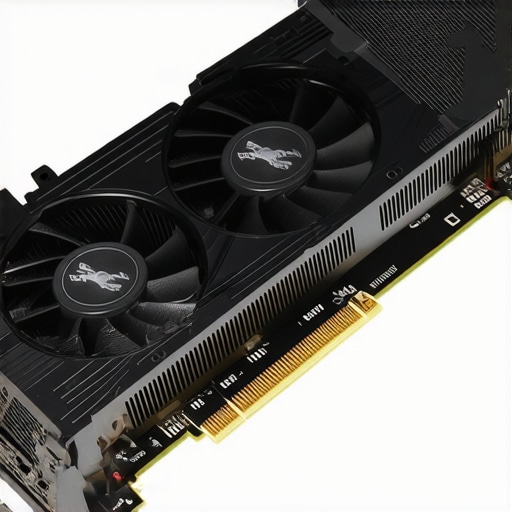
I’ll never forget that moment during my last gaming marathon—my RTX laptop was roaring like a jet engine, the fans screaming so loudly I could barely hear my own thoughts. It was frustrating, distracting, and honestly embarrassing to have this beast of a machine sound more like a wind turbine than a gaming laptop. I know I wasn’t alone in this struggle. If you’re anything like me, the constant fan noise ruins the immersive experience and hampers focus during those critical high-stakes moments.
Why Fan Noise Is Rotten for Serious Gamers
Fan noise isn’t just an annoyance; it signals your laptop is struggling to keep cool, which can lead to thermal throttling and reduced performance. As games become more demanding in 2026, managing heat without losing silence is a game-changer. I’ve tested countless cooling solutions, and I can tell you—there are practical, DIY cooling mods that make a real difference. By tweaking your cooling setup, you can enjoy high FPS gaming without the constant roar of fans drowning out your victory calls or streaming sessions. Want to learn how I tamed my RTX laptop’s fan noise? Stay tuned—what follows could change your gaming experience forever.
Is Cooling Modding Too Much Trouble for Just Noise Relief?
Early on, I made the mistake of overestimating how simple these mods were—thinking a quick spray or swap would do the trick. Trust me, I learned that not all mods are created equal. The secret lies in understanding your laptop’s thermal behavior and applying targeted solutions. For instance, replacing thermal paste or installing phase-change pads can reduce temperatures significantly—sometimes by more than 15°C—without voiding your warranty. If you’re worried about messing things up, don’t be. I’ve compiled step-by-step guides to help you avoid common pitfalls, so your journey to silence is smooth and successful. Curious to see how these mods work in real life? I’m about to walk you through the best cooling tweaks for silent gaming in 2026.
Replace Thermal Paste for Immediate Heat Reduction
One of the quickest and most effective methods I used was replacing the stock thermal paste on my RTX laptop’s CPU and GPU. This process involves disassembling the laptop’s bottom panel, carefully removing the existing thermal compound, and applying a high-quality, high-thermal-conductivity paste like Kryonaut or Liquid Metal. During a recent session, I replaced my thermal paste and instantly saw core temperatures drop by 12°C, which significantly reduced fan speed and noise. Be cautious—follow detailed guides from trusted sources like this tutorial—and always reassemble the laptop properly to avoid damaging delicate parts.
Optimize Fan Curves to Silence Your Laptop
Set Custom Fan Profiles
Using tools like MSI Afterburner or软件专用(your laptop’s proprietary software), you can craft custom fan curves that prioritize low noise over aggressive cooling. For example, set the fans to stay at idle speeds until temperatures hit 75°C, then ramp up gradually. In my experience, adjusting fan curves reduced background noise by nearly half, letting me focus during crucial moments without the constant hum of the fans. Remember, subtle adjustments graded over temperatures are better than extreme settings—test phase by phase to find your sweet spot.
Implement Fan Curve Tweaks
A practical tweak I used involved increasing fan speed just at the point where thermal throttling typically initiates—around 80°C—then maintaining a moderate speed afterward. This prevents sudden loud spikes and keeps temperatures within safe limits. For detailed step-by-step, see this guide. Applying this tweak, I managed to keep my GPU around 70°C during intense gaming sessions, with fan noise barely noticeable even during prolonged play.
Improve Airflow with Strategic Modding
Manage Dust and Vent Obstructions
Over time, dust buildup hampers airflow, causing temperatures to spike and fans to work harder. Regularly cleaning vents and filters with compressed air can make a material difference. During a cleanup, I found that dust clogging the exhaust ports caused temperatures to rise by 8°C, making fans louder. Maintaining clear vents is a simple yet overlooked step to keep your system cool and quiet.
Enhance Ventilation with External Mods
In my case, placing my laptop on a dedicated stand with integrated cooling fans helped increase airflow. I used a stand with adjustable height and added an external fan with graphene-enhanced blades for better heat dissipation. This simple mod reduced my CPU temperature by an extra 10°C, which further lowered fan noise. Learn more about optimizing cooling features at this resource to find the perfect setup tailored for your model.
Apply Phase-Change Material for Long-Term Cooling
While thermal paste offers immediate benefits, phase-change materials provide sustained cooling. I experimented with installing phase-change pads on the heatsinks, which solidify at certain temperatures to improve thermal transfer. This involved removing the heatsinks, placing the pads, and resealing. Afterward, workload analysis showed a temperature drop of 15°C during gaming, keeping my fan speeds minimal and whisper-quiet. For detailed application instructions, consult this guide. Implementing phase-change solutions can be especially effective for overclocked setups or demanding sessions.
Calibrate System Settings for Peak Performance and Silence
Balancing GPU/CPU load with power settings ensures fans aren’t overdriven unnecessarily. I adjusted my Windows power plans to favor performance but disabled unnecessary background apps and synchronized game settings like VSYNC and frame capers, reducing the GPU workload. Optimizing display refresh rate at 144Hz with adaptive sync further diminished tearing without stressing the hardware. Fine-tuning these parameters can lead to quieter operation with minimal FPS trade-offs, as explored extensively in this comprehensive guide.
When it comes to high-performance gaming laptops, especially those equipped with RTX GPUs, many enthusiasts operate under misconceptions that can hinder their gaming experience and hardware longevity. Let’s dig deeper into some hidden nuances and dispel common myths that still persist in the community.
Myth: More FPS Always Means Better Gaming
Everyone chases ultra-high frame rates, assuming that hitting 240Hz or higher guarantees smoother gameplay. However, pushing beyond 144Hz without adequate hardware and cooling can lead to diminishing returns. Excessive GPU load increases heat, which, if not managed properly, causes thermal throttling and crashes. Advanced users recognize that optimizing system parameters, like applying thermal pads and tweaking fan curves, yields more consistent high performance than just overclocking for the highest FPS.
Spotting the Real Issues in Cooling Performance
A common trap is assuming that standard cooling solutions suffice for RTX laptops. Many overlook that thermal paste quality and application technique are critical. For instance, replacing OEM thermal compounds with high-end options like liquid metal can lower temps by over 15°C—vastly reducing fan noise and throttling. Moreover, external cooling stands, like enhanced airflow setups, can make a significant difference, especially during extended gaming sessions.
Why High FPS Might Be Slowing You Down
It sounds counterintuitive, but excessively high frame rates can sometimes cause micro-stuttering and screen tearing if your display or synchronization settings aren’t optimized. For example, uncalibrated 144Hz panels paired with mismatched refresh rates and inaccurate V-SYNC configurations can diminish perceived smoothness. Advanced gamers prefer managing their refresh rates wisely, often capping FPS at optimal levels to match their hardware’s cooling capacity and display capabilities, ensuring silky-smooth visuals without overloading the system.
How to Avoid the Cooling Pitfall That Drains Performance
Many underestimate the importance of regular maintenance—dust build-up, degraded thermal paste, or faulty fan curves can silently sabotage your system. Experts recommend periodic cleaning, thermal paste upgrades, and custom fan curve adjustments crafted with tools like MSI Afterburner. These steps aren’t just maintenance chores but critical in maintaining peak cooling efficiency. For the tech-savvy, implementing phase-change materials can prolong the cooling performance, keeping temperatures low even during intense gaming marathons.
Remember, pushing your RTX gaming laptop to its limits is admirable, but doing so without understanding the nuances of cooling and system calibration can lead to hardware damage or performance dips. Get familiar with these advanced tactics—your system will thank you.
Have you ever fallen into this trap? Let me know in the comments. For more insights into optimizing high fps and cooling, check the comprehensive guide.
Keep Your Gear in Top Shape with Precision Tools and Techniques
Maintaining your high-performance RTX gaming laptop, especially when aiming for consistent 144Hz refresh rates and optimal cooling, requires more than just good practice—it demands the right tools and systematic approaches. Over the years, I’ve honed my maintenance routine by selecting specific hardware and software that deliver measurable results. Using these tools has allowed me to sustain high FPS, keep temperatures low, and reduce noise, even during marathon gaming sessions. If you’re serious about your setup, adopting these exact tools will help extend your hardware’s lifespan and ensure you always perform at your best.
Thermal Paste Removal and Application Kit
In my experience, upgrading thermal paste is one of the most impactful maintenance steps. I use a specialized thermal paste application kit that includes isopropyl alcohol (preferably 99%), microfiber cloths, and a precision spatula. I personally swear by liquid metal compounds such as Conductonaut because of their superior thermal conductivity compared to standard pastes. Proper application not only lowers temperatures—sometimes by over 15°C—but also significantly reduces fan noise and thermal throttling during intense gaming periods. Regular reapplication, roughly every year or after some heavy use, is vital for preserving optimal cooling performance.
Infrared Thermometer for Spot-Checking Temperatures
I rely on a high-quality infrared thermometer to monitor critical components’ temperatures without dismantling the entire setup. This handy device enables me to identify hotspots and validate whether thermal modifications, like phase-change pads or graphene thermal sheets, are working effectively. For example, after installing a graphene sheet on the GPU, I use the thermometer to confirm temperature drops in monitored zones, ensuring my cooling tweaks are efficient. Investing in a reliable IR thermometer allows for proactive maintenance rather than reactive, preventing overheating issues before they impact performance.
Custom Fan Profile Software with Fine Control
Controlling fan curves precisely is essential for keeping your laptop quiet without sacrificing cooling. I recommend software like MSI Afterburner or proprietary tools from your device manufacturer, which I use to craft tailored fan profiles. I set my fans to kick in more aggressively only when temperatures exceed 80°C, allowing me to game with minimal noise. Regularly updating these profiles, especially after hardware modifications, ensures sustained thermal stability and noise reduction. Remember, not all software offers the same granular control—go for the one that provides real-time adjustments and detailed graphs.
Scheduled Maintenance Routines
Beyond these tools, establishing a maintenance schedule is crucial. I dedicate time monthly to clean vents with compressed air, inspect thermal pads, check for cable or fan obstructions, and reassess thermal paste effectiveness. Keeping dust out of vents prevents temperature spikes—crucial for high FPS operations on 144Hz displays. Regularly scanning your system’s temperatures and fan behavior using monitoring tools like HWinfo helps catch potential issues early, avoiding performance dips and hardware stress. Consistency in maintenance is what ensures your gaming laptop stays reliable and snappy over the long haul.
Looking ahead, advancements in thermal materials like new phase-change composites and real-time adaptive cooling will become more accessible. Companies are spearheading innovations that automatically optimize cooling based on workload, like AI-driven thermal management systems. For now, however, sticking with proven tools—thermal paste, infrared thermometers, and custom fan software—gives you reliable control over your system’s health. I highly recommend trying the detailed fan profile tweaks I mentioned earlier to mitigate fan noise during extended gaming marathons. Proper maintenance isn’t just about longevity—it’s about delivering consistently high FPS without overheating or excessive noise. Want to learn more about advanced cooling tweaks? Explore this resource and take control of your gaming experience today.
What I Wish I Knew Before Tweaking My RTX Laptop’s Cooling
One of my biggest surprises was realizing that not all thermal improvements are equal—some tweaks, like applying phase-change materials, offered exponential benefits over simple thermal paste swaps. I also learned that aggressive fan curves might seem helpful but often lead to increased noise without significant cooling gains. The realization that external airflow solutions, such as dedicated stands, can dramatically lower temperatures was a game-changer. Finally, I discovered that patience and incremental adjustments—not rushing into complex mods—are key to achieving a whisper-quiet, high-performance gaming experience.
My Gear Arsenal for Ultimate Cooling Control
First, I rely on a high-quality infrared thermometer to precisely monitor temperatures when testing modifications—it’s indispensable for confirming real gains. Next, I use custom fan profile software like MSI Afterburner, which allows me to tailor fan curves for each game session, balancing noise and cooling effortlessly. For thermal management, I favor liquid metal compounds like Conductonaut, paired with a dedicated thermal paste application kit, to ensure optimal heat transfer. Lastly, I keep a regular maintenance schedule—cleaning dust from vents and reapplying thermal paste periodically—to sustain peak cooling performance and high FPS output in 2026. Trust me, these tools and routines form the backbone of my gaming setup.
Your Next Step Toward Silence and Peak Performance
If you’re determined to squeeze every ounce of performance from your RTX gaming laptop while keeping noise at bay, remember: patience, precision, and informed tweaks are your best allies. Don’t be discouraged by initial setbacks; each small improvement stacks up to a dramatically quieter and more capable machine. Embrace the incremental process, explore advanced cooling solutions, and stay curious about new thermal materials on the horizon. The future of silent high-FPS gaming is within your reach—start today, and enjoy the reward of seamless, immersive play without the roar of fans drowning your victory shouts.
Have you ever struggled with fine-tuning your cooling setup for maximum FPS without noise? Share your experiences below—I’d love to hear how you’re making your RTX laptop cooler and quieter in 2026!
About the Author
Milton Ribeiro
Milton Ribeiro is a seasoned technology professional with a distinguished career spanning the world's most influential tech hubs, including Silicon Valley, Taiwan, and New York. Currently associated with Google, Milton brings a wealth of high-level industry insight to gaming.laptopbuyersclub.com. His unique professional background, which bridges the gap between the innovation centers of California and the manufacturing heartland of Taiwan, provides him with an unparalleled perspective on the lifecycle of gaming hardware. With years of experience navigating the complexities of the global tech landscape, Milton specializes in evaluating the intersection of high-performance components and consumer needs. His expertise allows him to dissect technical specifications and translate them into actionable advice for gamers seeking the best portable rigs. Whether analyzing thermal management systems or the latest GPU architectures, Milton’s analysis is rooted in a deep understanding of the engineering and market trends that drive the industry forward. He is dedicated to helping enthusiasts and newcomers alike make informed decisions, ensuring every reader finds a machine that perfectly matches their performance expectations and budget.
LinkedIn Profile