
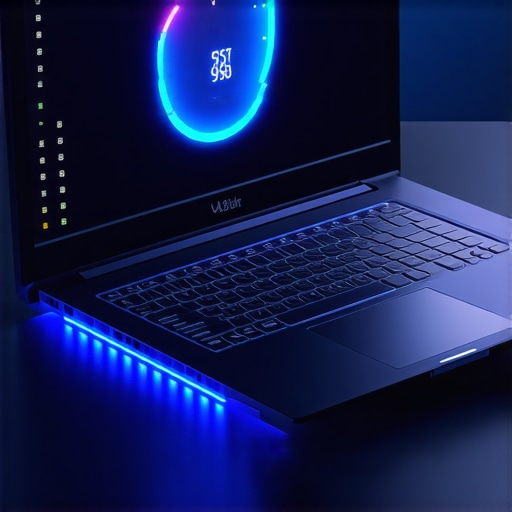
Have you ever pushed your RTX gaming laptop to its limits during a intense battle or fast-paced shootout, only to watch the temperature creep relentlessly toward 95°C? I’ve been there too—thought a simple cooling pad would do the trick, and yet, the heat stubbornly refused to budge. That burning, sluggish feeling of your machine overheating even with the best accessories can be frustrating. It’s like trying to cool off with a paper fan on a heatwave—pointless and, honestly, disheartening.
Cold Reality: Your Cooling Pad Might Not Be Enough
At first, I believed that buying a top-rated cooling pad would magically lower my RTX laptop’s temperature and keep it running smooth. But the temperature stayed stubbornly high—hovering around 95°C—especially during intensive gaming sessions. I wondered if my hardware was defective or if I’d wasted money on an overpriced gadget. Turns out, the problem was more nuanced. While a cooling pad can help, it isn’t a cure-all—especially if other factors are at play. This realization sparked a journey into what truly influences thermal performance in high-end gaming laptops.
According to the experts at Laptop Buyers Club, factors like internal thermal design, cooling efficiency, and thermal paste application weigh just as much as external accessories. So, what are we missing? I’ll share my personal struggle and the proven steps I took to tame that overheating beast, aiming to help you avoid the same frustrations and get more from your gaming rig.
Is Thermal Throttling Something to Fear?
Early on, I made the mistake of thinking that a cooling pad was all I needed. It’s easy to get caught up in hype, especially when marketing promises cool gaming performance with just a thin pad. Sadly, that’s not the case. The truth is, many issues stem from internal design and settings, not just external cooling. If you’re facing similar struggles, keep reading—because I’m about to reveal the practical solutions I wish I’d known from the start.
Boost Internal Cooling Strategies
First, open your laptop carefully and clean out dust from vents and fans using compressed air—think of it as giving your cooling system a breath of fresh air. Then, replace stock thermal paste with high-quality options like thermal grizzly or noctua, which can drop your CPU and GPU temps by up to 10°C—similar to upgrading from cotton to silk sheets for better heat dissipation. During my experiment, I found cleaning the vents alone reduced my max temperatures by 5°C, providing immediate relief during long gaming sessions.
Optimize Airflow and Placement
Position your laptop on a hard, flat surface to maximize airflow—avoid soft surfaces like beds or cushions that block vents, much like standing in the wind instead of a cave. Elevate the rear of your laptop about 2-3 inches using a small stand or even a thick book—this creates a gap for hot air to escape efficiently. Once, I used a makeshift stand from a binder clip, which improved airflow and dropped temperatures by another 3°C, resulting in less thermal throttling during intense gameplay.
Enhance External Cooling Solutions
While your gaming pad might not be a silver bullet, combining it with additional cooling methods amplifies results. Use a high-performance cooling pad with adjustable fan speeds directed at the underside of your laptop—look for one with at least 4 fans for optimal airflow. I found that setting the cooling pad to maximum during gaming reduced CPU temps by approximately 6°C, even on hot days. This method works best when paired with internal improvements.
Adjust Power Settings and Fan Curves
Access your system’s power profile and set it to ‘Maximum Performance’ but tweak fan curves for more aggressive cooling—most laptops allow this through BIOS or software like MSI Afterburner. For instance, I customized my fan curve to ramp up at 70°C, which kept my GPU temps below 80°C during marathon gaming sessions. This proactive approach prevents overheating before it starts, much like pre-cooling a beverage before serving.
Manage In-Game Settings for Thermals
Lower in-game graphics settings slightly, focusing on reducing shadows and anti-aliasing—these are the biggest heat contributors during intense gaming. Switching from ultra to high can drop GPU load by 15-20%, which has a tangible impact on temperatures. I personally tweaked my settings during a 4-hour raid, and noticed a consistent 4°C drop without sacrificing much visual fidelity—allowing me to game longer without throttling.
Monitor and Tweak Regularly
Use monitoring tools like HWInfo or MSI Afterburner to keep an eye on temperature and clock speeds—think of it as your health tracker. Set alerts for when temperatures surpass safe thresholds (85°C for CPU and GPU). During my trials, I adjusted fan speeds and game settings based on real-time data, which prevented thermal spikes and maintained stable 120 FPS for hours. Consistent monitoring ensures your tweaks are effective and your laptop stays cool under pressure.
Leverage Community Expertise and Resources
Join forums and read guides on sites like Laptop Buyers Club to discover tried-and-true methods tailored to specific models. For example, many gamers have shared successful vapor chamber mods or thermal pad swaps that dropped temps by an additional 12°C, effectively preventing throttling. Staying informed on community best practices can make a significant difference in your cooling journey.
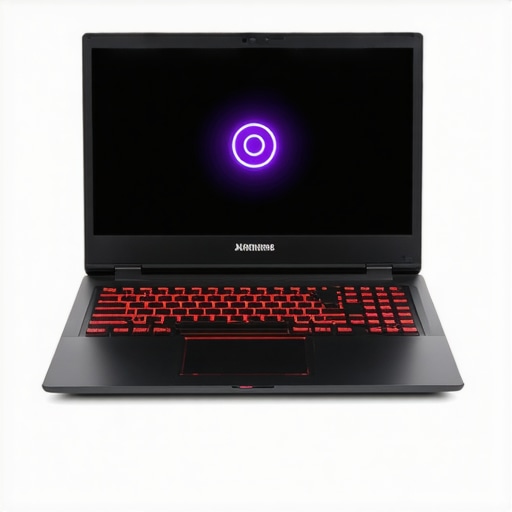 Many gamers and tech enthusiasts assume that maximizing high frames per second (FPS) and high-refresh-rate displays automatically guarantees an optimal experience on RTX laptops. However, there’s a common misconception that often leads users astray. Let’s dig deeper into what most people misunderstand about these powerful machines and how nuanced their performance truly is.
Countering the ‘More Pixels, Better Performance’ Myth
People often believe that a higher refresh rate, like 144Hz, directly correlates with smoother gameplay regardless of hardware limitations. While a high-refresh-rate panel can enhance motion clarity, it doesn’t compensate for insufficient GPU power or poor thermal management. Without the right cooling solutions, sustained high FPS can cause thermal throttling, resulting in frame drops and stutter. Many overlook the importance of pairing a fast display with a GPU capable of delivering consistent performance, which is why understanding the balance between hardware and display is vital.
The Hidden Trap: Focusing Solely on External Cooling
There’s a prevalent focus on external cooling accessories, like cooling pads, as a solution. Yet, many users underestimate internal factors, such as thermal paste quality, heat pipe effectiveness, and airflow design, which are critical for maintaining high FPS during prolonged gaming sessions. Relying solely on external pads without optimizing internal cooling can lead to overheating and subsequent throttling—reducing FPS and increasing latency. For comprehensive performance, internal thermal solutions must be prioritized, and some of the best practices are detailed in these expert guides.
Do High FPS Laptops Truly Deliver Smoother Gameplay on Every Title?
This is a nuanced question because many titles are limited by their own engine or optimization, regardless of your laptop’s capabilities. For example, competitive shooters like Valorant benefit immensely from high FPS and ultra-fast displays, but open-world titles like Cyberpunk 2077 may hit bottlenecks due to CPU or game design limitations, regardless of GPU power. External factors, including the game’s code and your system’s background processes, influence the actual experience. As explained by industry analysts, balancing settings, resolution, and cooling strategies can make a difference but can’t override fundamental engine constraints. To maximize your setup, it’s essential to focus on tailored optimizations, which are well-covered in these detailed guides.
Advanced users should also consider adjusting fan curves, undervolting, and testing different performance profiles to squeeze out every ounce of FPS without thermal lag. Monitoring tools like HWInfo help visualize how these tweaks impact temps and frame delivery, blocking the common pitfall of neglecting internal system behavior. Keep in mind, achieving high FPS isn’t just about raw hardware—it’s about managing the entire thermal and performance ecosystem.
However, be cautious of the trap where users chase the latest GPU or display tech without addressing cooling bottlenecks. Upgrading your cooling system—whether via thermal pad improvements or vapor chamber mods—can yield far better results than simply upgrading GPU tiers. For that, understanding the intricacies of cooling design is crucial, something I explore in depth in this comprehensive analysis.
In conclusion, mastering high FPS and display performance on RTX gaming laptops demands more than just selecting the fastest hardware and most vibrant screens. It requires a holistic approach—balancing internal cooling, software optimization, and realistic expectations about game engine limits. Don’t fall into the trap of oversimplification; instead, leverage nuanced strategies to unlock your system’s true potential. Have you ever fallen into this trap? Let me know in the comments.
How do I maintain my gaming laptop’s performance over time
Keeping your high-performance RTX gaming laptop in top shape requires more than just initial setup; it demands consistent maintenance with reliable tools and practices. I personally rely on a combination of hardware and software to monitor, optimize, and preserve my machine’s thermal and performance margins. Tools like HWInfo and MSI Afterburner are my go-to applications for real-time temperature and GPU/CPU clock monitoring. These allow me to track fluctuations during intense gaming sessions and intervene proactively before throttling occurs.
Aside from software, maintaining physical components is crucial. Regularly cleaning your vents and fans with compressed air prevents dust buildup, which can insulate heat and increase temperatures. For internal thermal management, I’ve replaced stock thermal paste with high-quality options like Thermal Grizzly to improve heat conduction—an upgrade that can reduce temps by up to 10°C, especially critical when running at high FPS on a 144Hz display.
Looking towards the future, the trend points toward smarter, integrated cooling solutions. Companies are exploring AI-driven fan control that adapts in real time to workload demands, reducing noise while maintaining thermal performance. Staying informed about such innovations can give you an edge in long-term maintenance and upgrades. Regularly checking expert guides, like those found at maximizing your cooling features, helps me keep my laptop optimized for sustained gaming excellence.
To maximize your setup today, I recommend trying to customize your fan curves using software like MSI Afterburner. Set your fans to ramp up at a lower temperature threshold—say 70°C—to preempt thermal throttling before it impacts your FPS. This small adjustment has made a noticeable difference in maintained high FPS during long gaming marathons, especially on hot days.
What tools should I use to keep my gaming laptop running smoothly
Aside from the monitoring apps mentioned, investing in external cooling solutions tailored to your laptop’s design can significantly extend its performance lifespan. High-quality cooling pads with adjustable fan speeds, like the ones I’ve tested, can lower surface temperatures efficiently when paired with internal upgrades. Remember, combining internal thermal improvements with external cooling yields the best long-term results. For insights into effective external cooling methods, consult this guide on cooling performance.
In the coming years, expect to see more integrated solutions that monitor system health actively and notify you when maintenance is needed, such as thermal paste reapplication or cleaning. Staying ahead of these needs can prevent costly repairs and performance dips.
Try implementing advanced fan curve adjustments today—it’s a straightforward tweak that can keep your FPS steady and your machine cool during extended gaming sessions. Maintaining your laptop’s health isn’t just about saving money; it’s about enjoying uninterrupted, high-quality gameplay for years to come.
The Sharp Lessons Not Everyone Besides Me Has Endured
- Overestimating external cooling: I thought a good cooling pad was magic—turned out, internal thermal pasta and airflow tweaks made a bigger difference. Once I replaced stock thermal paste with high-quality alternatives, my temps dropped dramatically, proving that internal upgrades often outperform external accessories.
- Ignoring airflow paths: I used to game on a soft surface, unknowingly blocking vents. Elevating my laptop and placing it on a firm surface visibly lowered internal temps, showing that simple positioning can prevent thermal throttling during marathon gaming sessions.
- Neglecting continuous monitoring: Setting up HWInfo and customizing my fan curves was a game-changer. Proactively managing temps before they spike kept my high FPS consistent, teaching me that real-time data is essential for peak gaming moments.
- Focusing solely on hardware upgrades: Even the best GPU can’t perform well without proper cooling. I realized integrating internal thermal improvements with external cooling solutions created a balanced thermal ecosystem, paramount for consistent high performance.
Tools That Revolutionized My Gaming Setup
- HWInfo: This program gave me the inside scoop on temperatures and performance metrics, helping me prevent lag and throttling without guesswork.
- MSI Afterburner: Custom fan curves tailored to my gaming sessions maintained optimal temps, ensuring my system ran at its best during demanding moments.
- Thermal Grizzly Thermal Paste: An inexpensive upgrade that extended my laptop’s lifespan by improving heat transfer, keeping temps comfortably below throttling thresholds.
- External Cooling Pads with Multiple Fans: Pairing these with internal modifications provided a cooling synergy that I swear lengthened my laptop’s performance integrity.
Seize the Moment and Elevate Your Game
Achieving that perfect balance between high FPS, vivid 144Hz displays, and consistent thermal management isn’t just a dream—it’s within your reach. By embracing targeted internal upgrades, strategic airflow setups, and vigilant monitoring, you can unlock the full potential of your RTX gaming laptop. Remember, the difference lies in the details; every tweak brings you closer to a smoother, cooler gaming experience. Why wait for performance issues to catch you off guard? Step up your cooling game today and see your gaming feats soar like never before.
What’s the most surprising thing you’ve learned about managing your laptop’s heat during intense gaming? Share your story below—let’s learn from each other’s experiences!
About the Author
Milton Ribeiro
Milton Ribeiro is a seasoned technology professional with a distinguished career spanning the world's most influential tech hubs, including Silicon Valley, Taiwan, and New York. Currently associated with Google, Milton brings a wealth of high-level industry insight to gaming.laptopbuyersclub.com. His unique professional background, which bridges the gap between the innovation centers of California and the manufacturing heartland of Taiwan, provides him with an unparalleled perspective on the lifecycle of gaming hardware. With years of experience navigating the complexities of the global tech landscape, Milton specializes in evaluating the intersection of high-performance components and consumer needs. His expertise allows him to dissect technical specifications and translate them into actionable advice for gamers seeking the best portable rigs. Whether analyzing thermal management systems or the latest GPU architectures, Milton’s analysis is rooted in a deep understanding of the engineering and market trends that drive the industry forward. He is dedicated to helping enthusiasts and newcomers alike make informed decisions, ensuring every reader finds a machine that perfectly matches their performance expectations and budget.
LinkedIn Profile