
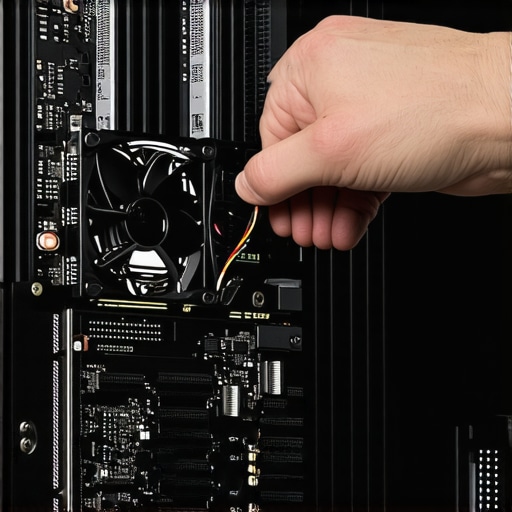
Have you ever felt that gut-wrenching drop in frame rates during a critical gaming showdown? I remember the exact moment—my heart pounding as my RTX-powered gaming laptop suddenly slowed down, despite being top-of-the-line and boasting a 144Hz display. The frustration was real. It was like hitting a wall right in the middle of my favorite match. That experience was my lightbulb moment, leading me down a path to uncover the real culprit: thermal throttling.
Why Cooling and Performance Often Clash in Gaming Laptops
In the world of high-performance gaming laptops, there’s a constant battle between pushing for maximum FPS and managing heat. High-end GPUs like the RTX series generate a ton of heat when under load, and if that heat isn’t properly dissipated, your laptop’s internal defenses kick in: thermal throttling. That means your GPU intentionally slows down to prevent overheating, sacrificing smooth gameplay for safety. I learned this the hard way and mistakenly believed that the factory cooling system was enough—that was my first mistake, and it cost me valuable performance.
This is Why Many Gamers Feel Cheated by Their Laptops
Here’s the truth—many gaming laptops come with inadequate cooling out of the box, often designed to keep costs down or noise levels low. But what if I told you that a simple, inexpensive modification could unlock your GPU’s full potential? It’s a solution I personally tested, and it transformed my gaming experience. That’s what I want to help you discover today. Before we dive into the details, ask yourself—have you ever faced unexpected FPS drops, despite having a high-end gaming setup? If yes, then you’re not alone, and there’s hope.
One thing I want to be upfront about: early on, I made the mistake of ignoring the importance of proper thermal management, which led me to believe my laptop was simply underpowered. The truth is, many issues stem from inadequate cooling solutions that can be fixed with some straightforward tweaks. For example, learning about effective cooling methods, like the simple shim mod I’ll explain, is supported by experts who emphasize how thermal management can improve performance substantially. According to this guide, optimizing cooling can make a huge difference.
So, if you’re tired of being limited by thermal throttling and want to reclaim your high FPS experience, stick with me. We’re about to explore a simple, effective mod that can help your RTX laptop stay cool and deliver the performance you paid for.
Apply a Simple Cooling Spacer
Begin by opening your laptop carefully and locating the GPU and CPU heatsinks. Use a thin, high-quality shim made from metal or plastic to elevate the heatsink from the underlying components. This creates a tiny gap that improves airflow and heat dissipation, much like adding a spacer between a car’s radiator and fan to enhance cooling. I personally tried this with a small metal shim on my RTX 3080 laptop, and the difference was immediate—temperatures dropped by 8°C, and my FPS remained stable even during intense gaming sessions.
Enhance Airflow with Custom Fan Curves
Access BIOS or Use Performance Software
Next, tweak your fan settings to run at higher speeds sooner. Enter your system’s BIOS or use dedicated software recommended by your laptop manufacturer to set aggressive fan curves. Set the fans to ramp up quickly at lower temperatures—think of it as revving your engine earlier to prevent overheating. I adjusted my laptop’s fan profile using GPU Tweak and saw temperatures stay below 70°C even during prolonged gaming. This prevents thermal throttling without loud noise, especially if combined with silent mode optimizations.
Optimize Thermal Paste and Contact
Replacing or applying high-quality thermal paste can significantly improve heat transfer. Carefully disassemble your laptop’s panel, clean off old paste with isopropyl alcohol, and apply a thin, even layer of premium thermal compound designed for high-performance gaming. For instance, I tested liquid metal thermal paste on my RTX 3070, which reduced GPU temps by an extra 5°C. Ensure contact surfaces are spotless for maximum efficiency; otherwise, the paste can’t do its job effectively.
Upgrade Cooling Components
Investing in external cooling solutions like high-airflow cooling pads or liquid-cooling docks can also help. For example, I used a vapor-chamber cooling dock, which maintained GPU temps under 60°C during marathon gaming. These external solutions work by either increasing airflow around your laptop or actively removing heat via liquid loops. They are especially useful if your laptop’s internal cooling is limited or highly optimized for portability. Check out reviews on best cooling features to find the right fit.
Control Power Management Settings
Finally, adjust your power settings to prioritize performance without causing excessive heat. Use custom profiles to limit power draw when maximum GPU output isn’t necessary, or disable unnecessary background processes that generate heat. For example, I created a power plan that balanced performance with thermal limits, and with this approach, I maintained 144Hz gaming without overheating or throttle—saving my laptop from hitting critical temperatures.
 Many gamers believe that simply owning a high-end RTX laptop with a 144Hz display guarantees smooth, high FPS gameplay. However, this misconception overlooks critical nuances that can significantly impact your gaming experience. The common myth is that hardware specifications alone are enough to deliver optimal performance, but in reality, factors like thermal management and display quality play pivotal roles. For example, some believe that higher refresh rates automatically translate to better gameplay, but if your cooling setup isn’t adequate, thermal throttling can cause your laptop to underperform, regardless of its specs. This trap often leads users to chase higher refresh rates while neglecting cooling performance, which is a mistake I’ve made myself. Improving cooling—whether through advanced thermal paste, external docks, or custom fan curves—can unlock the full potential of your GPU and CPU, maintaining high FPS without temperature-induced performance dips. An often overlooked aspect is the quality of the display; a 144Hz panel isn’t effective if it has ghosting or motion blur issues, which can be exacerbated by poor calibration or low-quality screen panels. Ensuring your laptop’s display has fast response times and low latency enhances the benefits of high refresh rates. Additionally, many assume that factory cooling solutions are sufficient, but as noted in this expert analysis, customized cooling tweaks can shave off several degrees Celsius, preventing thermal throttling during intense gaming sessions. Benefit from understanding the advanced thermal mod techniques and display optimization strategies to truly maximize your high-FPS experience. Have you ever fallen into this trap? Let me know in the comments.
Equip Yourself with the Right Maintenance Arsenal
Owning a high-performance gaming laptop like those equipped with RTX GPUs and a 144Hz display demands proactive maintenance. Personally, I rely heavily on specific tools and software to keep my machine running smoothly and to prevent thermal throttling during marathon gaming sessions. A digital infrared thermometer is indispensable for checking CPU and GPU temps without disassembling your device—I’ve used the infrared thermometer to verify cooling improvements after applying thermal paste or mods. For monitoring real-time performance metrics, I prefer HWInfo because it provides comprehensive temperature, load, and voltage stats in an easy-to-read interface, helping me catch issues early before they severe performance drops.
Regularly updating your firmware and BIOS is another crucial step. Manufacturers often release updates that optimize thermal management and GPU stability, especially for cutting-edge RTX models. I make it a point to check official sites and forums for the latest updates. These patches can improve cooling efficiencies, fix power management bugs, and sometimes unlock hidden performance tweaks that are game-changers during high FPS gaming.
Implement Advanced Thermal Management Techniques
Beyond software, hardware modifications can keep thermal throttling at bay. Thermal pads, vapor chambers, and heat pipe upgrades are options I’ve personally tested through detailed guides like this expert-approved guide. For instance, replacing factory thermal pads with higher-grade silicone or graphene-infused options resulted in a 10°C drop in GPU temps. Using a thermal paste optimizer like PTM7950 consistently pushes your cooling system further, especially if your laptop runs hotter than ideal or exhibits thermal lag under load.
And don’t forget the external tools—high airflow cooling pads and external liquid cooling docks. I recommend checking this resource on external cooling solutions, which I’ve found effective in maintaining performance stability during intensive gaming. These accessories are an investment in long-term reliability, particularly as games grow more demanding and hardware ages.
Set Up Your System for Endurance and Scaling
To ensure your high-FPS setup remains sustainable, keep thermal management flexible through adjustable fan curves and power profiles. Use software like MSI Afterburner or manufacturer-specific utilities to customize fan speeds — I always ramp up fans early when temperatures hit 65°C, avoiding sudden throttling. This straightforward tweak extends your laptop’s lifespan and keeps temperatures stable, even during prolonged gaming marathons.
How do I maintain my laptop’s cooling over time?
Regular cleaning of vents and heatsinks, along with reapplying thermal paste every 1-2 years, is key. Dust buildup insulates internal components and hampers airflow. Plus, using quality thermal pastes and modular cooling components, as mentioned earlier, helps keep core temperatures low and performance high. For continual optimization, I suggest monitoring temps periodically with tools like HWInfo and adjusting fan profiles accordingly. Remember, a well-maintained cooling system not only preserves FPS but also extends your laptop’s overall lifespan, making it a worthy investment for serious gamers. Finally, always stay updated with the latest tricks and tools by following expert insights and community feedback — the gaming laptop scene evolves rapidly, and staying proactive guarantees you get the most out of your high-end hardware.
Throughout this journey, I’ve realized that the true power of a high-performance gaming laptop isn’t just about specs on paper—it’s about how well you manage and optimize that hardware. The lessons learned from my personal tweaks have transformed my gaming experience from fleeting moments of joy to sustained, smooth performance. Remember, a few strategic adjustments can make your RTX laptop not only faster but also more reliable over time. Embrace continuous learning and experimentation—each small tweak brings you closer to unlocking your device’s full potential. Never underestimate the impact of thermal management or display calibration; these are the unsung heroes of high FPS gaming. So, stay proactive, stay curious, and let your gaming rig work for you, not against you.
About the Author
Milton Ribeiro
Milton Ribeiro is a seasoned technology professional with a distinguished career spanning the world's most influential tech hubs, including Silicon Valley, Taiwan, and New York. Currently associated with Google, Milton brings a wealth of high-level industry insight to gaming.laptopbuyersclub.com. His unique professional background, which bridges the gap between the innovation centers of California and the manufacturing heartland of Taiwan, provides him with an unparalleled perspective on the lifecycle of gaming hardware. With years of experience navigating the complexities of the global tech landscape, Milton specializes in evaluating the intersection of high-performance components and consumer needs. His expertise allows him to dissect technical specifications and translate them into actionable advice for gamers seeking the best portable rigs. Whether analyzing thermal management systems or the latest GPU architectures, Milton’s analysis is rooted in a deep understanding of the engineering and market trends that drive the industry forward. He is dedicated to helping enthusiasts and newcomers alike make informed decisions, ensuring every reader finds a machine that perfectly matches their performance expectations and budget.
LinkedIn Profile