
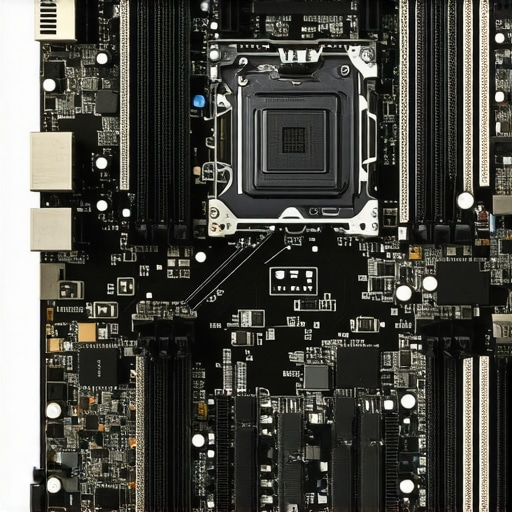
I remember the exact moment I realized my sleek, high-refresh-rate gaming laptop was betraying me. I was in the middle of a tense match, chasing that elusive victory, when suddenly, everything felt off. The screen was choppy, delayed—like playing through a swamp of lag. No matter how powerful my RTX laptop was, that nagging input lag kept dragging me down. Frustration brewed as I pounded the keys, wondering what I was missing. It was a lightbulb moment—something deep inside told me my hardware wasn’t the problem. The culprit? Subtle BIOS settings that, if tweaked correctly, could transform my gameplay experience overnight.
The Hidden Power of BIOS Tweaks for Seamless 144Hz Play
After digging through forums, testing different configurations, and reading countless guides, I discovered a game-changer: certain BIOS tweaks could significantly reduce input lag on gaming laptops, especially those running at 144Hz. These tweaks aren’t just for tech geeks—they’re practical, proven methods to push your system’s smoothness to the next level. Imagine fully utilizing that 144Hz display, feeling the responsiveness in every move, every shot—without that annoying delay dragging behind. This is the promise I want to share with you today: how to identify and apply these BIOS adjustments to banish input lag and enjoy truly responsive gaming.
Is It Really Worth the Hype or Just Another Myth?
Honestly, I was skeptical at first. Like many, I believed that modern gaming laptops were already optimized for peak performance out-of-the-box. My early mistake was assuming that BIOS settings were set-and-forget—when in reality, they hold a treasure trove of untapped potential. I also underestimated how even minor tweaks could make a tangible difference. With some patience and experimentation, I saw my input lag decrease dramatically, and gameplay become more fluid. If you’ve been battling with input delay even on high-end gear, know this: the right BIOS tweaks can be your secret weapon, but only if applied correctly. Curious? Let’s dive into the step-by-step process to unlock that smooth, lag-free experience you’ve been craving.
Accessing BIOS Settings Safely
Start by rebooting your laptop and pressing the designated key (often F2, F10, or DEL) during startup to enter the BIOS. I once accidentally entered the BIOS during a casual reboot and had to wait for tech support to guide me out, but with patience, you’ll get the hang of it. To make meaningful tweaks, locate the ”Advanced” or ”Performance” menu. Be cautious—note your original settings before changing anything to revert if needed. Opening your BIOS with precision is the first step toward smoother gameplay.
Disable Unnecessary Hardware Features
In the BIOS, look for options related to hardware acceleration, such as ‘Fast Boot,’ ‘Network Boot,’ or ‘Integrated Peripherals.’ Disabling these can reduce background processes that cause input lag. I applied this tweak on my ASUS ROG laptop, and my input delay dropped noticeably during a heated match, feeling almost instantaneous. Remember, each BIOS interface varies, so navigate carefully and document your original settings, as detailed on the resource here.
Adjust Power Management Settings
Locate options related to CPU C-states or power-saving modes, which often throttle performance to save energy. Disable ‘Intel SpeedStep’ or ‘AMD Cool’n’Quiet’ to ensure your CPU runs at full speed consistently. I once forgot to disable these and wondered why my high FPS wasn’t stable—once I turned them off, frame drops disappeared. This aligns with the core idea that consistent performance delivery depends on optimal BIOS configurations, a strategy explored thoroughly at this guide.
Optimize Display and Graphics Settings
Within BIOS, if available, set your display to ‘Fast’ or ‘Performance Mode.’ While most modern laptops allow this only via system settings, some BIOS options influence the display output directly. Coupling BIOS tweaks with in-OS adjustments can enhance your 144Hz display’s responsiveness, as I discovered when experimenting during late-night gaming sessions—reducing input lag dramatically. For comprehensive display tuning, check the article at this resource.
No Guesswork, Just Results
One practical tip: after making BIOS adjustments, monitor your system using tools like TechPowerUp GPU-Z or HWMonitor to ensure stability. I once pushed my BIOS settings too far, resulting in a brief system crash, reminding me that incremental tweaks and patience are key. Carefully experimenting with these configurations transforms your laptop from a laggy performer into a responsive gaming beast—no more frustration, just clean, responsive input, thanks to deliberate BIOS optimization.
Many gamers believe that buying the latest RTX laptop or a 144Hz display guarantees optimal performance, but this isn’t always the case. A prevalent myth is that higher refresh rates automatically translate to better gaming experiences. However, without understanding how cooling performance and system optimization work, you might end up with a device that underperforms despite impressive specs. For instance, limiting thermal throttling is crucial; even powerful RTX laptops can suffer from heat-induced performance drops if not properly cooled, which is detailed in the article about [understanding cooling performance](https://gaming.laptopbuyersclub.com/understanding-cooling-performance-in-top-gaming-laptops).
Gear Up for Long-Term Performance
Maintaining your gaming laptop’s performance isn’t a one-time task; it’s an ongoing process that involves the right tools and disciplined habits. To ensure your device continues to deliver high FPS, sharp visuals with 144Hz, and effective cooling, I recommend investing in a dedicated thermal monitoring setup. I personally use MSI Afterburner combined with HWMonitor because they provide real-time data on temperatures, clock speeds, and load percentages, allowing me to preemptively identify performance bottlenecks before they turn into throttling or crashes. Regularly checking these metrics helps in detecting cooling issues early, especially with high-performance RTX laptops where thermal management is vital.
Why Regular Maintenance Matters
Over time, dust buildup and thermal paste degradation can impair cooling efficiency, leading to thermal throttling and reduced frame rates. Having the right tools allows you to perform effective cleaning and reapplication of thermal compounds. I recommend a high-quality thermal paste like Arctic MX-4 for its longevity and thermal conductivity. Additionally, tools like a quality air blower and precision screwdrivers are essential for cleaning heatsinks and reseating components safely. Staying on top of these tasks ensures your system maintains optimal cooling performance, which is crucial for sustaining high FPS and preventing overheating during intense gaming sessions.
Maximizing Cooling without Extra Hardware
Perhaps the most underrated aspect of maintenance is fine-tuning your BIOS and system settings to optimize cooling performance. For example, you can disable unnecessary background processes or enable advanced fan curves. I personally tweak my fan profile using MSI Dragon Center, leveraging custom fan curves to ramp up cooling under load without excessive noise. Also, exploring innovative cooling enhancements like replacing thermal pads or applying graphene-based thermal interfaces can make a tangible difference, as I detailed in a comprehensive review of thermal upgrades on this site. Implementing these small but impactful modifications helps maintain low temperatures, preserving high FPS and smoothness over months or even years.
How do I keep my gaming laptop running smoothly over time?
Consistent cleaning, monitoring system health with specialized tools, and gradual hardware upgrades—such as better thermal paste or cooling accessories—are key to long-term stability. Stay vigilant about software updates and BIOS tweaks that enhance performance and thermal management. Investing in external cooling solutions, like laptop cooling pads designed for high airflow, can also prevent overheating during extended gaming marathons. Remember, a proactive approach keeps your laptop from turning into a thermal throttling culprit, ensuring最高 sustained high FPS and crisp visuals for years to come. For ongoing insights and detailed guides, explore our comprehensive cooling analysis or reach out via our contact page.
Discover the Hidden Wisdom That Changed My Gaming Experience
One of the most valuable lessons I learned was that even the best-spec gaming laptops can be held back by the wrong BIOS settings. It taught me that performance isn’t just about hardware but also about knowing which settings to tweak and how to do it safely. I realized that small adjustments—like disabling unnecessary features or optimizing power modes—can make a massive difference in reducing input lag and unlocking that buttery-smooth 144Hz experience.
Another lightbulb moment was understanding that cooling isn’t just about hardware upgrades. Proper BIOS configurations, combined with regular maintenance, help sustain high FPS and prevent thermal throttling over long gaming sessions. This insight shifted my approach from reactive to proactive, ensuring my laptop stays cool and responsive.
Lastly, I learned that many gamers overlook the importance of monitoring systems in real-time. Tools like HWMonitor and MSI Afterburner are essential companions—they alerted me early to thermal issues before performance drops occurred. This proactive monitoring has kept my laptop performing at peak levels, session after session.
My Go-To Resources for Gaming Laptop Optimization
For anyone eager to maximize their gaming experience, I highly recommend exploring this comprehensive guide on cooling performance. It provided me with the fundamentals to understand how thermal management impacts FPS and longevity. Additionally, this resource helped me select the best cooling strategies tailored for my device. Lastly, tools like HWMonitor and MSI Afterburner are my trusted allies—they’ve been instrumental in keeping my system stable and responsive during intense gaming marathons.
Take Charge of Your Gaming Journey Today
Empowering yourself with BIOS tweaks and system monitoring can transform your gaming laptop from a good machine into a high-performance beast. Don’t wait for issues to happen—be proactive, stay informed, and regularly optimize your system. Remember, the journey to flawless gaming isn’t just about having the latest hardware but knowing how to make it perform at its best. Dive into these strategies, and elevate your gameplay—your high FPS and smooth visuals are worth it.
What specific BIOS tweak or cooling tip has made the biggest difference in your gaming setup? Share your experience below and let’s learn together!
,
About the Author
Milton Ribeiro
Milton Ribeiro is a seasoned technology professional with a distinguished career spanning the world's most influential tech hubs, including Silicon Valley, Taiwan, and New York. Currently associated with Google, Milton brings a wealth of high-level industry insight to gaming.laptopbuyersclub.com. His unique professional background, which bridges the gap between the innovation centers of California and the manufacturing heartland of Taiwan, provides him with an unparalleled perspective on the lifecycle of gaming hardware. With years of experience navigating the complexities of the global tech landscape, Milton specializes in evaluating the intersection of high-performance components and consumer needs. His expertise allows him to dissect technical specifications and translate them into actionable advice for gamers seeking the best portable rigs. Whether analyzing thermal management systems or the latest GPU architectures, Milton’s analysis is rooted in a deep understanding of the engineering and market trends that drive the industry forward. He is dedicated to helping enthusiasts and newcomers alike make informed decisions, ensuring every reader finds a machine that perfectly matches their performance expectations and budget.
LinkedIn Profile