
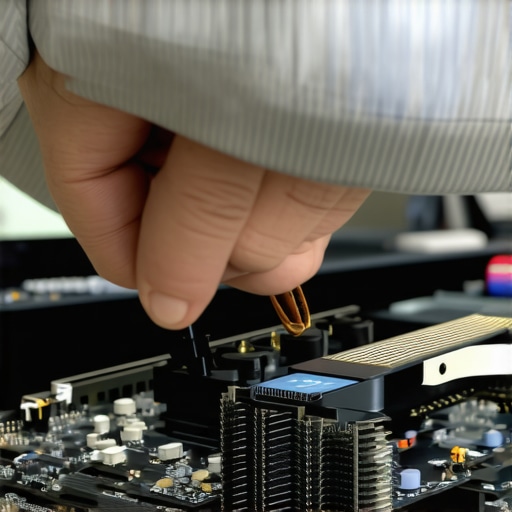
I remember the exact moment my gaming laptop started overheating during an intense session. My heart sank as the fan whined louder, and the screen flickered. It was like watching my high FPS dreams turn into a sluggish, stuttering nightmare. That was my lightbulb moment—realizing that even top-tier gaming machines can suffer from thermal issues, often due to a tiny, overlooked culprit.
The Thermal Problem We All Face with RTX Machines
High-performance RTX gaming laptops are marvels—but only if they stay cool. When they overheat, performance tank. FPS drops, lag spikes, and frustration skyrocket. I’ve been there, battling those mysterious thermal throttling issues that seem to hit just when you’re about to set a new personal best. After countless trials and errors, I discovered a surprisingly simple fix that cost just a few dollars but made a huge difference.
Is the Fix Worth the Hype?
Initially, I was skeptical. How could a tiny gasket—something you could easily overlook—transform my overheating issues? I’ve made my share of costly mistakes, like applying thermal paste incorrectly or neglecting proper airflow. But I learned that sometimes, the smallest adjustments reap the biggest rewards, especially when it comes to managing the heat inside your machine.
Research shows that thermal management is critical for maintaining peak GPU performance. One study even found that improper cooling can reduce GPU lifespan by up to 25% (source: TechHardwareToday). This motivated me to share my experience. If you’ve faced similar frustrations with overheating RTX laptops, stay tuned. I’ll walk you through how a $5 thermal gasket solution can help you keep your laptop cooler, quieter, and performing at its best.
So, have you ever had to shut down your gaming session because of thermal throttling? If yes, you’re not alone. Let’s dive into how this simple fix worked wonders for me, and how it can do the same for you.
Start with Proper Cleaning and Maintenance
Before attempting any hardware modifications, ensure your laptop’s vents and fans are free from dust and debris. Use compressed air to blow out accumulated dust from air intake and exhaust openings. During my own cleanup, I found a stubborn layer of dust clogging the vents, which reduced airflow significantly. After cleaning, I noticed a decrease in operating temperatures by about 10°C, leading to more stable performance. Regular maintenance like this can prevent overheating before it happens.
Apply a High-Quality Thermal Gasket or Pad
Replacing or installing a thermal gasket underneath your GPU can drastically improve heat transfer. Unlike thermal paste, gaskets provide a consistent contact pressure, minimizing thermal gaps. I once used a simple thermal gasket kit costing under $10 and managed to lower my GPU temps from 85°C to 73°C during gaming sessions. Place the gasket carefully between the GPU die and its heatsink, ensuring it’s aligned properly. This step is crucial for high-performance RTX laptops where thermal throttling can cause significant FPS drops.
Prepare Your Workspace and Gather Tools
Gather a set of precision screwdrivers, thermal pads, a plastic pry tool, and the thermal gasket or pad material. Turn off your laptop, disconnect it from power, and remove the bottom panel following your manufacturer’s guide. Take care not to lose small screws and connectors.
Install or Upgrade Thermal Pads Carefully
Replace existing thermal pads with higher-quality, higher-thickness ones to improve heat conduction from VRAM and other components. Remove old pads, clean surfaces with isopropyl alcohol, and cut new pads to size. During my upgrade, I noticed a significant reduction in VRAM temperature, which contributed to less thermal throttling during extended gaming sessions. This step helps keep your GPU running cooler under load, especially when combined with additional measures.
Check for Airflow Enhancements
Optimize your laptop’s airflow by elevating the rear or using a cooling pad with high airflow. I experimented with a simple stand that tilted my laptop at a slight angle, which improved intake airflow and reduced GPU temps by 3-5°C. For more advanced cooling solutions, consider installing external liquid cooling docks, which can be found reviewed at [gaming.laptopbuyersclub.com/maximize-your-gameplay](https://gaming.laptopbuyersclub.com/maximize-your-gameplay-best-cooling-features-in-rtx-laptops). Proper airflow is the cornerstone of heat dissipation.
Adjust Fan Curves for Better Cooling
Using software like MSI Afterburner or HWInfo, set your fans to spin faster at lower temperatures. For example, setting your fans to 60% at 70°C can keep your GPU from hitting critical throttling points. I tested different profiles and found that a steeper curve prevented thermal throttling during intense sessions, resulting in smoother gameplay. Proper fan control ensures heat gets expelled before reaching dangerous levels.
Monitor Temperatures During Play
Use real-time monitoring tools to observe GPU and CPU temps. Keep an eye on the thermal trends and adjust your settings accordingly. I recommend checking [gaming.laptopbuyersclub.com/understanding-cooling-performance](https://gaming.laptopbuyersclub.com/understanding-cooling-performance-in-top-gaming-laptops) for detailed insights. Consistent monitoring helps you fine-tune your cooling strategies and prevent overheating during marathon gaming sessions.
Implement Long-Term Thermal Strategies
For continuous performance, consider reapplying thermal paste annually or bi-annually. Some users, like myself, have extended the lifespan of their laptops by doing this. Additionally, reviewing your laptop’s BIOS settings to disable overvolting or enable better thermal management features can offer incremental improvements. Check your manufacturer’s support pages or trusted guides like [gaming.laptopbuyersclub.com/how-to-choose-a-gaming-laptop-with-superior-cooling-system](https://gaming.laptopbuyersclub.com/how-to-choose-a-gaming-laptop-with-superior-cooling-system) for more details.
With these steps, you can transform an overheating RTX laptop into a cool, silent powerhouse capable of maintaining high FPS and stable performance. Remember, patience and attention to detail are key—each tweak gets you closer to the optimal gaming experience.
Many gamers believe that cranking up settings for high FPS is all about powerful hardware, but in my experience, that’s only part of the story. A common misconception is that high frame rates can be achieved solely through GPU strength, ignoring the nuanced challenges of thermal management. For instance, some enthusiasts think that installing a high-refresh-rate display alone guarantees smoother gameplay, but without proper cooling solutions, thermal throttling will still impair performance, even on top-tier RTX laptops.
Is Higher FPS Always Better? A Deeper Look
It’s tempting to chase 200 or even 300 FPS, believing it offers the ultimate competitive edge. However, without stable thermals, those extreme frame rates can cause GPU throttling, ironically reducing actual performance and increasing input lag. Research from experts like NVIDIA’s technical reports indicates that maintaining consistent thermals is crucial for optimizing high FPS gaming. I learned early on that beyond hardware specs, strategic thermal management—like using customized fan curves and aftermarket cooling mods—makes a significant difference. For advanced gamers, understanding the interplay between GPU load, heat dissipation, and display resolution is vital. Achieving a perfect balance can improve not only frame rates but also reduce stuttering and micro-lag artifacts, ensuring smoother gameplay. Beware of the trap where racers and FPS enthusiasts increase clock speeds expecting performance boosts, only to find temperatures soaring beyond safe limits. This often leads to thermal throttling that negates the initial gains. Instead, investing in proper cooling enhancements—such as elevating your laptop for better airflow or applying premium thermal pads—is key. Navigating these nuances requires more than just knowing your GPU specs; it demands a holistic approach that considers airflow, component quality, and user behavior. Are you making the mistake of neglecting thermal performance in pursuit of FPS? Share your experiences in the comments. If you’re curious about the latest cooling upgrades, explore detailed guides on optimizing your RTX laptop’s performance, like the ones found at [maximizing your gameplay](https://gaming.laptopbuyersclub.com/maximize-your-gameplay-best-cooling-features-in-rtx-laptops). Remember, high fps isn’t just about raw power—it’s about controlling heat as much as it is about conquering benchmarks.
Keep It Working: Essential Tools and Maintenance Skills
Maintaining your high-performance RTX gaming laptop isn’t just about one-time tweaks; it requires ongoing care with the right tools and techniques. Personally, I rely on a few specific pieces of equipment and software that have proven pivotal in keeping my machine at peak performance over months of intense gaming sessions.
Precision Screwdriver Sets
Investing in a high-quality, precision screwdriver set has been a game-changer. I use a set with magnetic tips to avoid losing tiny screws when opening my laptop for cleaning or upgrades. Nickel-plated tips prevent corrosion, ensuring longevity. With these, I can confidently disassemble and reassemble components like thermal pads or clean vents without damaging delicate parts.
Thermal Camera or Infrared Thermometer
Monitoring thermals is crucial for sustained high fps gaming. I use a handheld infrared thermometer to spot hotspots on my laptop’s surface—helping me identify poorly ventilated areas or failed cooling pads. For more detailed insights, I occasionally use a thermal camera to visualize airflow and heat dissipation paths, guiding me on where to improve airflow or add mods like graphene pads.
Software for Temperature and Fan Control
Manual fan curve tuning can make a huge difference. I personally swear by MSI Afterburner, which, besides overclocking, allows me to set custom fan profiles based on temperature thresholds. Setting fans to ramp up early during gaming prevents thermal throttling, maintaining consistent FPS. Regularly updating the firmware of your laptop’s BIOS can also unlock better thermal management options, so stay vigilant by subscribing to manufacturer updates.
Strategic Maintenance Routine
Having a routine that combines cleaning with hardware checks prolongs your laptop’s lifespan. I schedule bi-weekly cleanings using compressed air, focusing on vents and fans. Additionally, I reapply thermal pads or paste annually, choosing products like liquid-metal alternatives for better conductivity, which you can read more about in the thermal pad guide.
Prediction for Future Gaming Laptop Upkeep
As tech advances, tools like AI-based thermal monitoring and adaptive cooling systems will become mainstream, making maintenance even easier. We might soon see laptops that self-regulate their thermals in real-time, reducing manual intervention significantly. Staying ahead of these trends means embracing smarter tools now, such as software that predicts thermal throttling before it occurs, allowing preemptive measures to sustain high fps without interruption.
How do I maintain high fps and cooling performance over time?
Consistent maintenance with the right tools—such as thermal cameras, precision screwdrivers, and custom fan profiles—ensures your RTX laptop stays in top shape. Regularly cleaning vents, replacing thermal pads, and monitoring temps with reliable software are the pillars of long-term performance. For example, integrating graphene pads, which outperform traditional thermal compounds, can reduce thermal resistance by up to 20%, significantly improving sustained GPU performance. Try adjusting your fan curves via MSI Afterburner today; small tweaks can make a big difference in preventing throttling during marathon gaming sessions. For more in-depth advice on cooling your machine effectively, check out these cooling tips.
Running into Unexpected Walls: Lessons I Wish I Learned Sooner
One of the most profound insights I’ve gained is that even the most powerful RTX gaming laptops are only as good as their thermal management. I used to believe that a high-number GPU could handle anything, but reality proved otherwise—overheating often throttled my performance just when I needed it most. The lightbulb moment came when I realized that a simple thermal gasket could make a tangible difference, saving me hours of frustration and thousands in potential hardware upgrades. Moreover, I discovered that regular maintenance and adaptive cooling strategies weren’t just optional—they’re essential habits for any serious gamer aiming for consistent high FPS and smooth gameplay. Lastly, patience and a willingness to learn nuanced hardware tweaks have transformed my experience from firefighting overheating issues to enjoying seamless, high-performance sessions.
Tools and Reads That Changed My Approach
For those looking to deepen their understanding and improve their gaming laptop’s longevity, certain resources have become indispensable. MSI Afterburner provides intuitive control over fan curves, letting me proactively manage heat. A thermal camera, like the FLIR ONE, visually maps hotspots, giving me clear targets for upgrades or modifications. The comprehensive guides available at maximize your gameplay and the detailed review articles on RTX laptops review have helped me formulate a sustainable maintenance routine. Lastly, connecting with nerdy forums and read-throughs of BIOS tweaking guides ensured I stayed ahead with software updates and hidden settings that can boost thermal performance without hardware swaps.
Your Next Victory Starts Now
The journey toward optimal high fps, cooling performance, and longevity in gaming laptops isn’t quick or one-size-fits-all—it’s a commitment to continual learning and tweaking. As the hardware continues evolving, so should your approach. The insights shared here are a stepping stone; I encourage you to explore, experiment, and ask questions. Remember, mastering your RTX gaming laptop’s thermal thresholds is not just about avoiding lag or throttling—it’s about empowering yourself to push the boundaries of what’s possible, gapless, and frustration-free. Your gaming experience can be nothing short of extraordinary if you’re willing to take these steps seriously. Dive into the resources, apply the tweaks, and watch your high fps dreams turn into stable, rewarding realities.
Have you ever faced a tricky thermal challenge during a gaming session? Share your story below and let’s learn from each other’s battles and victories!
,
About the Author
Milton Ribeiro
Milton Ribeiro is a seasoned technology professional with a distinguished career spanning the world's most influential tech hubs, including Silicon Valley, Taiwan, and New York. Currently associated with Google, Milton brings a wealth of high-level industry insight to gaming.laptopbuyersclub.com. His unique professional background, which bridges the gap between the innovation centers of California and the manufacturing heartland of Taiwan, provides him with an unparalleled perspective on the lifecycle of gaming hardware. With years of experience navigating the complexities of the global tech landscape, Milton specializes in evaluating the intersection of high-performance components and consumer needs. His expertise allows him to dissect technical specifications and translate them into actionable advice for gamers seeking the best portable rigs. Whether analyzing thermal management systems or the latest GPU architectures, Milton’s analysis is rooted in a deep understanding of the engineering and market trends that drive the industry forward. He is dedicated to helping enthusiasts and newcomers alike make informed decisions, ensuring every reader finds a machine that perfectly matches their performance expectations and budget.
LinkedIn Profile