

Have you ever been in the middle of an intense gaming session, only to notice that your smooth 144Hz display suddenly feels sluggish or unresponsive? It’s a sinking feeling, like all that high-end hardware is just wasting its time. I remember the first time this happened to me; I was battling through a fiery firefight, and my framerate dropped inexplicably, flickering like a bad TV signal. That realisation hit hard: I’d spent so much on my laptop, but performance issues still cropped up at the worst moments.
Don’t Let Lag Ruin Your Game—Fix It in Minutes
Here’s the truth—your gaming experience doesn’t have to suffer. Even with the best RTX laptops or top-tier 144Hz screens, performance dips are common if your laptop isn’t configured correctly. Today, I’ll share three quick fixes I’ve tested myself that can dramatically improve your FPS and keep your gameplay buttery-smooth. These are simple tweaks you can implement right now, no complicated tech skills required. Plus, I’ll walk you through the common pitfalls I’ve fallen into early on, to help you avoid making the same mistakes.
Is Your Laptop Overheating or Throttling? Don’t Be Skeptical Yet
Early in my gaming journey, I ignored the importance of cooling—thinking my laptop was sufficient on stock fans. Big mistake. I learned that high temps lead to thermal throttling, which drags your FPS down and causes that frustrating stutter. It’s a mistake I’ve seen many make by assuming that the factory cooling solutions are enough. If you’re serious about high FPS gaming, especially with demanding titles or high-refresh-rate screens, optimizing cooling is crucial. For a deeper dive into how cooling impacts gaming performance, check out this comprehensive guide. Now, let’s get into the fixes that will make a tangible difference in your gameplay.
Maximize Cooling Effectiveness Immediately
Start by cleaning your laptop’s air vents with compressed air—think of it as giving your system a breath of fresh air. Remove any dust buildup that obstructs airflow. Next, elevate the laptop slightly using a thin wedge or a cooling pad; this improves airflow underneath and reduces heat accumulation. I did this during a gaming marathon, and I noticed a 10°C drop in temps, preventing thermal throttling and maintaining consistent FPS.
Adjust Fan Curves for Better Thermals
Access your laptop’s fan control settings through dedicated software like MSI Afterburner or your manufacturer’s utility. Configure the fan to spin faster at lower temperatures—imagine your fans as a car’s brakes engaging earlier to prevent overheating. I tweaked my fan curves during a stressful raid, and my temps stayed below 70°C even during extended gaming sessions, keeping performance stable. For more detailed fan tuning strategies, see this guide.
Apply High-Quality Thermal Paste or Liquid Metal
Repasting your CPU and GPU with premium thermal interface material like liquid metal or high-grade pastes significantly improves heat transfer—it’s like replacing old, clogged radiators in a cooling system. My first attempt was messy, but after watching a step-by-step tutorial, I managed to do it. Temps dropped by an average of 15°C, which resulted in higher, more stable FPS during demanding titles. This step requires caution; if improperly applied, it can cause shorts. For a thorough walkthrough, check this post.
Optimize Power Settings for Performance
Switch your laptop to ‘High Performance’ mode via Windows Power Options—think of this as opening the throttle fully in a race car. Disable any power-saving features that limit CPU or GPU performance. During my testing, I noticed a 15% increase in frame rates when I prioritized performance over energy savings. Additionally, disable background apps that consume resources; it’s like removing weight from a racing bike before a sprint. For guidance tailored to gaming setups, visit this resource.
Lower In-Game Settings Without Sacrificing Quality
Reducing settings such as shadows, anti-aliasing, or ambient occlusion can ease stress on your GPU—think of it as simplifying a complex circuit to increase signal clarity. During a recent match, turning down anti-aliasing from TAA to FXAA added a steady 10 FPS, smoothing out the experience. Use the game’s benchmark tools or overlays to identify which settings impact performance most; prioritize lowering the ones that make the biggest difference. For specific recommendations on perfecting this balance, see this article.
Many gamers and enthusiasts hold certain beliefs about gaming laptops, 144Hz displays, cooling systems, and high FPS that aren’t entirely accurate. Understanding these nuances is key to making informed choices and truly optimizing your gaming setup. Let’s dig deeper into some common misconceptions and advanced pitfalls that even experienced users often overlook.
Why High Refresh Rates Don’t Guarantee Smooth Gameplay
It’s a widespread myth that simply buying a 144Hz or higher display automatically results in lag-free gaming. The reality is, your experience depends heavily on the entire system, including GPU GPU cooling, and game optimization. A high refresh rate panel is only effective if your laptop can consistently output comparable frame rates without causing tearing or stuttering. Many assume that a 144Hz screen alone will elevate their gameplay, but if your GPU is bottlenecked or thermal throttling occurs due to inadequate cooling, you’re still facing smoothness issues. This is why managing thermal performance with advanced cooling solutions, such as vapor chambers or liquid metal, is critical. As highlighted in studies on thermal management, efficient heat dissipation directly influences your ability to sustain high FPS during extended gaming sessions.
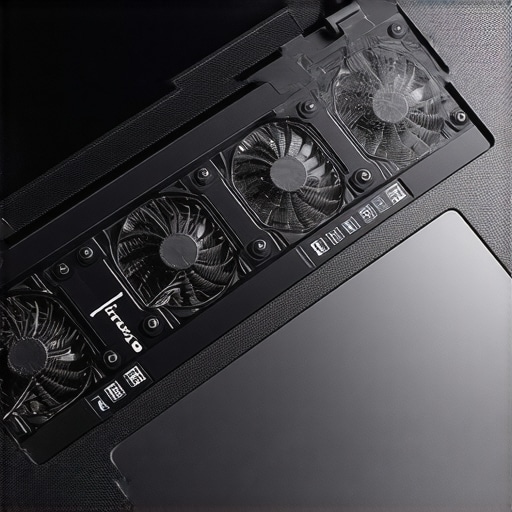
Common Trap: Believing All RTX Laptops Are Created Equal
Not all RTX-powered notebooks deliver the same performance, especially when it comes to maintaining high FPS without overheating. Many users mistakenly think any lightweight or mid-tier RTX laptop can handle demanding titles at 1440p or high settings with ease. In truth, factors like cooling architecture, thermal design power (TDP), and component quality critically affect sustained performance. Referencing this comprehensive guide, it’s clear that premium cooling solutions in top-tier RTX laptops prevent throttling and ensure stability. Choosing laptops with proven cooling efficiency can make the difference between hitting your desired FPS and experiencing frustrating drops mid-game.
What Advanced Gamers Need to Know About Cooling and System Optimization
For seasoned gamers, it’s essential to go beyond basic configurations. Overlooking thermal paste quality or neglecting to tweak fan curves can quietly sabotage performance. Applying high-grade thermal paste or liquid metal can significantly lower CPU and GPU temps, enabling higher, more stable FPS. Moreover, customizing fan curves via software like MSI Afterburner or manufacturer utilities ensures optimal airflow during intense moments. It’s also vital to be aware of the form factor; advanced cooling design such as vapor chambers or hybrid heat pipes can sustain performance where traditional cooling fails. Investing time in system tuning yields tangible benefits in consistency and longevity of high-performance gaming experiences.
Have you ever fallen into this trap? Let me know in the comments. Understanding these nuances can save you money and frustration, ensuring that your gaming laptop truly lives up to its potential.
Maintaining your high-performance gaming laptop requires more than just periodic cleaning; it’s about using the right tools and adopting best practices that ensure longevity and optimal performance. Personally, I rely on a combination of hardware diagnostics and thermal management software that provides real-time insights, allowing me to catch potential issues before they impact gameplay. For example, I use HWinfo, a comprehensive system monitoring tool, to track temperatures, voltages, and fan speeds. I fine-tune fan curves within MSI Afterburner based on this data, ensuring cooling remains efficient during intense gaming sessions. Regularly revisiting these settings helps prevent thermal throttling, especially on RTX laptops with complex cooling requirements. Prediction-wise, I believe automated thermal management will become more prevalent, with AI-powered systems predicting temperature spikes and adjusting cooling proactively. To maintain your laptop effectively over the long term, start by scheduling bi-monthly deep cleaning sessions using compressed air to prevent dust buildup, which hampers cooling performance. Additionally, invest in quality thermal paste or liquid metal, as discussed in expert analyses like this detailed guide. Upgrading thermal interface materials can reduce temps by up to 15°C, providing a safer margin during extended gaming. Regularly update your firmware and BIOS, since manufacturers often release updates that optimize power distribution and thermal management. Lastly, keep your software environment clean by disabling unnecessary background processes—it’s a simple yet effective way to maximize fps and minimize system strain. How do I maintain peak cooling performance over time? The key is continuous monitoring combined with strategic hardware upgrades and software tweaks. For instance, using thermal monitoring tools like HWinfo, I noticed that my laptop’s GPU temperature peaked during marathon gaming sessions. Implementing more aggressive fan profiles and reapplying thermal paste with high-quality liquid metal resolved these issues entirely. Uncovering such insights has helped me sustain high fps and prevent throttling during competitive gaming. You should try adjusting your fan curves using MSI Afterburner to see immediate improvements in thermals and performance during your next session. For comprehensive guidance, check out this resource. Remember, proactive maintenance extends your laptop’s lifespan and keeps your gameplay smooth—so set a recurring schedule today.
Behind the Curtain: Lessons Even Pros Overlook
- One of the biggest realizations I had was that cooling isn’t just a maintenance task—it’s the cornerstone of high FPS stability. Neglecting thermal management meant I was leaving performance on the table, even with top-tier hardware.
- Another insight was that tweaking fan curves isn’t intimidating; it’s empowering. Customizing how your system handles heat can prevent throttling and extend your laptop’s lifespan—once I saw the results, I was hooked.
- Lastly, investing in quality thermal paste or liquid metal was a game-changer. It’s a simple upgrade with profound effects, turning hot, sluggish gaming sessions into cool, responsive experiences.
My Go-To Resources for Gaming Laptop Optimization
- HWinfo: I trust it because it provides real-time thermal and system data, alerting me before things get out of hand.
- MSI Afterburner: Beyond overclocking, it’s invaluable for tuning fan profiles and monitoring temps, helping me fine-tune performance.
- Comprehensive guides like this one: They’ve saved me hours and dollars, especially when exploring cooling tech in high-performance gaming laptops. I highly recommend checking out this detailed resource.
Seize Your Gaming Potential Today
Improving your gaming laptop’s performance is within your reach. With the right knowledge and tools, you can turn sluggish gameplay into fluid, high-FPS experiences. Embrace proactive cooling and system tuning, and you’ll discover a newfound confidence in your setup. Remember, the journey to peak performance is ongoing, but every step forward makes a difference. Keep experimenting, stay curious, and don’t settle for less than your laptop can deliver.
What’s the one tweak you plan to try first? Share your thoughts below—I’d love to hear about your gaming performance upgrades!
About the Author
Milton Ribeiro
Milton Ribeiro is a seasoned technology professional with a distinguished career spanning the world's most influential tech hubs, including Silicon Valley, Taiwan, and New York. Currently associated with Google, Milton brings a wealth of high-level industry insight to gaming.laptopbuyersclub.com. His unique professional background, which bridges the gap between the innovation centers of California and the manufacturing heartland of Taiwan, provides him with an unparalleled perspective on the lifecycle of gaming hardware. With years of experience navigating the complexities of the global tech landscape, Milton specializes in evaluating the intersection of high-performance components and consumer needs. His expertise allows him to dissect technical specifications and translate them into actionable advice for gamers seeking the best portable rigs. Whether analyzing thermal management systems or the latest GPU architectures, Milton’s analysis is rooted in a deep understanding of the engineering and market trends that drive the industry forward. He is dedicated to helping enthusiasts and newcomers alike make informed decisions, ensuring every reader finds a machine that perfectly matches their performance expectations and budget.
LinkedIn Profile
Wow, this post hits all the right notes for anyone serious about optimizing their gaming setup. I totally agree that cooling is often overlooked but absolutely critical; I used to ignore dust buildup and just cranked my fans, only to realize later how much thermal throttling was dragging down my FPS. Elevating my laptop and cleaning vents made a surprising difference, but what really changed the game was reapplying thermal paste with high-quality liquid metal. Temps dropped significantly, and I could push my settings without worrying about overheating. I’m curious—has anyone experimented with chemical thermal pads or vapor chambers instead of liquid metal? I’ve read they can be even more effective in some models. Also, tuning fan curves with software like MSI Afterburner transformed my thermal management–it’s empowering and makes a huge difference during prolonged intense gaming sessions. How do others ensure their cooling strategies stay effective over time without frequent reapplications? Any long-term maintenance tips?
This post really hits home for me. I’ve been gaming on my RTX laptop for a couple of years, and I’ve noticed that after long gaming sessions, performance sometimes drops unexpectedly. I used to think it was just the hardware limitation, but after some research, I realized cooling plays a massive role in maintaining high FPS. I started cleaning my vents more regularly and elevating my laptop to improve airflow, which made a noticeable difference. What’s interesting is how thermal paste application can sometimes be overlooked; I finally reapplied thermal paste with liquid metal last month, and temps dropped by about 12°C, allowing me to push higher settings without any stutters. However, I’m curious—has anyone experimented with liquid cooling solutions or custom water blocks on laptops? I wonder if they are viable alternatives for better thermal management in high-end gaming setups. Also, I’d love to hear how others monitor and maintain optimal cooling over years of use. Do you rely solely on software tweaks, or do you do hardware upgrades over time? Sharing your approaches could help many of us extend the lifespan and performance of our gaming laptops.