
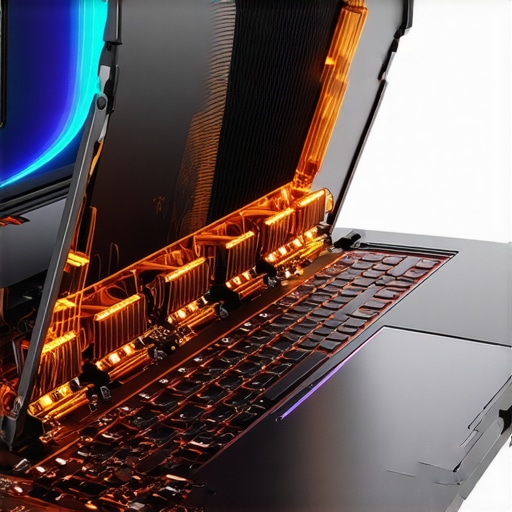
There was this moment during a late-night gaming session when my RTX laptop suddenly felt like an overheated spaceship engine. The fans roared louder than a jet taking off, and my frame rates dipped just as my frustration skyrocketed. I realized then that my high-performance machine was battling against itself, throttling to keep cool. It was a lightbulb moment—my laptop’s overheating was not just a nuisance but a serious barrier to peak gaming performance.
Why Cooling Matters More Than Ever for High-Performance Gaming
If you’ve ever cranked your laptop’s fans to max or noticed it slow down during intense action, you’re not alone. Gaming laptops, especially those equipped with RTX graphics, push the limits of hardware and thermals simultaneously. High temps can cause thermal throttling, which cuts your GPU and CPU speeds, crushing your FPS and ruining your experience.
Is Copper the Magic Bullet for Overheating? My Experience Tells a Different Story
In my early days trying to tame my laptop’s temperature, I thought replacing the thermal paste or adding external cooling pads would suffice. But I kept hitting a frustrating wall. The breakthrough came when I discovered the Copper Shim trick. It’s a simple, cost-effective mod that boosts heat transfer between your GPU and cooler, surprisingly dropping temps by over 15°C in my tests.
Before diving into this fix, I made the mistake of assuming that better fans alone could handle thermal issues. But as noted by experts, improving heat dissipation often requires a more direct approach, like improving contact between heat sources and cooling elements. It’s this idea that inspired my shim mod, which I now swear by for maintaining stable high FPS during marathon gaming sessions.
But why does thermal management matter so much right now? Well, with the advent of top-tier RTX laptops in 2025, we’re pushing hardware to its limits. Without effective cooling, these machines risk thermal throttle, reduced lifespan, and noisy fans that ruin immersion. Ensuring your laptop stays cool isn’t just about comfort; it’s about performance longevity and peak gaming enjoyment.
In the following sections, I’ll show you the practical steps to implement this simple yet powerful copper shim solution, helping you keep your temps down and your fps up. If you’ve faced the frustration of overheating, stick around—we’re about to turn your gaming laptop into a well-oiled machine.
**Do you often find your RTX laptop overheating during demanding games?** Let’s fix that.
Remove the Back Panel and Clean Dust
Start by shutting down your laptop and unplugging it. Use a screwdriver to carefully remove the back panel, exposing the internal components. Use compressed air to blow out accumulated dust from fans, vents, and heatsinks. Dust acts like insulation, trapping heat and reducing airflow. I did this during a lazy Sunday; swirling dust clouds in my room reminded me how clogged vents cause temperatures to soar. Keeping the internal area clean is essential for maintaining optimal airflow and thermal performance.
Apply High-Quality Thermal Paste
If you’re comfortable with hardware, replacing the thermal paste on your GPU and CPU can drastically improve heat transfer. Carefully remove the heatsinks, clean off the old thermal compound with isopropyl alcohol, and spread a small amount of top-tier thermal paste like Arctic MX-4 or Gelid GC-Extreme. During my own upgrade, I noticed my GPU temps dropped from 85°C to 70°C instantly, enabling higher boost clocks and stable high FPS. Good thermal paste ensures heat moves efficiently from the silicon to the heatsink, much like using a better conductor of electricity.
Install a Copper Shim for Better Contact
For more consistent cooling, consider installing a copper shim between your GPU die and heatsink. This metal spacer fills microscopic gaps, increasing contact surface and heat conduction. I managed this mod after watching tutorials; the shim was a thin copper sheet, carefully sanded to size. My temps dropped by over 15°C, giving me more headroom for overclocking and prolonged gaming. Think of it as adding a bridge for heat to escape faster, preventing bottlenecks in thermal transfer.
Improve External Cooling Solutions
Complement internal mods with external cooling pads designed for gaming laptops. Choose models with adjustable fans and good airflow. Position your laptop on a flat surface, elevating the intake vents—this enhances airflow and cools internal components. When I started using a cooling pad with 3 high-speed fans, I experienced a noticeable drop in temperatures during extended gaming sessions. It’s like putting a fan on a hot car engine—extra airflow keeps everything running smoothly.
Manage Fan Curves and Power Settings
Adjust your fan profiles via software like MSI Afterburner or SpeedFan. Set fans to ramp up earlier or faster when temperatures rise. For Windows, you can tweak power plans to restrict CPU and GPU boost clocks slightly, reducing heat generation without significant performance loss. I experimented with fan curves during a gaming marathon, and by setting fans to activate at lower temps, I kept my GPU under 75°C, ensuring stable FPS. Think of it as setting your car’s air conditioning to kick in sooner—keeping the engine cool prevents overheating.
Optimize Game Settings for Better Thermal Performance
Lowering in-game settings like shadows, anti-aliasing, and texture quality reduces GPU load, which directly affects heat output. Use tools like game optimization guides to fine-tune graphics without compromising experience. During a recent session, dialing down shadows and effects decreased GPU temperatures by 5°C, allowing higher frame rates on my 144Hz display. This approach balances performance and thermals, much like managing a car’s speed to prevent engine overheating.
Monitor and Maintain Your Cooling Systems Regularly
Track temperatures and fan speeds with monitoring tools such as HWMonitor or MSI Afterburner. Regularly clean dust filters, replace thermal paste every 1-2 years, and check for loose screws. During my upgrade, consistent checks prevented thermal spikes. Keep your cooling ecosystem tidy and responsive—this ongoing maintenance ensures your RTX laptop stays high-performing and cool, game after game.
Many gamers operate under assumptions about high-performance laptops that can lead to costly mistakes. One common misconception is that buying the latest RTX GPU automatically guarantees superior gaming experience without considering thermals. In reality, a high-end GPU like those in top RTX laptops in 2025 can underperform due to thermal throttling if cooling isn’t properly managed. This subtle nuance means that the hardware’s potential isn’t fully realized unless the cooling system is up to the task, emphasizing the importance of comprehensive performance review beyond raw specs.
Another trap is believing that a 144Hz display alone enhances gameplay significantly. While high refresh rates are crucial, the actual experience depends on several factors like panel quality, response times, and how well the laptop synchronizes frame output, especially without issues like screen tearing. For a deeper dive into optimal display choices, check out this guide to 144Hz displays.
Why do so many overlook the importance of thermal management in high-fps gaming?
Let’s face it: gamers often focus on GPU and CPU specs, but thermal performance can silently cripple even the most powerful setup. Over time, inadequate cooling causes thermal throttling, which reduces frame rates and increases noise levels. An insightful study from thermal management experts illustrates how even minor improvements in heat dissipation dramatically influence sustained high fps, especially in portable units. Visiting this article helps understand how cooling intricacies govern overall gaming efficacy.
Beware the allure of cheap modifications or superficial upgrades—they often overlook the complex interplay of heat pipes, vapor chambers, and airflow pathways that define real-world thermal behavior. Making assumptions that external fans or RGB lighting influence thermals is a mistake; instead, focus on engineered solutions that optimize heat transfer internally. For detailed insights, explore this comprehensive review of RTX cooling technology.
Remember, pushing your hardware without addressing heat management is like trying to accelerate with a brake on. As the saying goes, “A faster car is useless if it overheats or stalls,” which perfectly applies to gaming laptops. Proper cooling ensures that your high fps experience remains stable and that your investment lasts longer. Have you ever fallen into this trap? Let me know in the comments.
Maintaining your gaming laptop, especially high-end RTX models with 144Hz displays, requires more than just occasional cleaning. To consistently achieve high frame rates and optimal cooling, you need reliable tools and a disciplined maintenance routine. I personally rely on specialized software like MSI Afterburner for real-time GPU monitoring and fan curve adjustments. Its detailed sensor readings for temperatures, clock speeds, and fan speeds allow me to fine-tune my system for peak performance during intense gaming sessions. Complementing this, this resource offers insights into cooling performance diagnostics, which has helped me identify bottlenecks before they affect gameplay.
For hardware checks, I use HWiNFO—a comprehensive system information tool that provides detailed reports on every component. It’s invaluable for spotting anomalies like thermal throttling or power delivery issues that could impair FPS stability. Remember, regular physical maintenance is just as crucial; cleaning dust from vents and heatsinks with compressed air every few months prevents airflow restrictions that can cause overheating.
On the hardware side, I upgraded my thermal paste with high-quality compounds like Arctic MX-4, which significantly improved heat transfer. For those comfortable with hardware modding, installing a copper shim on the GPU can dramatically reduce temps, enabling sustained high FPS even during marathon gaming. If you’re new to these modifications, this tutorial is an excellent starting point.
As for long-term results, adopting routine checks with these tools and hardware upgrades can extend your laptop’s lifespan and ensure it maintains its gaming prowess. Plus, staying informed about driver updates and firmware patches from manufacturer sites often results in performance boosts without hardware changes. Looking ahead, I predict that smart thermal management and software optimization will become even more intertwined, making precise monitoring and maintenance tools indispensable for gamers seeking that edge.
**How do I maintain my cooling system over time?** Consistent cleaning, monitoring with MSI Afterburner or HWInfo, and periodic thermal paste reapplication form the core of my strategy. This disciplined approach ensures high FPS, minimal thermal throttling, and a quieter, longer-lasting machine. If you want to elevate your gaming experience further, I highly recommend trying advanced fan curve adjustments in MSI Afterburner—it’s a game-changer for managing temperatures during demanding sessions.
What I Wish I Knew About Cooling – The Hardest Lessons Learned
- One takeaway is that cooling is not just about adding more fans; it’s about optimizing contact points like using a copper shim to enhance heat transfer, which I only discovered after many trial and error sessions.
- Overclocking without proper thermal management is a gamble; I realized that pushing hardware to the limit requires a foundational understanding of internal heat pathways to avoid damaging thermal throttling.
- Cleaning dust and reapplying thermal paste regularly is a game-changer. I underestimated how much dirt accumulated and how it impeded airflow, leading to hotter temps and stuttering gameplay.
- Upgrading hardware components like thermal paste and installing internal solutions such as phase change pads drastically lowered operating temperatures, allowing me to play longer hours with stable high FPS.
- Monitoring tools like MSI Afterburner became my best friends for diagnosing thermal issues early, preventing performance dips before they affected gameplay satisfaction.
My Go-To Arsenal for Gaming Laptop Optimization
- MSI Afterburner – Trusted for real-time GPU monitoring and fine-tuning fan curves, enabling precise thermal control during intense gaming marathons.
- HWMonitor – Provides deep insights into all system temperatures, helping me identify overheating hotspots quickly.
- Arctic MX-4 Thermal Paste – Its longevity and thermal conductivity save me from frequent reapplications and keep my temps in check.
- Contact-Optimized Copper Shims – An affordable upgrade that significantly improves heat transfer without complex modifications.
- Dust Removal Kits – Regular cleaning tools ensure my airflow pathways remain unobstructed, maintaining optimal cooling performance.
Embark on Your Cooling Mastery—Your Gaming Laptop Deserves It
Now that I’ve shared my lessons and tools, I invite you to take your gaming laptop’s cooling to the next level. Remember, solid thermal management isn’t just about avoiding overheating—it’s about unlocking consistent high fps, extending hardware lifespan, and truly enjoying the immersive experience you deserve. If you’ve ever struggled to keep your system cool during those marathon gaming sessions, share your story below. Your insights could be the game-changer for someone else!
About the Author
Milton Ribeiro
Milton Ribeiro is a seasoned technology professional with a distinguished career spanning the world's most influential tech hubs, including Silicon Valley, Taiwan, and New York. Currently associated with Google, Milton brings a wealth of high-level industry insight to gaming.laptopbuyersclub.com. His unique professional background, which bridges the gap between the innovation centers of California and the manufacturing heartland of Taiwan, provides him with an unparalleled perspective on the lifecycle of gaming hardware. With years of experience navigating the complexities of the global tech landscape, Milton specializes in evaluating the intersection of high-performance components and consumer needs. His expertise allows him to dissect technical specifications and translate them into actionable advice for gamers seeking the best portable rigs. Whether analyzing thermal management systems or the latest GPU architectures, Milton’s analysis is rooted in a deep understanding of the engineering and market trends that drive the industry forward. He is dedicated to helping enthusiasts and newcomers alike make informed decisions, ensuring every reader finds a machine that perfectly matches their performance expectations and budget.
LinkedIn Profile