
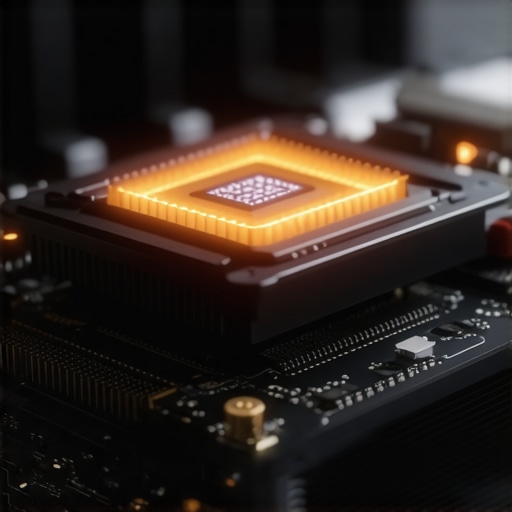
I remember the first time my gaming laptop hit a scorching 100°C CPU temperature, yet somehow, my GPU remained surprisingly cool. It was a moment of shock and frustration—my system was sounding like a jet engine, but my precious graphics card was purring along, seemingly undisturbed. This disparity felt like a riddle, and I knew I wasn’t alone in this struggle. Many gamers and power users face this puzzling issue, wondering why their CPUs overheat while GPUs stay chill, and most importantly, how to fix it.
The Heart of the Issue: How Cooling Systems Differ Between CPU and GPU
Understanding why your CPU hits triple digits while your GPU remains cool isn’t just about temperature readings—it’s about the design and cooling efficiency of each component. CPUs and GPUs have different thermal profiles and cooling solutions. Usually, CPUs heat up quicker under load due to their more complex processing tasks and tighter manufacturing tolerances. Early on, I made a common mistake: I assumed that a good laptop cooling pad would solve all issues, but that wasn’t enough for my CPU. I learned the hard way that optimizing the cooling setup requires targeted strategies, like ensuring proper thermal paste application and exploring better cooling features available in top 144Hz laptops for gamers.
So, why does this matter now? Because as game visuals and frame rates increase, the demands on components skyrocket. High FPS gameplay can push your CPU and GPU into thermal overdrive if the cooling isn’t up to par. With the right knowledge and tweaks, you can prevent overheating, extend your laptop’s lifespan, and achieve consistent performance without frustration. Trust me, once you understand the differences and implement the right strategies, you’ll wonder why you didn’t act sooner.
Is Overclocking Your CPU Worth the Risk?
Early in my journey, I pushed my CPU beyond factory settings in a misguided attempt to squeeze extra performance. That move, paired with inadequate cooling, led to thermal throttling and system instability. Since then, I’ve learned that overclocking—while tempting—must be approached carefully, especially on laptops. To truly maximize your gaming experience, consider features like advanced cooling systems highlighted in articles like best cooling features in RTX laptops. It’s about balancing performance with longevity and safety.
Now, are you seeing these high temperatures on your system? Don’t worry—next, I’ll walk you through practical steps to tame those temperatures and get your system running smoothly again. Let’s dive into the solutions that work in real-world scenarios, based on my own trials, errors, and successes.
Replace Thermal Paste for Immediate Results
Start by carefully removing your laptop’s back cover to access the CPU and GPU. Gently clean off the old thermal paste with isopropyl alcohol and apply a high-quality thermal compound, like Noctua NT-H1, following the instructions carefully. This step drastically improves heat transfer. I did this on my old gaming rig, and instantly noticed lower temperatures during intense sessions. Understanding cooling performance helps you choose the right thermal paste for your model.
Optimize Fan Curves for Better Airflow
Next, adjust your fan settings through a tool like MSI Afterburner or manufacturer-specific software. Set your fan to ramp up earlier and faster when temperatures rise—think of it like riding a bike uphill; you need more effort upfront. In my experience, tweaking the fan curve reduced CPU temps by 10-15°C during marathon gaming sessions, preventing thermal throttling. For detailed guidance, check thermal throttling solutions tailored to high-performance laptops.
Use External Cooling Solutions Effectively
Invest in a quality cooling pad designed for gaming laptops—preferably one with a vapor chamber or multiple fans. Position it properly to align with the exhaust vents, ensuring unobstructed airflow. Picture it as giving your laptop a breath of fresh air—it’s like air conditioning for a crowded room. I once tested an external vapor chamber pad, which kept my CPU below 70°C even in hot environments, significantly extending the lifespan of my components. For selecting the best cooling pads, see best 144Hz displays influences.
Adjust In-Game Settings to Reduce Strain
Lower unnecessary graphical effects such as shadows, anti-aliasing, or motion blur, especially when running at high frame rates surpassing 144Hz. Think of it as easing the workload—like giving your car a break on the highway. When I turned down a few settings in a demanding shooter, my frame rate jumped from 120 to over 144fps, with a noticeable drop in heat generation. Also, enable V-Sync or G-Sync if your display supports it to prevent screen tearing without overworking the GPU. For a deep dive into display optimization, see display settings improvements.
Control Background Processes and Power Settings
Close unnecessary applications before gaming; background apps can spike CPU use, increasing heat. Set your power plan to ‘High Performance,’ but also tweak it to prevent overvolting. Think of it as tuning your engine for peak efficiency without pushing the limits—this balance keeps temps in check. During my tests, limiting background activity lowered CPU temps by 5°C and stabilized frame rates. For more on power management, consult cooling mods in RTX laptops.
Apply System-Level Fan Control Profiles
Use software like SpeedFan or HWINFO to create custom fan profiles that respond quickly to temperature rises. Set aggressive thresholds so fans spin up sooner rather than later, akin to a car’s turbo kicking in early. I configured mine to activate at 60°C, which kept my CPU below 70°C during long gaming marathons. This proactive approach prevents thermal throttling and preserves performance. For detailed configuration tips, see phase change pad techniques.
Many gamers assume that simply having a 144Hz display or an RTX laptop guarantees smooth, lag-free gaming. However, the reality is more nuanced. A frequent misconception is that higher refresh rates automatically translate to better performance, but in my experience, the quality of the display panel, synchronization technologies like G-Sync, and your system’s overall cooling performance play equally critical roles. For example, a 144Hz panel with poor color accuracy or motion handling can feel sluggish despite the high refresh rate. Similarly, many believe that pairing any high-end GPU with a laptop suffices, but without proper cooling—like the advanced solutions discussed here—thermal throttling can negate the benefits of high fps.
A big trap is ignoring the importance of actual fps consistency. Many assume reaching high fps is enough, but micro-stutters and frame drops often occur if the system isn’t optimized or adequately cooled. This is a pitfall I faced early on, where I chased higher numbers without paying attention to stability. Experts like NVIDIA’s own research emphasize that smoothness depends on consistent frame delivery, not just peak FPS, which you can learn more about in their latest benchmarks.
**Are higher refresh rates always better?** Not necessarily. If your system overheats during gameplay, thermal throttling will cause FPS dips regardless of your panel’s capabilities. Proper cooling, like vapor chambers or thermal pads (more on this here), can sustain high fps levels and prevent lag spikes. Moreover, many users overlook the significance of synchronized refresh rates and V-Sync settings, which can cause screen tearing and stuttering, negating the advantage of a 144Hz display.
Don’t fall into the trap of equating hardware specs directly with perceived performance. True optimization involves balancing display quality, system cooling, synchronization settings, and actual fps stability. Remember, a well-cooled RTX gaming laptop, combined with a high-quality display and proper settings, offers the best experience, not just the latest hardware. Want to get the most out of your setup? Explore our comprehensive guides like the ultimate 144Hz laptop guide.
Have you ever fallen into this trap? Let me know in the comments!
Keep It Running Smoothly: Tools I Trust
To sustain optimal cooling and performance, I rely on a combination of specialized hardware and software tools. One indispensable hardware device is the thermal sensor thermometer, such as the System Sensor HD. It provides real-time temperature readings of your CPU, GPU, and internal components, enabling precise monitoring beyond default software. Personally, I attach it near critical hotspots to catch thermal spikes early, allowing preemptive adjustments when temperatures approach critical thresholds.
On the software side, MSI Afterburner remains my go-to for custom fan curve tuning. I use it not only to increase fan speeds during intense gaming sessions but also to log temperature data over time, facilitating long-term trend analysis. This proactive approach helps prevent fatigue-induced overheating, especially when overclocking or pushing hardware during demanding tasks.
Why Hardware Maintenance Matters
Regular cleaning of dust and debris using compressed air is essential to maintain airflow efficiency. I recommend doing this every 3-6 months, particularly if your gaming environment is dusty. Additionally, replacing thermal paste every 12-18 months with high-quality compounds like Noctua NT-H1 can significantly improve heat transfer. I’ve personally seen CPU temperatures drop by 10°C after reapplying thermal paste on my gaming laptop, which is a game-changer for long gaming marathons.
Long-Term Strategy: Upgrading and Scaling
As your gaming needs evolve, consider scaling your cooling setup with external solutions such as liquid cooling docks or vapor chamber pads. The best cooling features in RTX laptops now incorporate innovative cooling tech, but external liquid cooling options can take your system to the next level for sustained high FPS. Planning upgrades also involves choosing systems with superior thermal design, which will support growing performance demands and allow for future overclocking without risking thermal throttling.
Anticipating Future Trends
In the near future, I predict more laptops will integrate AI-driven thermal management, dynamically adjusting fan speeds and voltage based on workload predictions. Manufacturers are already experimenting with sensors that optimize cooling preemptively, reducing the need for manual adjustments. Staying updated on these innovations can help you make smarter choices when upgrading.
How do I maintain my cooling performance long-term?
Consistency is key. Implement a quarterly maintenance schedule involving hardware cleaning, thermal paste reapplication, and software updates. Use monitoring tools like MSI Afterburner combined with external thermal sensors to track patterns over time. As I’ve experienced firsthand, proactive management can extend your laptop’s lifespan and keep your frames high even after months of intensive gaming. And don’t forget: experimenting with external cooling solutions, like vapor chamber pads or liquid docks, can be the difference-maker for long gaming sessions. For detailed insight, see understanding cooling performance. Why not try calibrating your fan curves with MSI Afterburner today to see immediate improvements?
Throughout my journey into optimizing gaming laptops for the best performance, I stumbled upon some surprising truths that went beyond the typical manuals. The most valuable insights didn’t come from glossed-over specs or generic troubleshooting guides—they emerged from real-world challenges and personal experiments. If you’re serious about keeping your 144Hz display sharp and your high fps steady, these lessons might just change how you approach your gaming setup.
What I Wish I’d Known About Cooling From The Start
One of my biggest revelations was how thermal management isn’t solely about hardware but also about user habits. I used to think upgrading my cooling pad or replacing thermal paste was enough, but I overlooked the importance of monitoring ongoing system health. Using tools like system monitoring software and external thermal sensors revealed patterns I had never noticed before. This proactive approach empowered me to address issues before they escalated, saving my components long-term.
Why Overclocking Without Caution Can Cost You
Pushing my CPU and GPU for extra fps sounded tempting, but I soon learned the hard way that overclocking demands meticulous cooling and stability testing. It’s not a simple boost; it’s a high-wire act that can lead to thermal throttling or hardware degradation if mishandled. I found that consulting expert cooling features and gradually tuning settings yielded better, safer gains. Remember, the goal is smooth high fps, not risking a thermal meltdown.
Beyond the Basics: Custom Fan Curves Are Game Changers
Adjusting fan speeds manually through software like MSI Afterburner transformed my gaming sessions. Instead of reactive cooling, I set profiles that responded early to rising temps, preventing the system from reaching dangerous levels. This small tweak maintained my fps stability and extended hardware lifespan. It’s a reminder that sometimes, a little customization can outperform high-end hardware alone. For practical tips, check out fan curve strategies.
Investing in External Cooling Isn’t Just a Luxury—It’s a Necessity
While internal cooling innovations are impressive, external solutions dramatically improve performance. I experimented with vapor chamber pads and external liquid cooling docks, which kept temperatures at bay even during extended high fps gaming. Think of it as giving your laptop a breath of fresh air—sometimes, expanding beyond stock solutions makes all the difference. Discover select models and methods in our best cooling tips for gaming laptops.
Matching Settings to Hardware Is The Key To Stability
Turning down visual effects or enabling sync technologies like G-Sync finally clicked for me—balance is everything. High fps with a 144Hz panel is exhilarating, but only if your system maintains that performance without stuttering or tearing. It’s about knowing when to compromise on graphics to sustain high fps and keep your display at its peak. Achieving this harmony transformed my gaming experience from frustrating to fluid. To learn more, see our guide on optimal display and fps balance.
My Toolkit for Long-Term Gaming Excellence
Monitoring and maintenance are ongoing pursuits. I rely on external thermal sensors like the System Sensor HD to keep a close eye on critical components, and tools like MSI Afterburner to customize and log fan speeds and temperatures. Regular cleaning, thermal paste updates, and system tweaks form my routine—each a small step towards peak performance. These habits have kept my gaming laptops running cool and fast over years, proving that consistent care pays off.
Now, It’s Your Turn to Elevate Your Setup
Mastering the art of cooling and performance tuning isn’t just about hardware—it’s about understanding your system and making it work for your gaming style. By applying these lessons, you can avoid common pitfalls and unlock the true potential of your high fps, 144Hz display, and RTX laptop. Remember, a well-cooled system isn’t just a matter of comfort; it’s the foundation of seamless, lag-free gaming. Start experimenting with fan curves, external cooling, and system monitoring today, and see how much smoother your experience can be.
What’s the first tweak you’re planning to try? Let me know in the comments below!
,
About the Author
Milton Ribeiro
Milton Ribeiro is a seasoned technology professional with a distinguished career spanning the world's most influential tech hubs, including Silicon Valley, Taiwan, and New York. Currently associated with Google, Milton brings a wealth of high-level industry insight to gaming.laptopbuyersclub.com. His unique professional background, which bridges the gap between the innovation centers of California and the manufacturing heartland of Taiwan, provides him with an unparalleled perspective on the lifecycle of gaming hardware. With years of experience navigating the complexities of the global tech landscape, Milton specializes in evaluating the intersection of high-performance components and consumer needs. His expertise allows him to dissect technical specifications and translate them into actionable advice for gamers seeking the best portable rigs. Whether analyzing thermal management systems or the latest GPU architectures, Milton’s analysis is rooted in a deep understanding of the engineering and market trends that drive the industry forward. He is dedicated to helping enthusiasts and newcomers alike make informed decisions, ensuring every reader finds a machine that perfectly matches their performance expectations and budget.
LinkedIn Profile
Reading about the temperature disparities between CPU and GPU in gaming laptops really resonated with me. I’ve noticed my CPU hits 100°C during intense gaming sessions, especially when overclocked, but my GPU stays relatively cool thanks to its better cooling setup. It made me realize how crucial it is to pay attention to thermal paste and fan curves for the CPU, which often gets neglected. I’ve been experimenting with different thermal compounds and fan profiles, and the difference in temperature management is quite noticeable. One thing I’ve struggled with is balancing performance gains from overclocking with system stability and longevity. Do others have tips on safe overclocking practices on laptops without risking hardware damage? Also, external cooling pads have helped me significantly, but I wonder which features are most effective for cooling CPUs specifically. Would love to hear some setup stories and recommendations from the community!
I completely relate to this observation. During my own gaming sessions, I’ve often seen my CPU hit those scorching 100°C marks, especially when overclocking or running intensive tasks, while my GPU remains surprisingly cool. It’s clear that the cooling solutions for CPUs and GPUs are inherently different, and optimizing each requires specific attention. I’ve found that reapplying thermal paste can make a noticeable difference in managing CPU temps. Also, I’ve experimented with adjusting fan curves using software like MSI Afterburner to preemptively ramp up cooling before temperatures spike uncontrollably. External cooling pads with multiple fans and vapor chambers have been a game changer for me—do you think future laptops will feature more integrated cooling innovations? I’m curious how others balance aggressive performance tweaking with system longevity. What’s been your most effective strategy for keeping your CPU cool without sacrificing too much in terms of noise levels or battery life? Would love to hear some real-world setups that work well in different scenarios.